Installation on Linux
Currently, 64-bit Linux operating systems are supported.
There are no special computer requirements. The SalixEDA system will run on any office computer with a screen resolution of at least 1920x1080.
It will also work on monitors with lower resolution, but the toolbars will not fit completely on the screen, which is very inconvenient for work.
Using a mouse is strongly recommended. Trackpads and trackballs will also work, but for a graphical application where the main work is done with a mouse, this will be very inconvenient.
Therefore, using laptops for SalixEDA work should be avoided simply because it is inconvenient, unless used for demonstration purposes or for "field" work.
Minimum Requirements
- Linux 64-bit
- Processor: 2-core, 2.0 GHz
- RAM: 2 GB
- Disk space: 200 MB
- Screen resolution: 1280x720
Preparation for Installation
Download the installer program from the official website SalixEDA.
Change the permissions for the downloaded file. You need to give it execute permission.
chmod +x SalixEDAInstallation
Run the downloaded installer program.
When the installer program starts, you should see a window with the installation path for SalixEDA. Leave this path as default or change it to your own. Then click the Install button.
Important! Do not specify Linux system paths as the installation path. Remember file permissions.
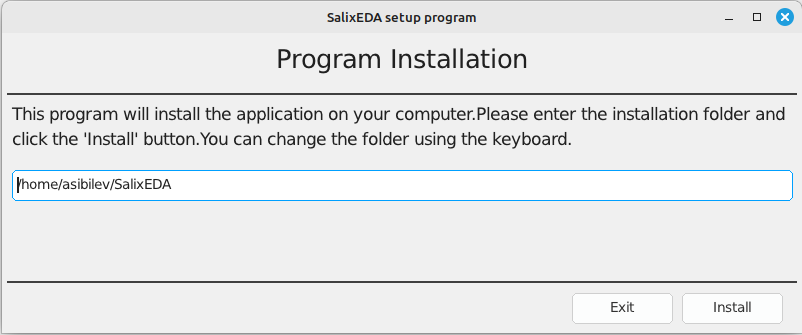
The installation process will begin. Upon successful completion of the installation, the SalixEDA program will start automatically.
Installation Process Description
The installer program prepares a directory for SalixEDA in the location you specified. Then the installer program downloads a set of zip files from the official website that contain the SalixEDA system components. After downloading the zip files, the file extraction process begins. Finally, shortcuts are created in the Start menu or its equivalent depending on your system.
Uninstalling SalixEDA
There is a separate program for uninstalling SalixEDA. It is installed during the installation process. Its shortcut is placed in the Start menu. Simply select this program from the Start menu. You can also run the uninstaller program manually.