Inserting nets into the schematic
Enabling net insertion mode
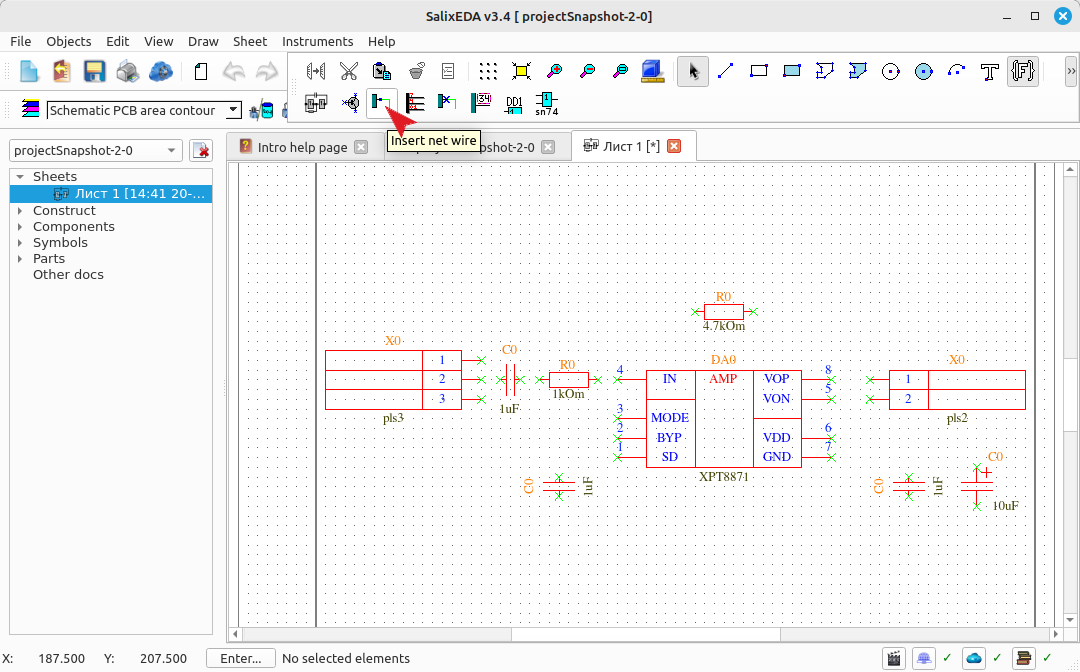
To enable net insertion mode into the schematic, click this button.
Entering nets
A net is simply a polyline that connects component pins. The start, each vertex, and the end of the polyline are entered with the left mouse button. To interrupt polyline input, press the right mouse button.
Net input mode is equipped with a "smart mode". This mode suggests a complete net if net input has not yet started, or suggests completing the net if its input has started. You can accept the suggestion by pressing the middle mouse button, or continue entering the net manually and ignore the suggestion.
Entering nets with smart mode
Move the mouse and the "smart mode" will suggest routing a net between pins depending on the mouse cursor position.
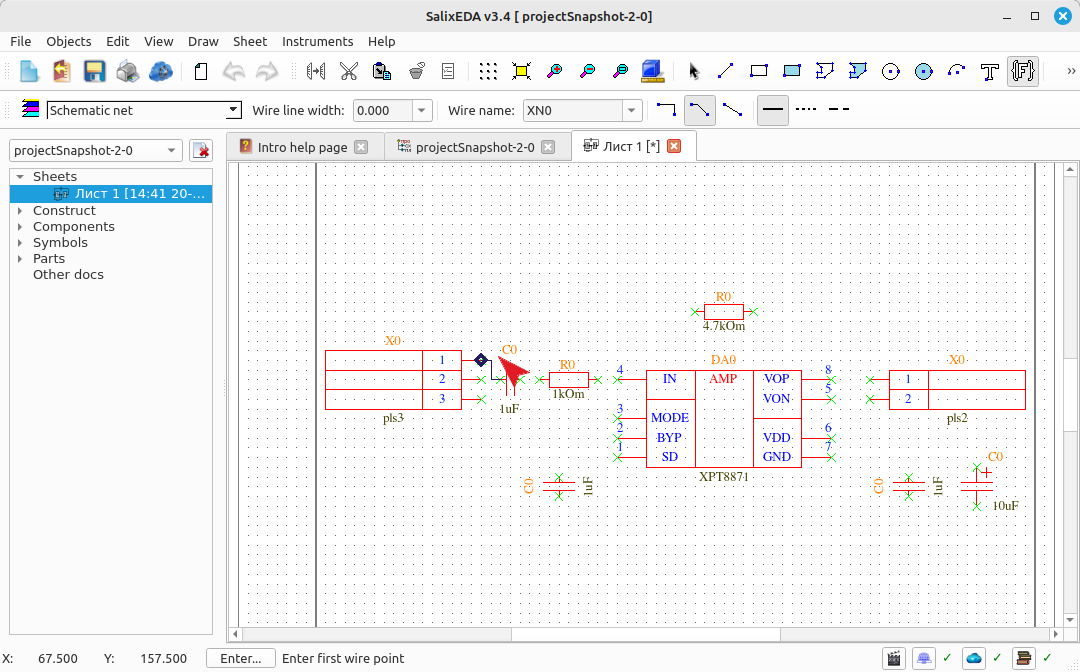
Move the mouse so that the "smart mode" suggests a net between pin 2 of the connector and the capacitor.
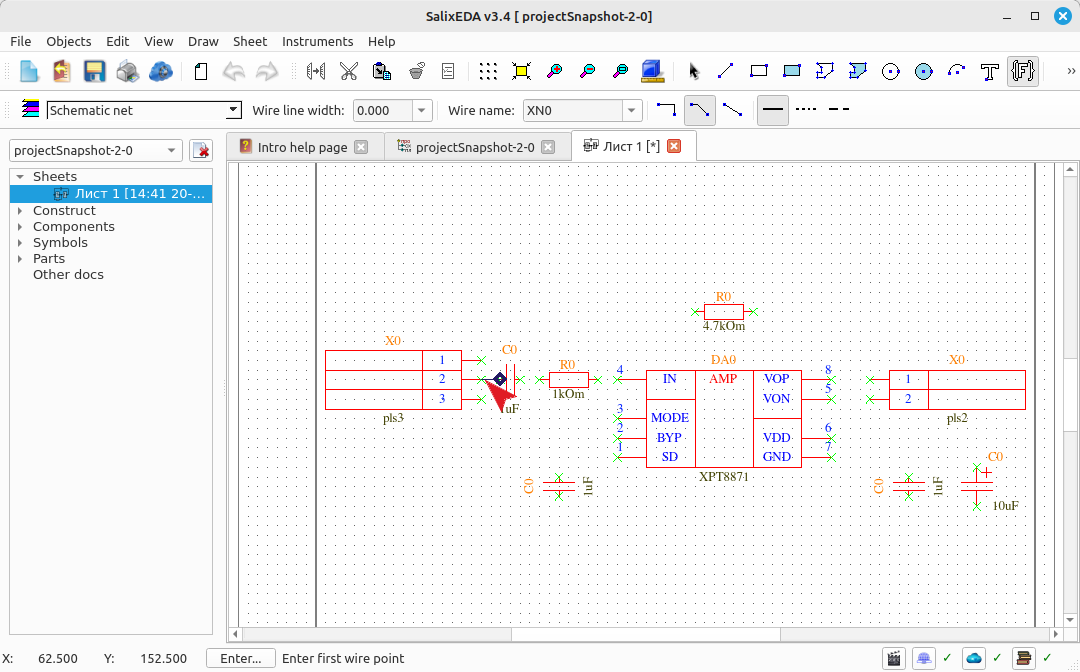
Press the middle mouse button to accept the "smart mode" suggestion. The suggested net is then entered. Move the mouse so that smart mode suggests the next net.
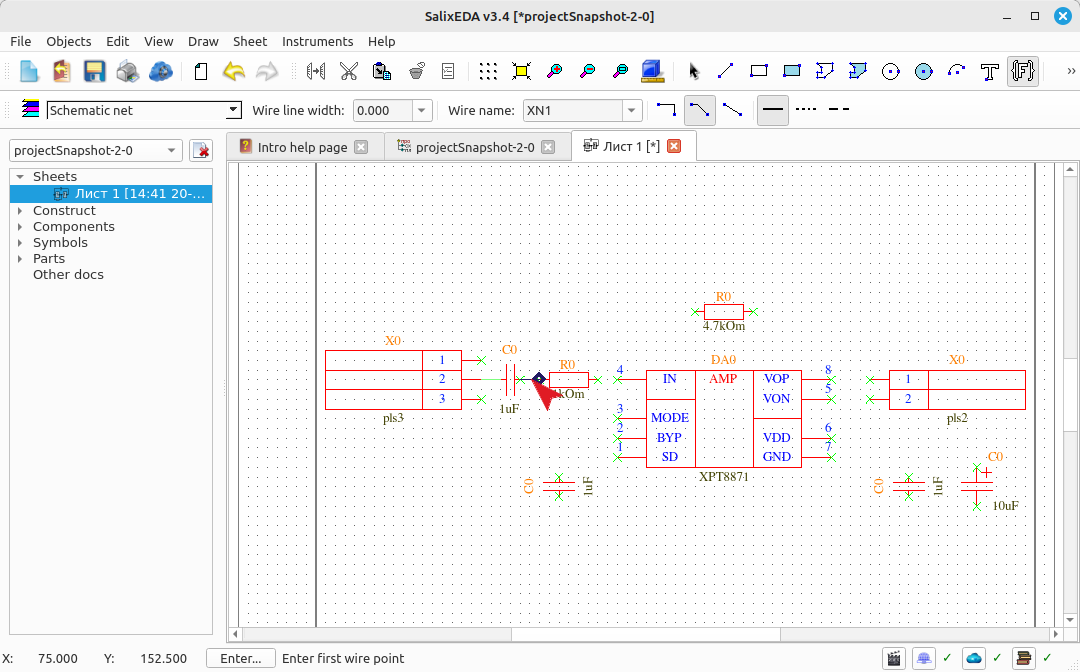
Press the middle mouse button to accept the "smart mode" suggestion. The suggested net is then entered. Move the mouse so that smart mode suggests the next net.
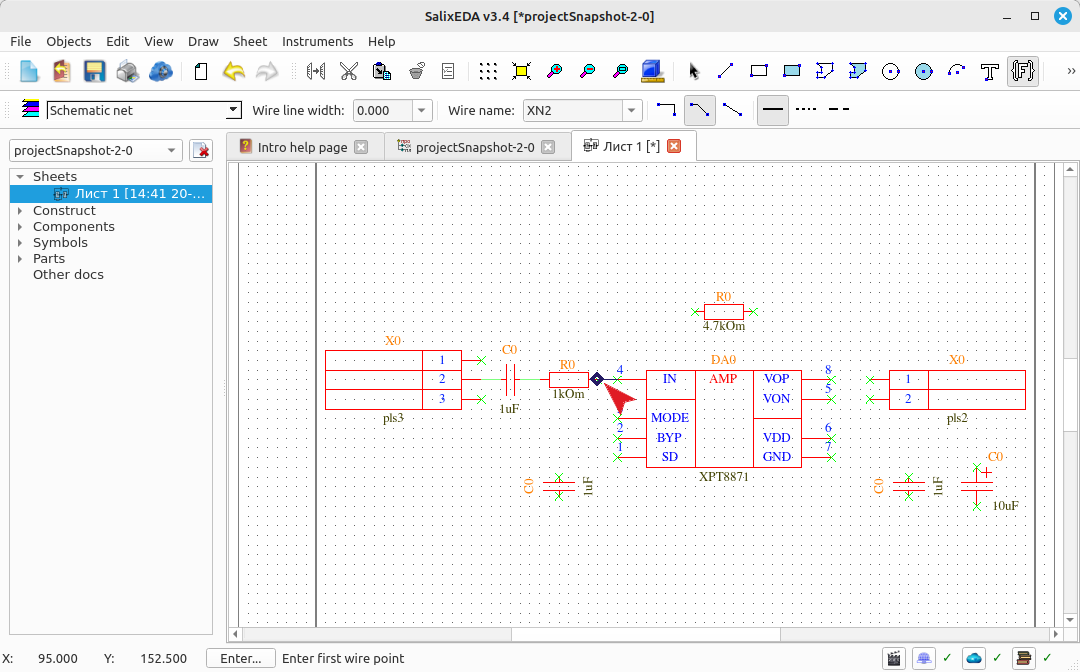
Press the middle mouse button to accept the "smart mode" suggestion. The suggested net is then entered. Move the mouse so that smart mode suggests the next net.
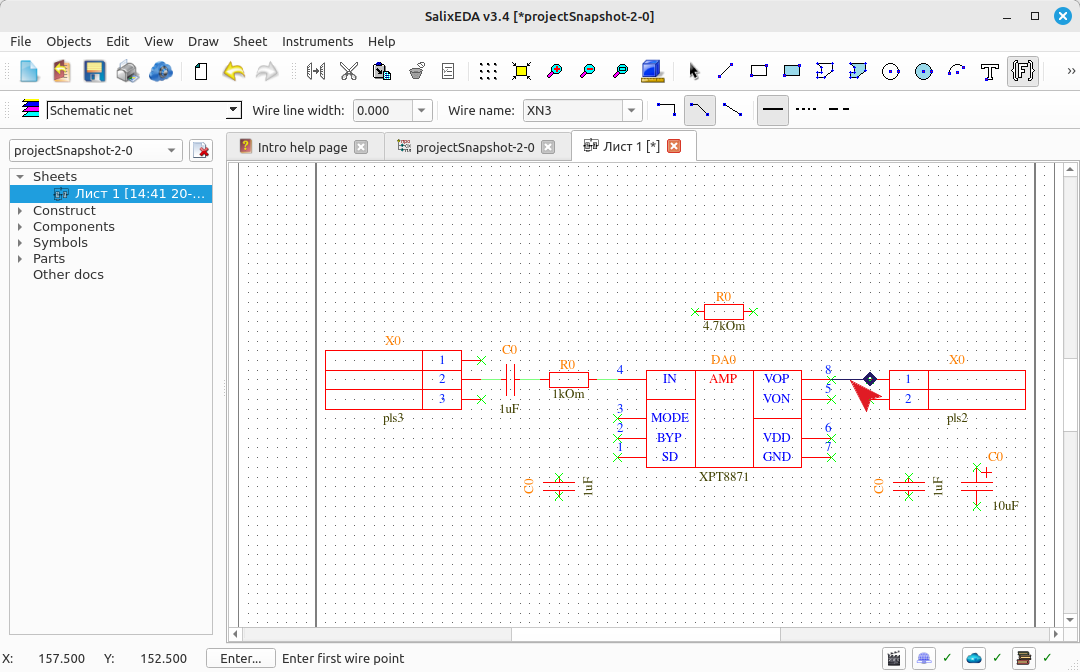
Press the middle mouse button to accept the "smart mode" suggestion. The suggested net is then entered. Move the mouse so that smart mode suggests the next net.
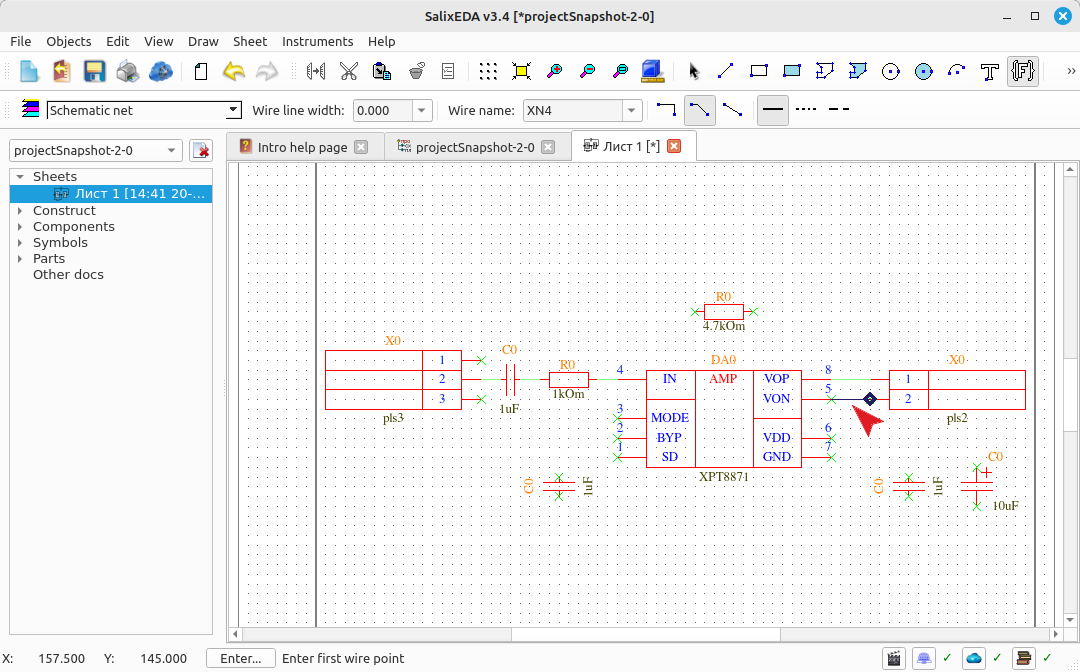
Press the middle mouse button to accept the "smart mode" suggestion. The suggested net is then entered. Move the mouse so that smart mode suggests the next net.
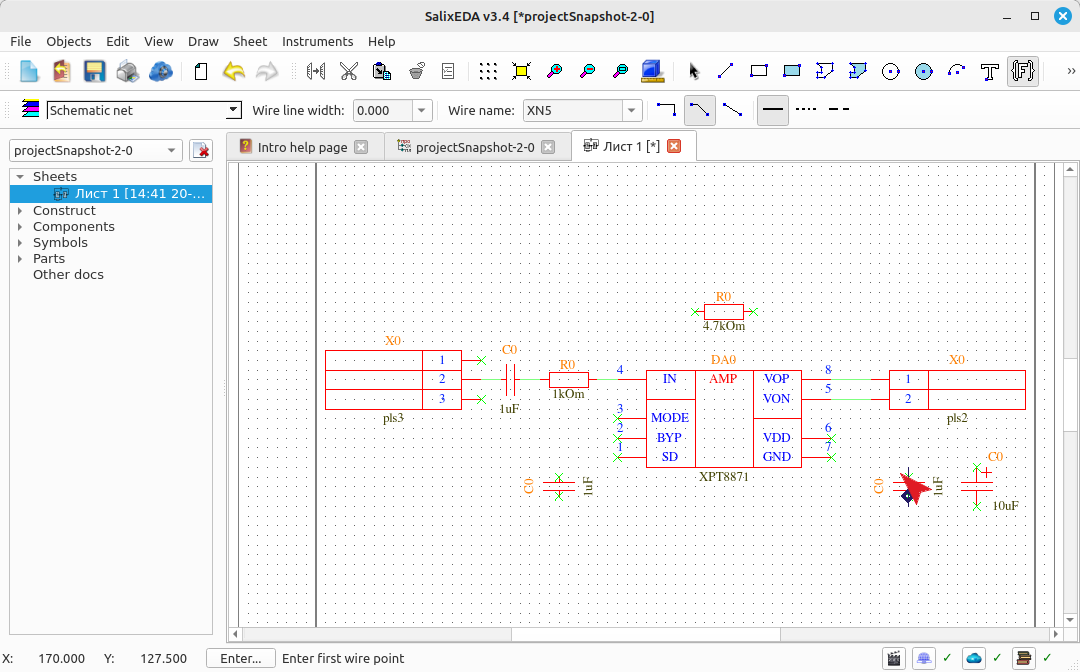
Manual net entry
In cases where the schematic configuration does not allow the "smart mode" to determine a complete net, you should start entering manually. Hover the mouse over a capacitor pin and press the left mouse button to start entering a polyline. Move the mouse to the next vertex and press the left mouse button to fix the vertex. Move the mouse towards the terminating net pin and smart mode will suggest completing the net.
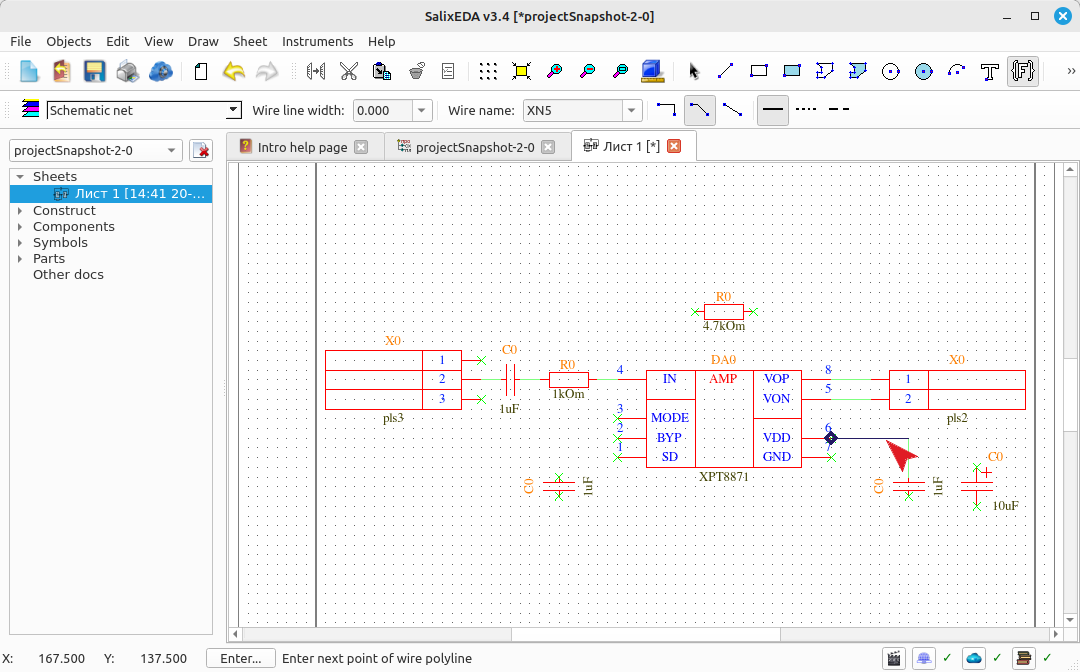
Press the middle mouse button to accept the suggestion. Move the mouse so that smart mode suggests the next net.
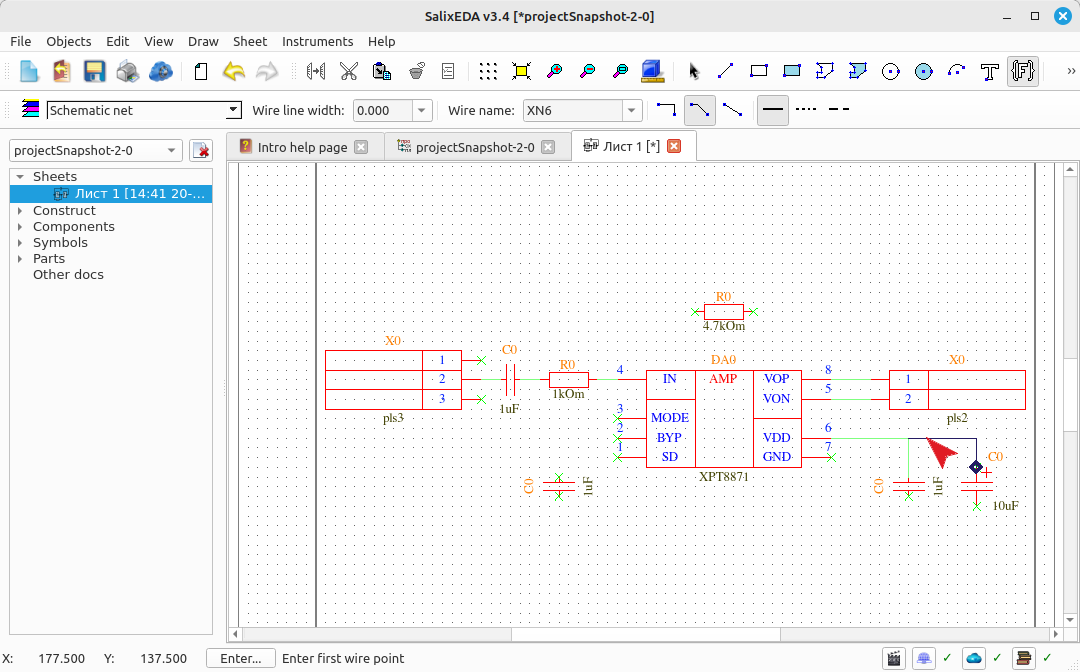
Press the middle mouse button to accept the "smart mode" suggestion. The suggested net is then entered. Move the mouse so that smart mode suggests the next net.
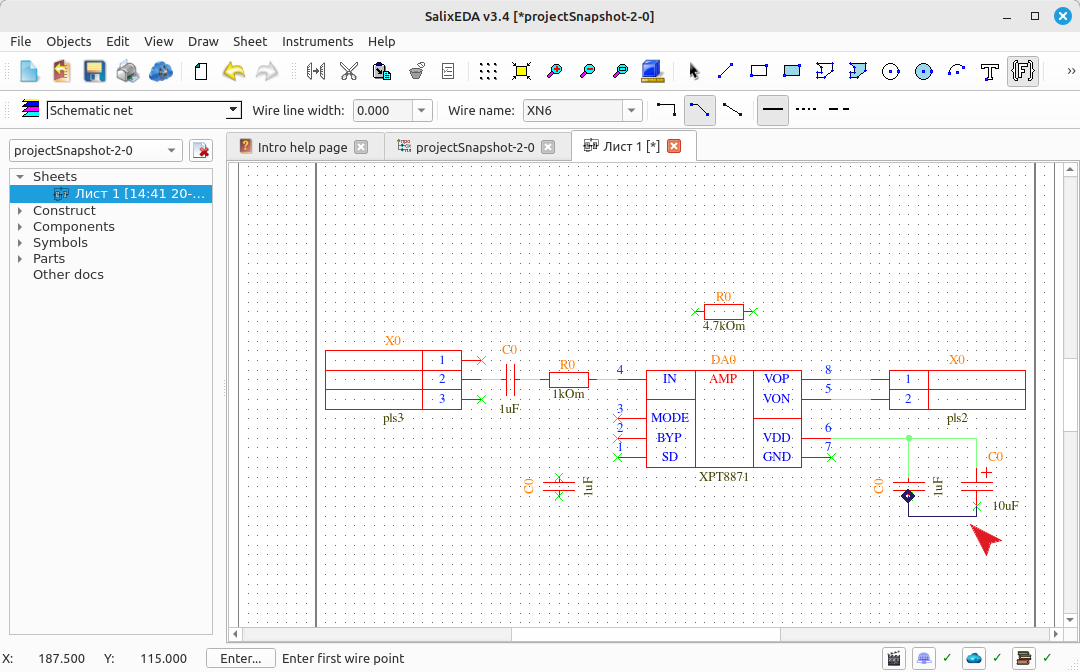
Press the middle mouse button to accept the "smart mode" suggestion. The suggested net is then entered. Move the mouse so that smart mode suggests the next net.
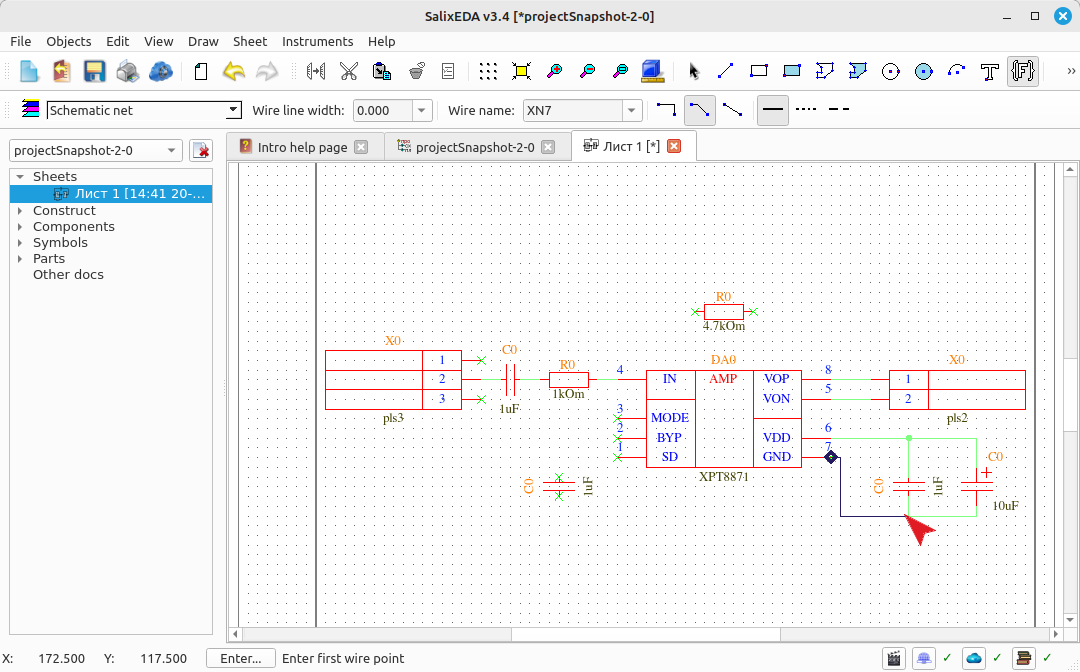
Press the middle mouse button to accept the "smart mode" suggestion. The suggested net is then entered. Move the mouse so that smart mode suggests the next net.
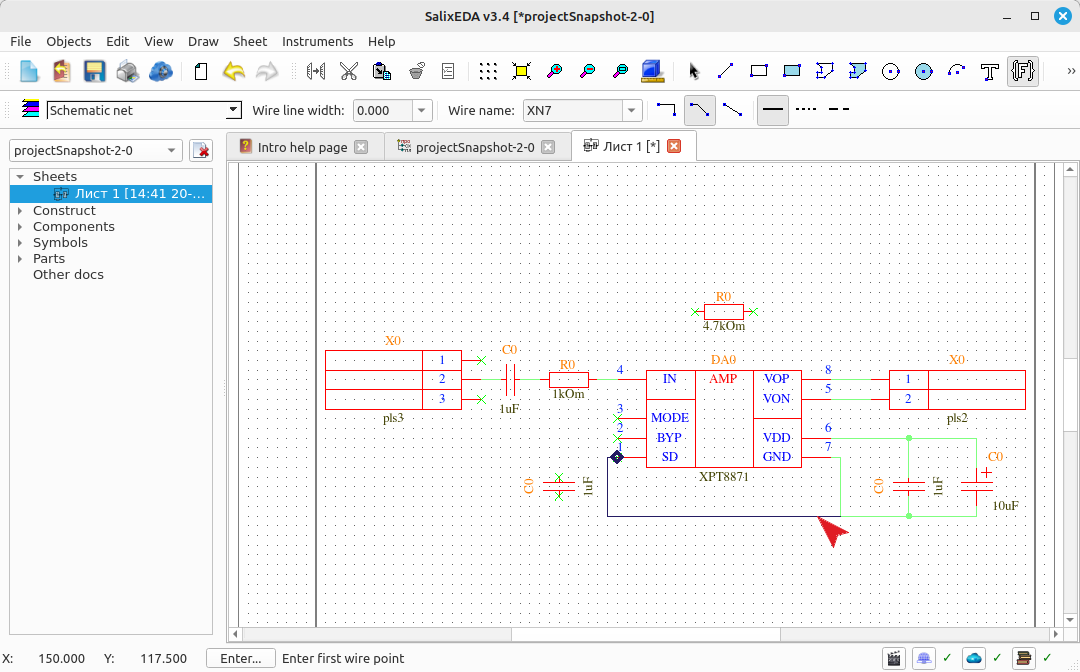
Press the middle mouse button to accept the "smart mode" suggestion. The suggested net is then entered. Move the mouse so that smart mode suggests the next net.
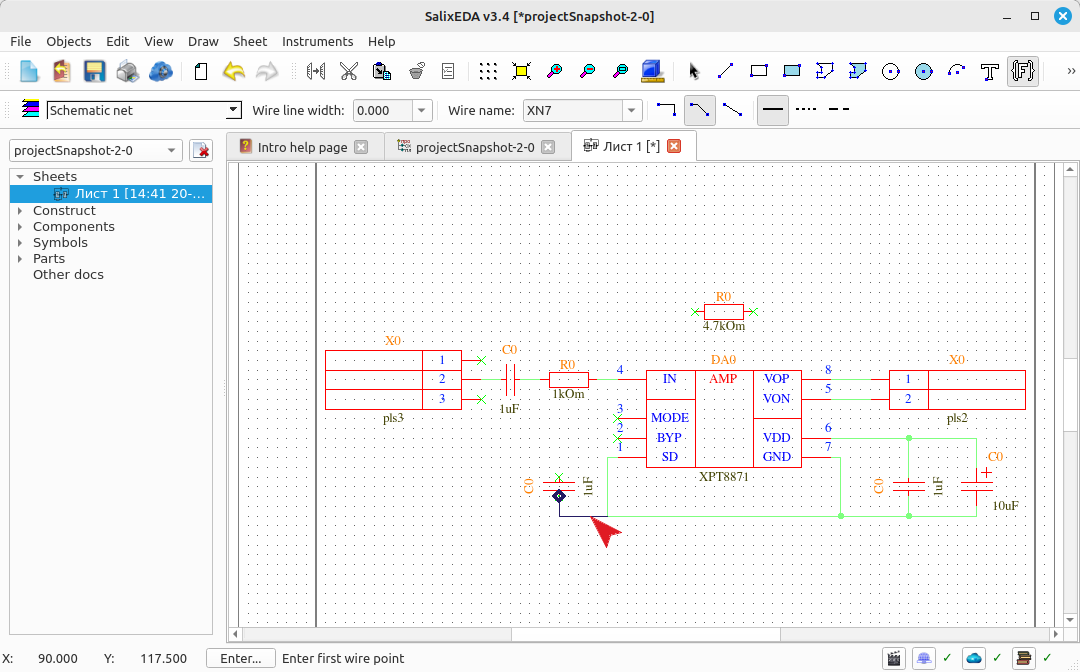
Press the middle mouse button to accept the "smart mode" suggestion. The suggested net is then entered. Move the mouse so that smart mode suggests the next net.
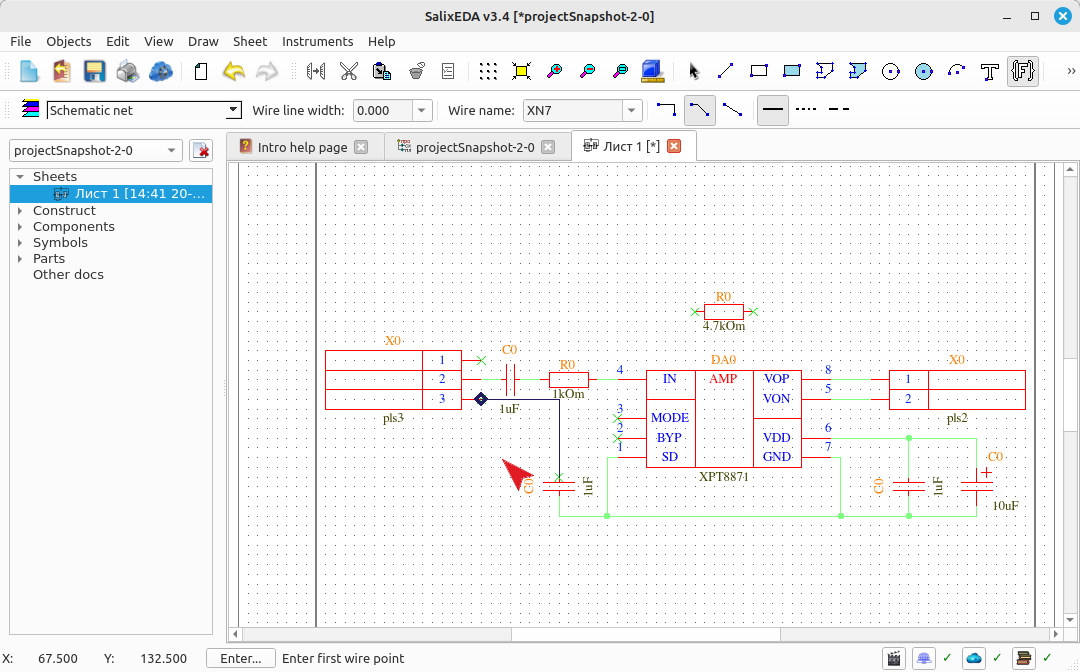
Here the "smart mode" is again unable to route the correct net immediately. Hover the mouse over a net vertex and press the left mouse button to start entering a polyline. Move the mouse to the next vertex and press the left mouse button to fix the vertex. Move the mouse towards the terminating net pin and smart mode will suggest completing the net.
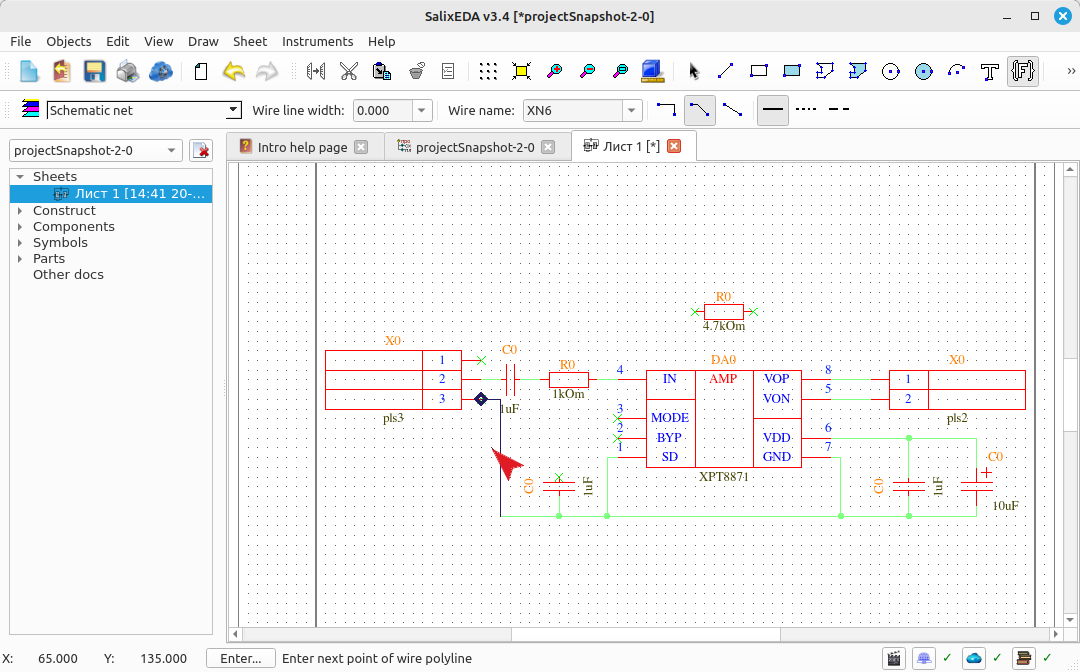
Press the middle mouse button to accept the "smart mode" suggestion. The suggested net is then entered. Move the mouse so that smart mode suggests the next net.
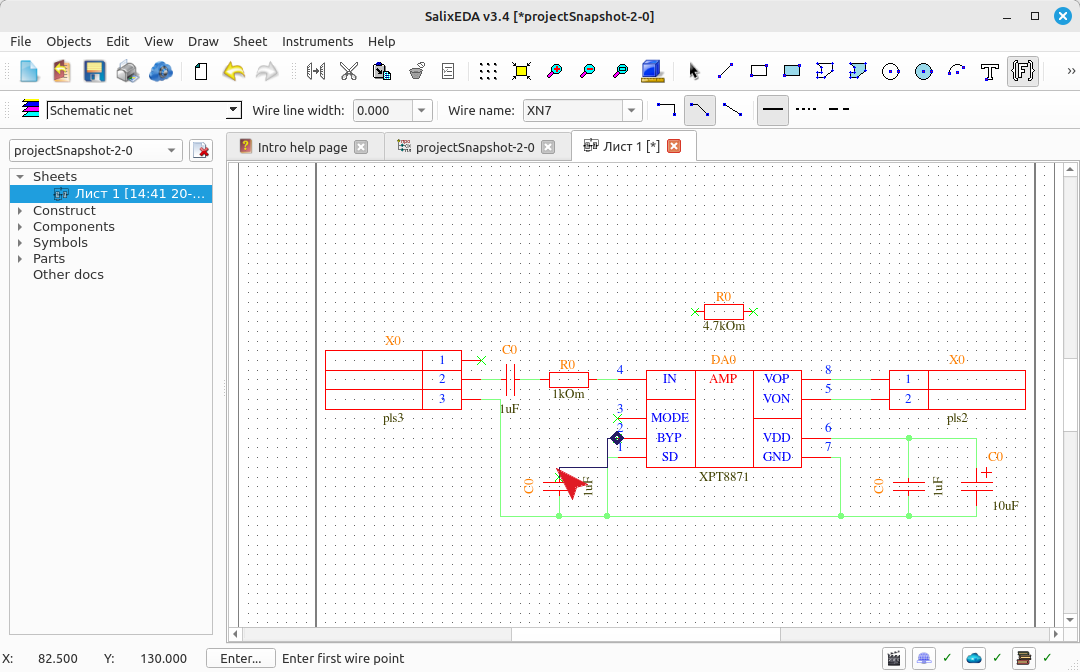
Here the "smart mode" is again unable to route the correct net immediately. Hover the mouse over the top pin of the capacitor and press the left mouse button to start entering a polyline. Move the mouse to the next vertex and press the left mouse button to fix the vertex. Move the mouse towards the terminating net pin and smart mode will suggest completing the net.
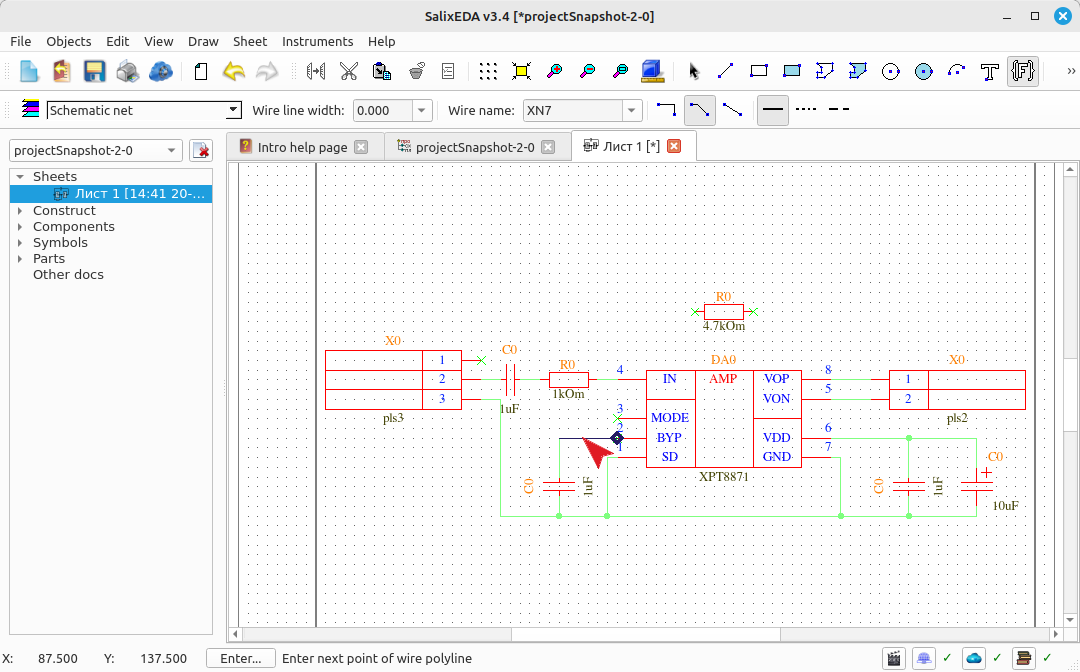
Press the middle mouse button to accept the "smart mode" suggestion. The suggested net is then entered. Move the mouse so that smart mode suggests the next net.
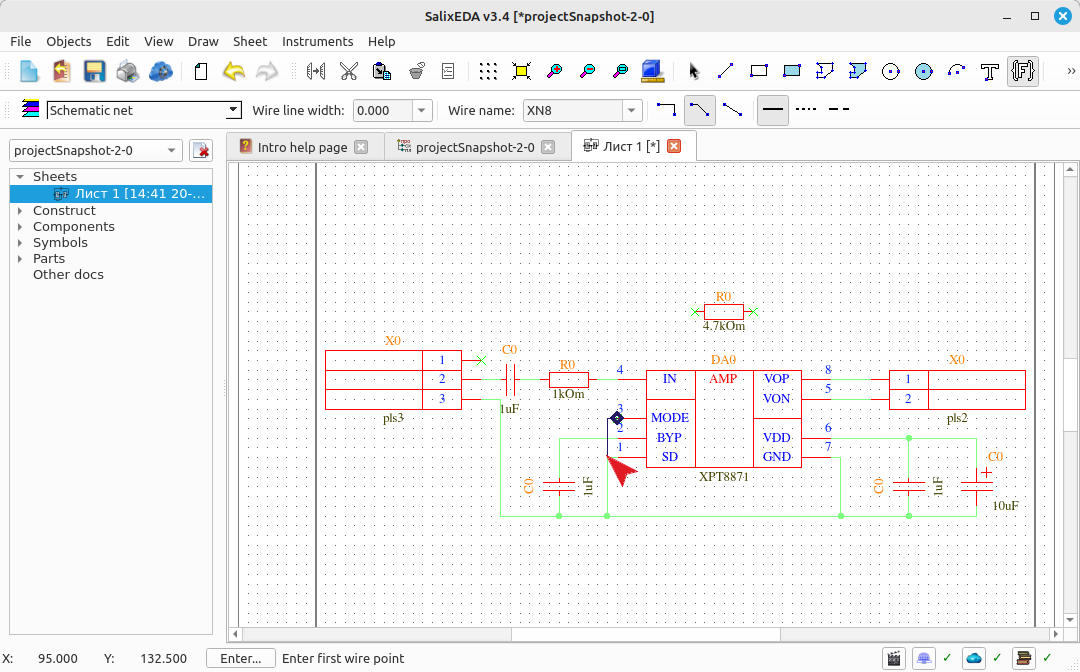
Press the middle mouse button to accept the "smart mode" suggestion. The suggested net is then entered. Move the mouse so that smart mode suggests the next net. Here the "smart mode" is again unable to route the correct net immediately.
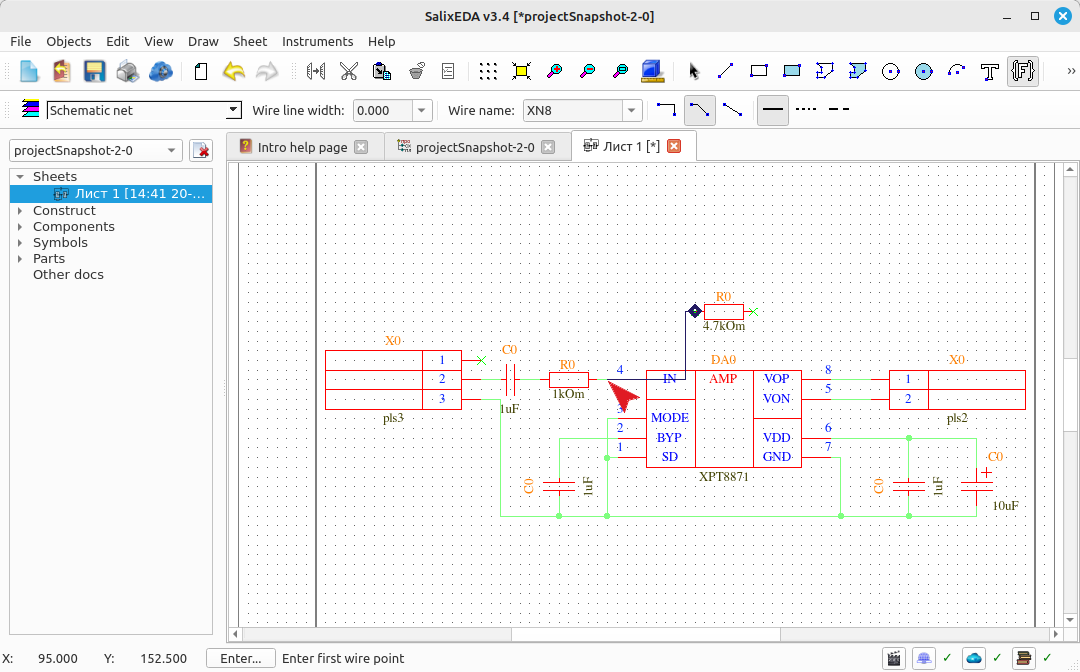
Hover the mouse over the middle of the net and press the left mouse button to start entering a polyline. Move the mouse to the next vertex. Press the left mouse button to fix the vertex. Move the mouse towards the terminating net pin and smart mode will suggest completing the net.
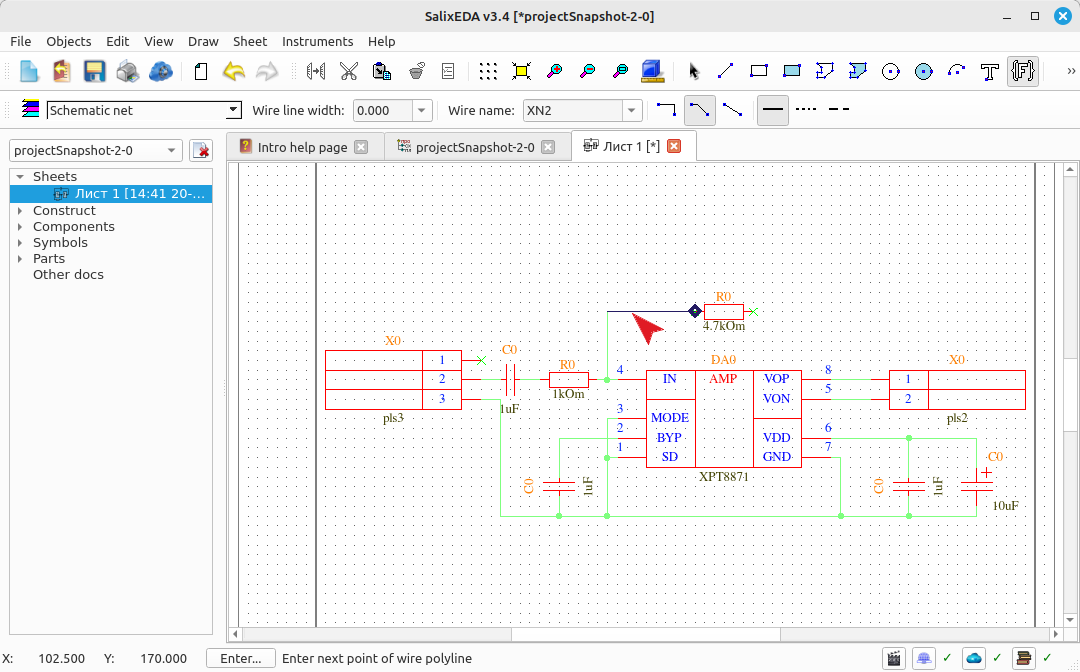
Press the middle mouse button to accept the "smart mode" suggestion. The suggested net is then entered. Move the mouse so that smart mode suggests the next net.
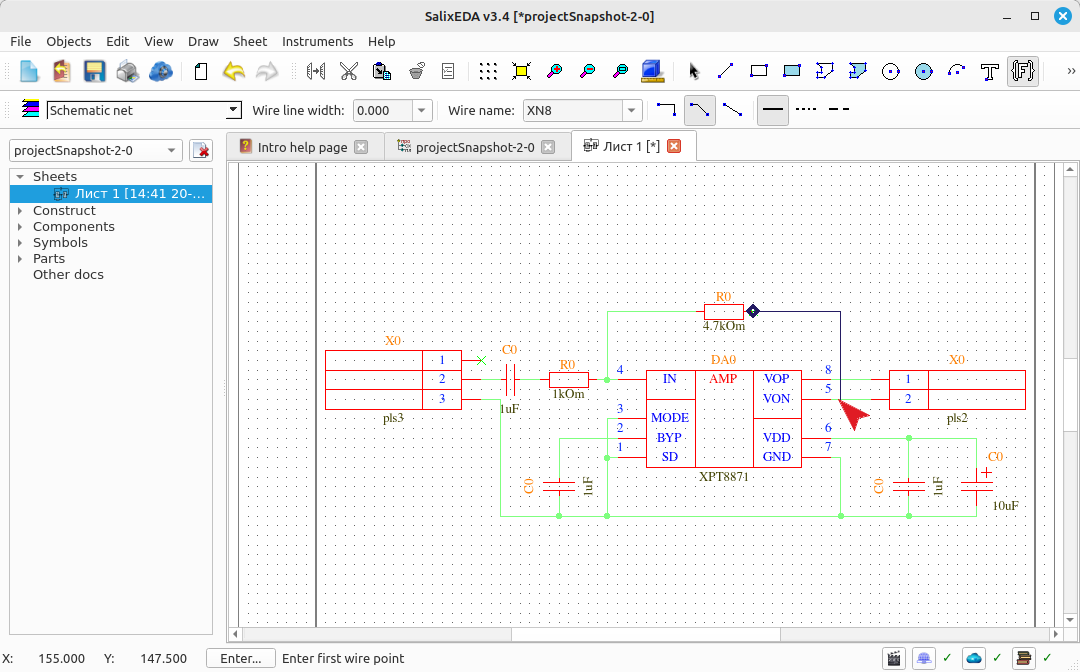
Press the middle mouse button to accept the "smart mode" suggestion. The suggested net is then entered. Move the mouse so that smart mode suggests the next net.
The next net cannot be fully routed by smart mode. Left-click on the horizontal segment of the net to indicate the starting point of the net.
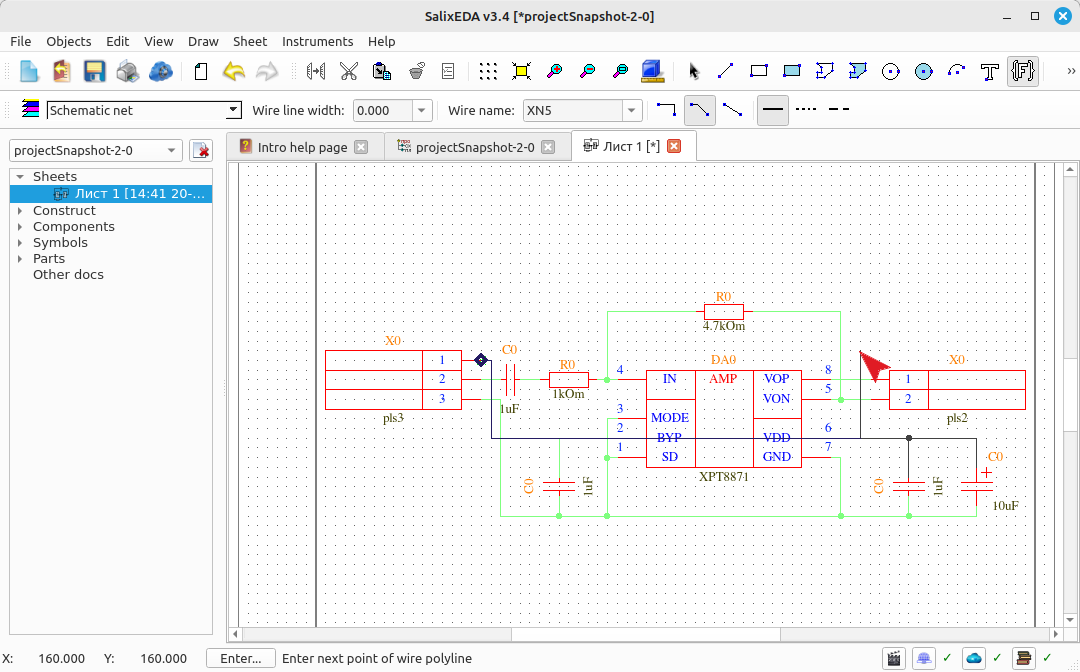
Draw the first part of the net and left-click to indicate the vertex point.
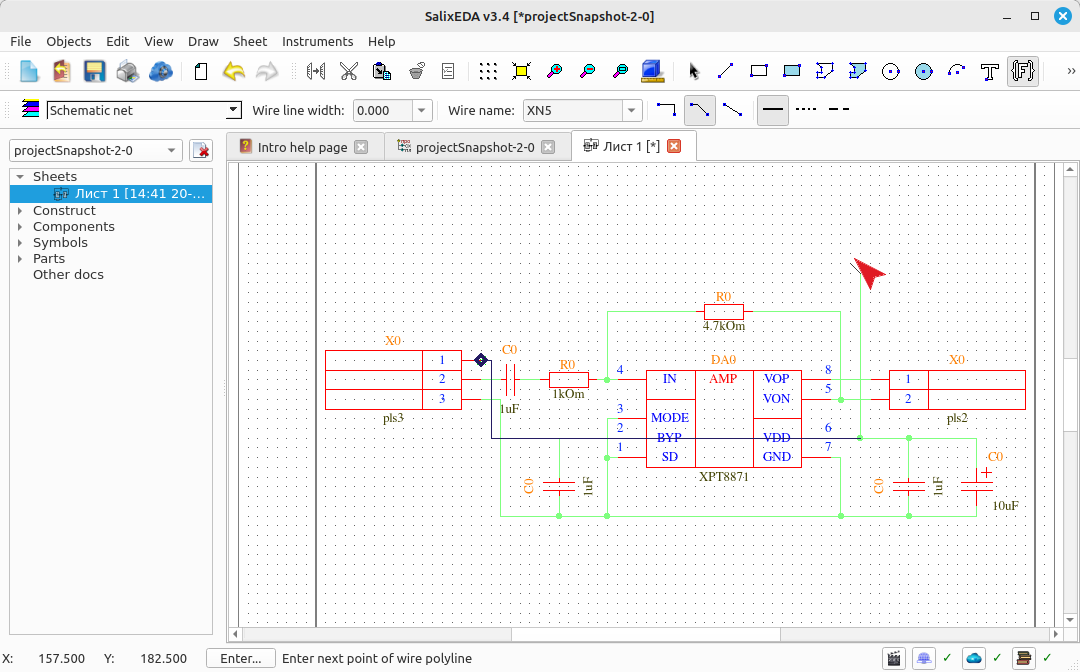
Move the mouse so that smart mode suggests completing the net.
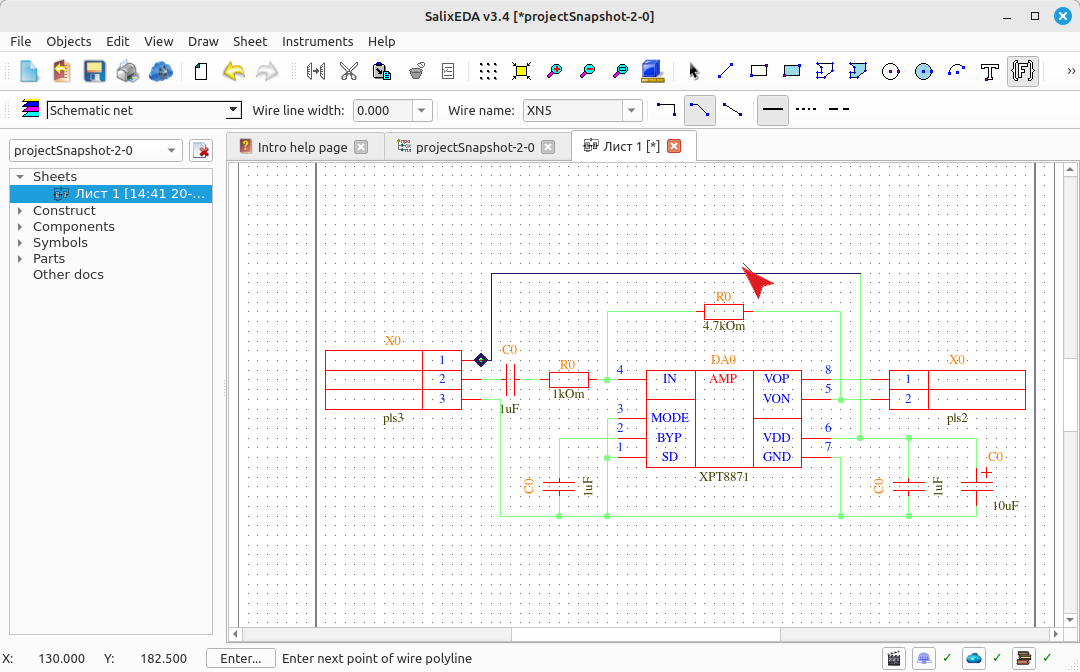
Press the middle mouse button to accept the "smart mode" suggestion. The suggested net is then entered.
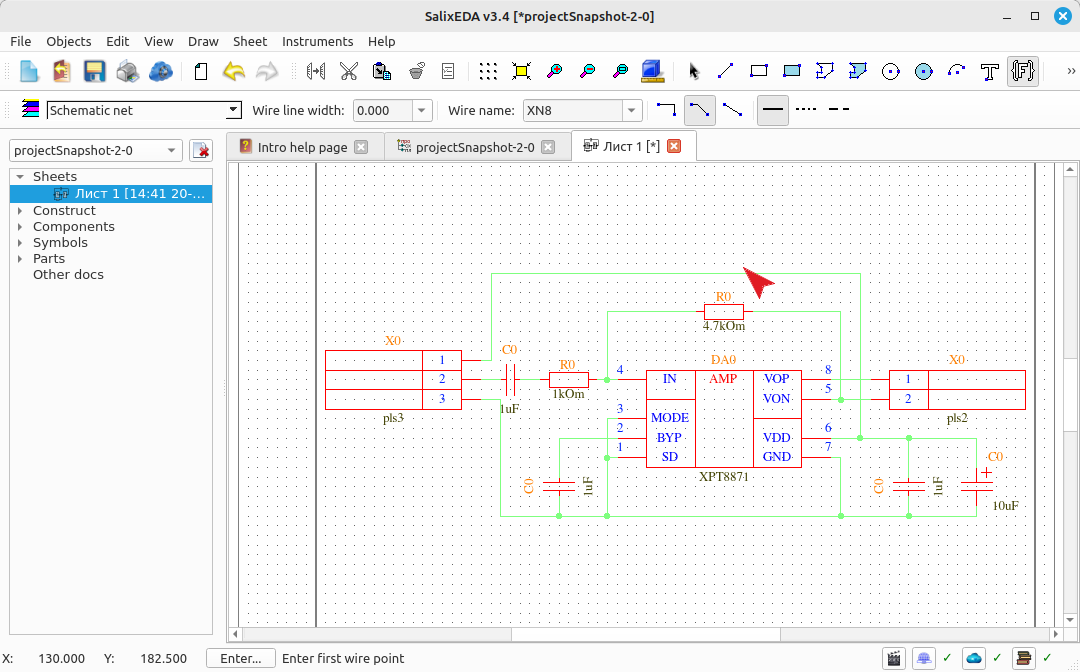
Exiting net input mode
This completes net input. Press the right mouse button to exit net input mode and return to edit mode.
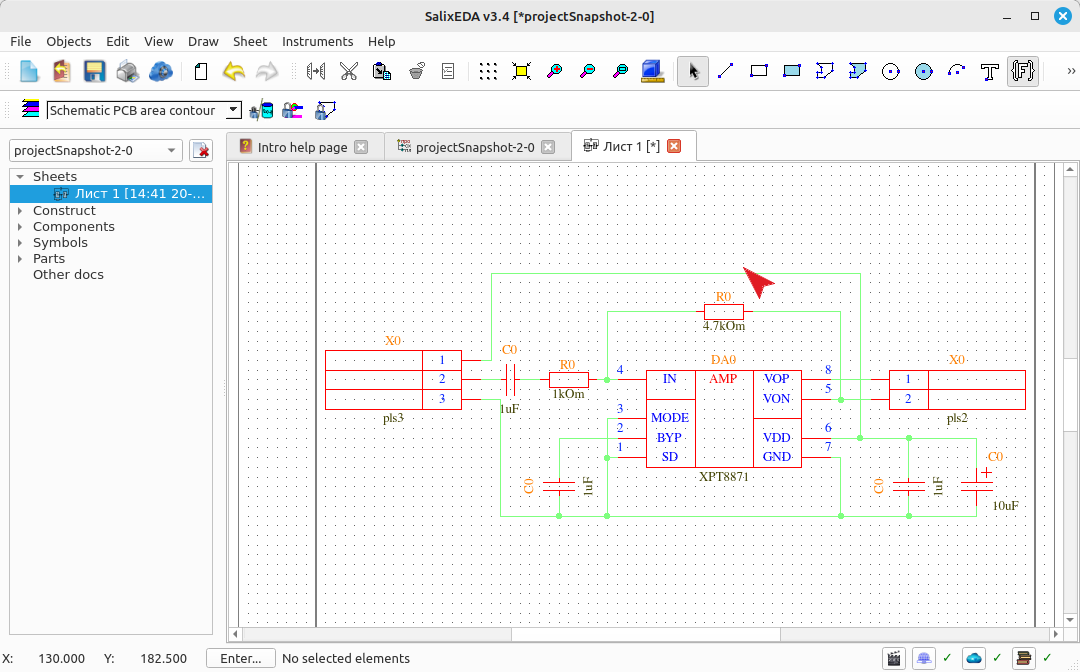
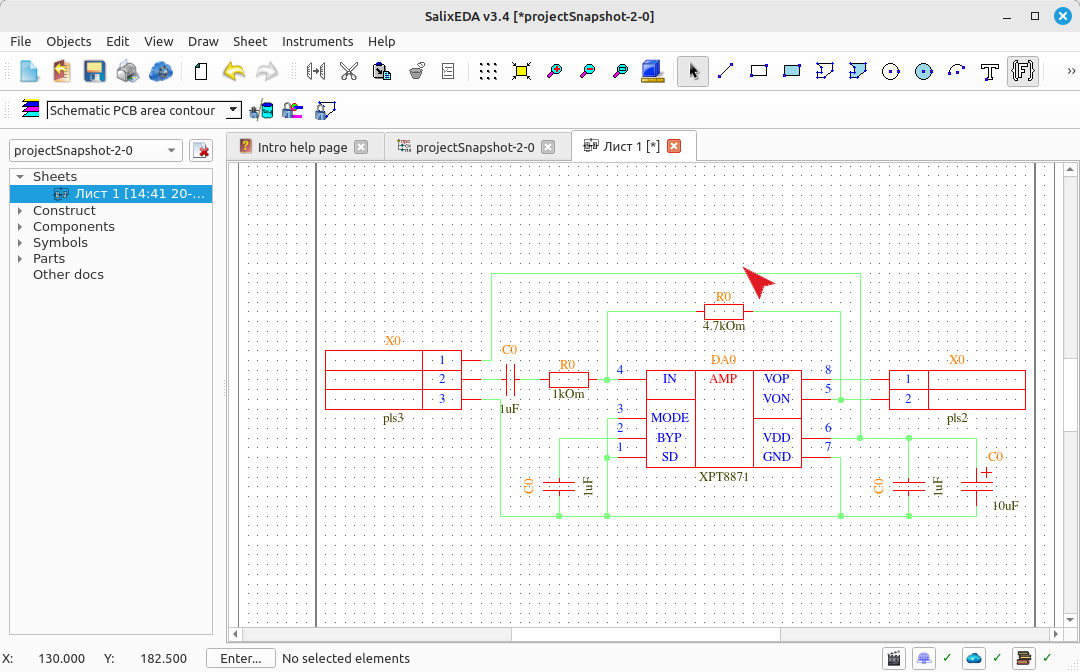
Result of net input