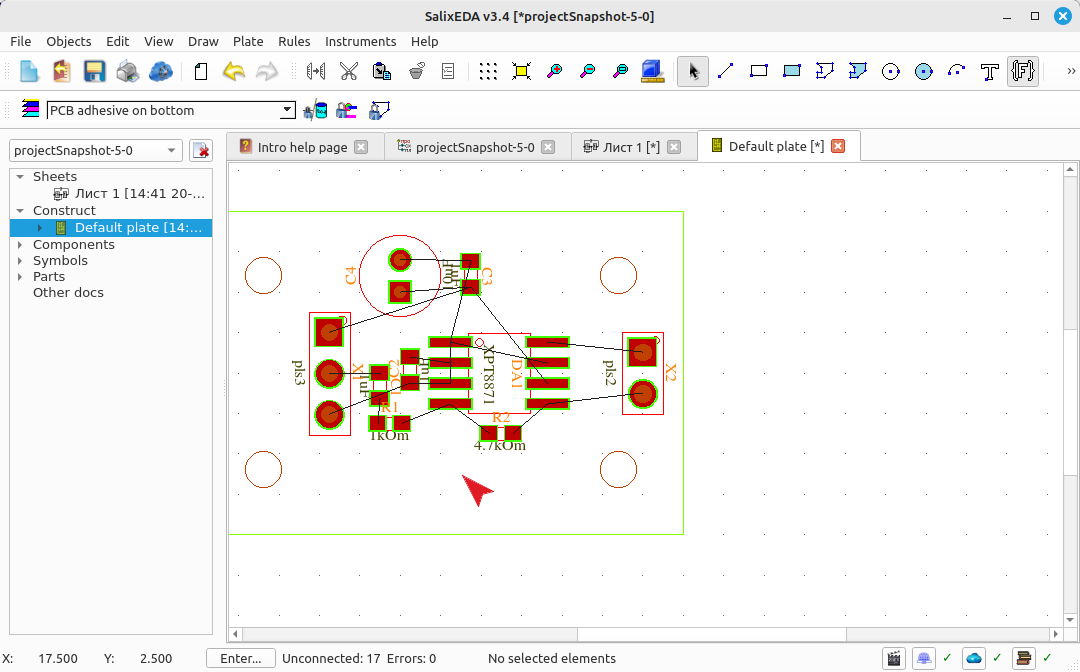
Placing components on the PCB
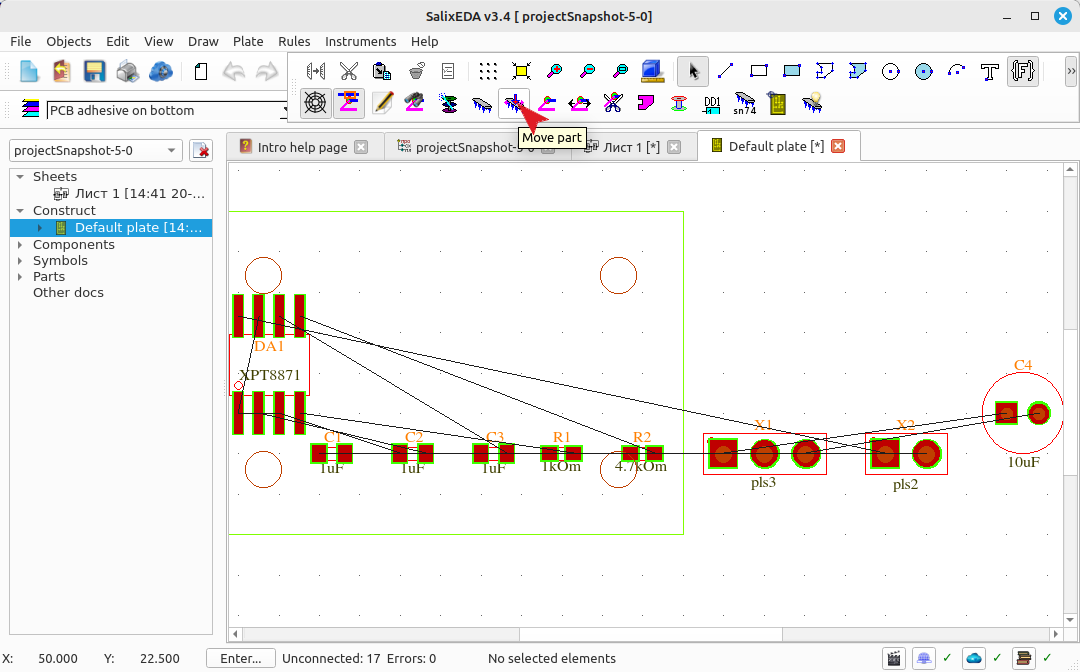
Enabling component placement mode
To enable component placement mode on the PCB, click this button
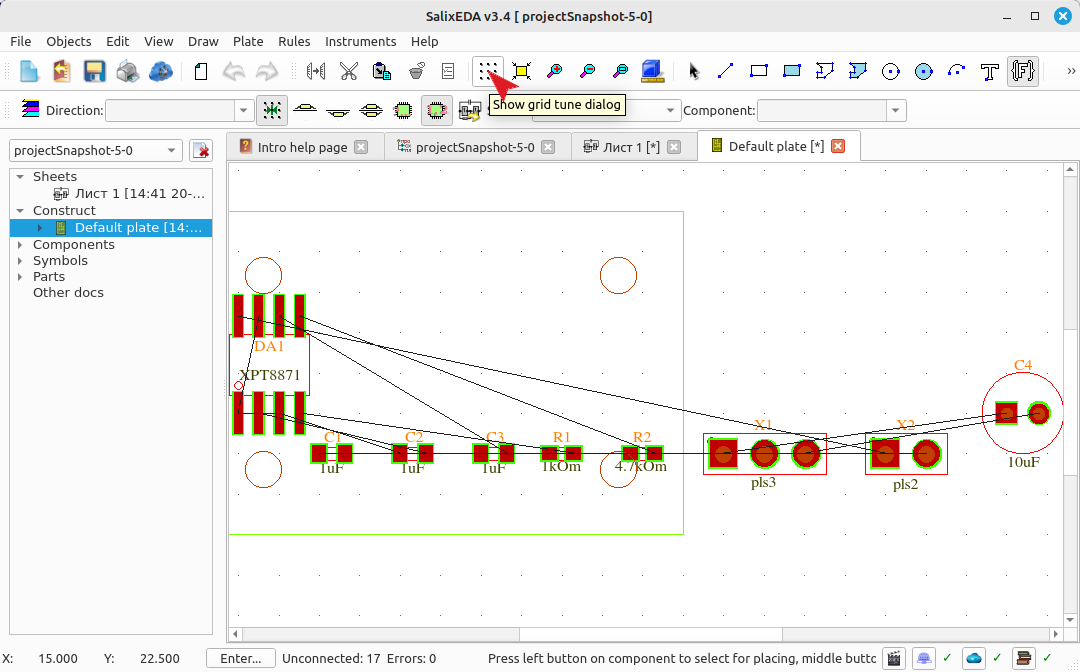
Changing the grid step
By default, components align to the grid. Let's set a finer grid. To do this, click this button.
In the Grid step field, enter 0.625 or select 0.625x0.625 from the list of previous grids.
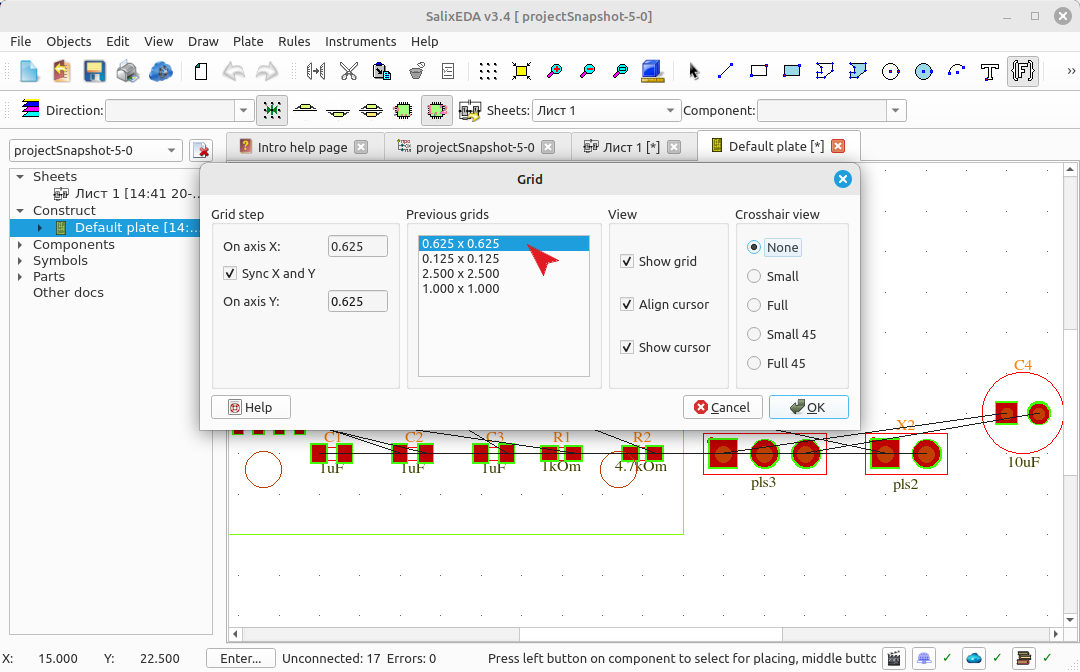
Click OK to finish.
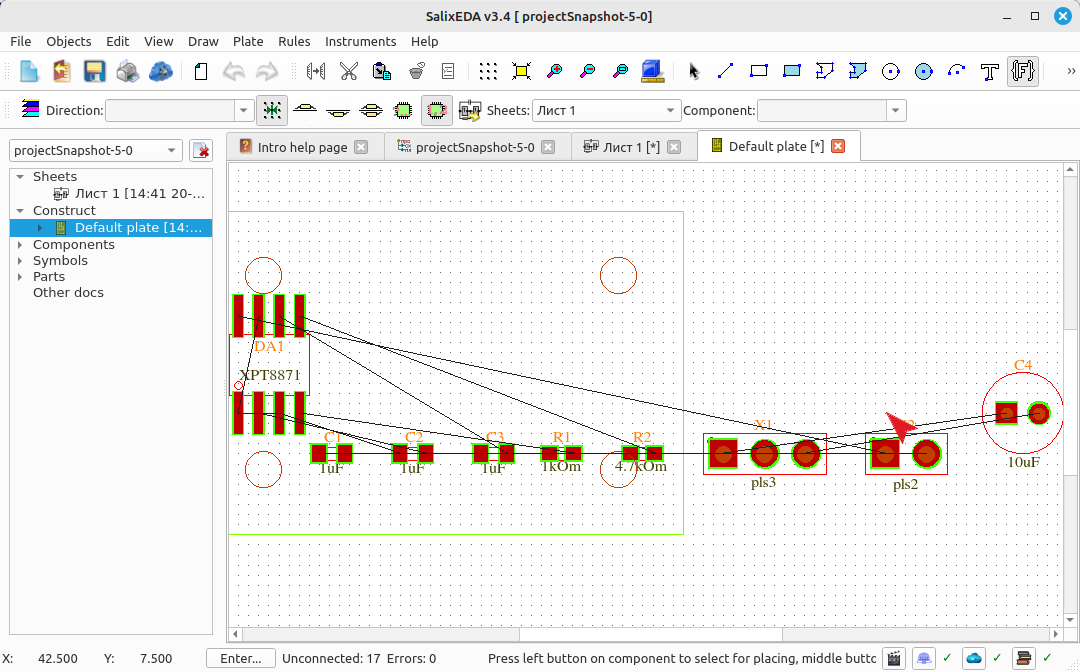
Selecting a component for placement
Hover the mouse cursor over a component and press the left mouse button.
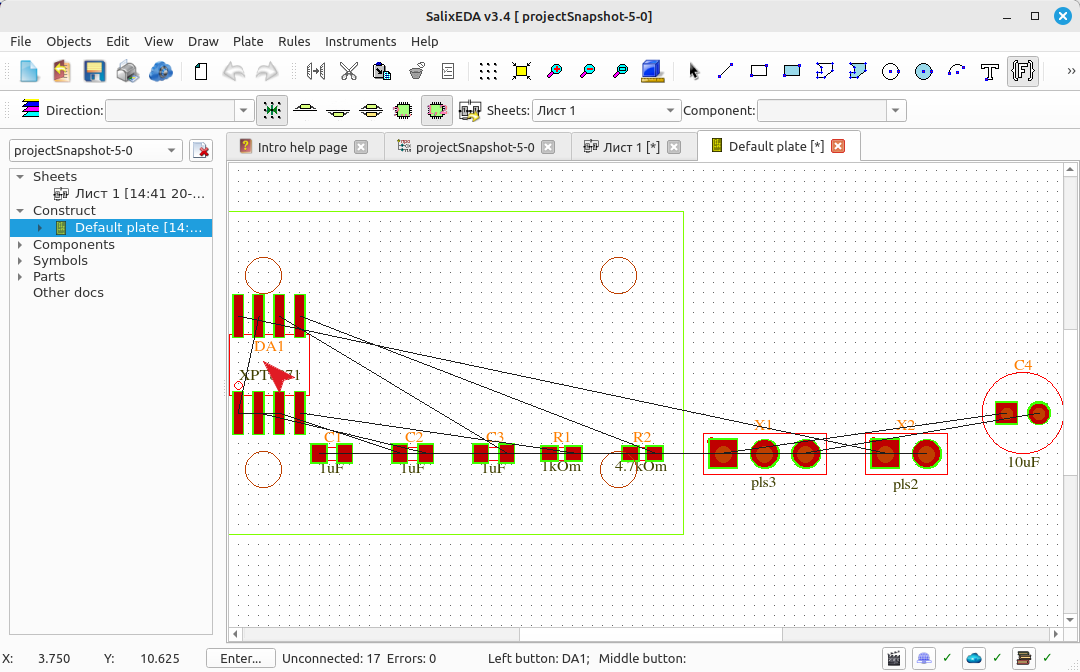
Move the mouse, the component will move with the mouse.
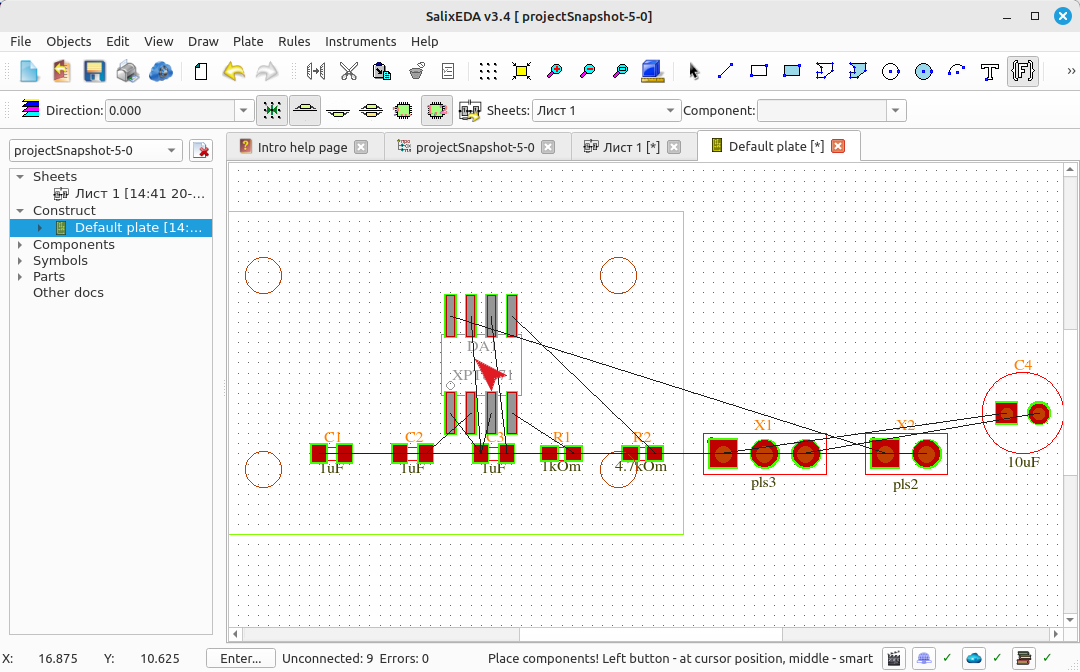
Changing component orientation
To quickly change orientation by 90 degrees clockwise, press the F2 key.
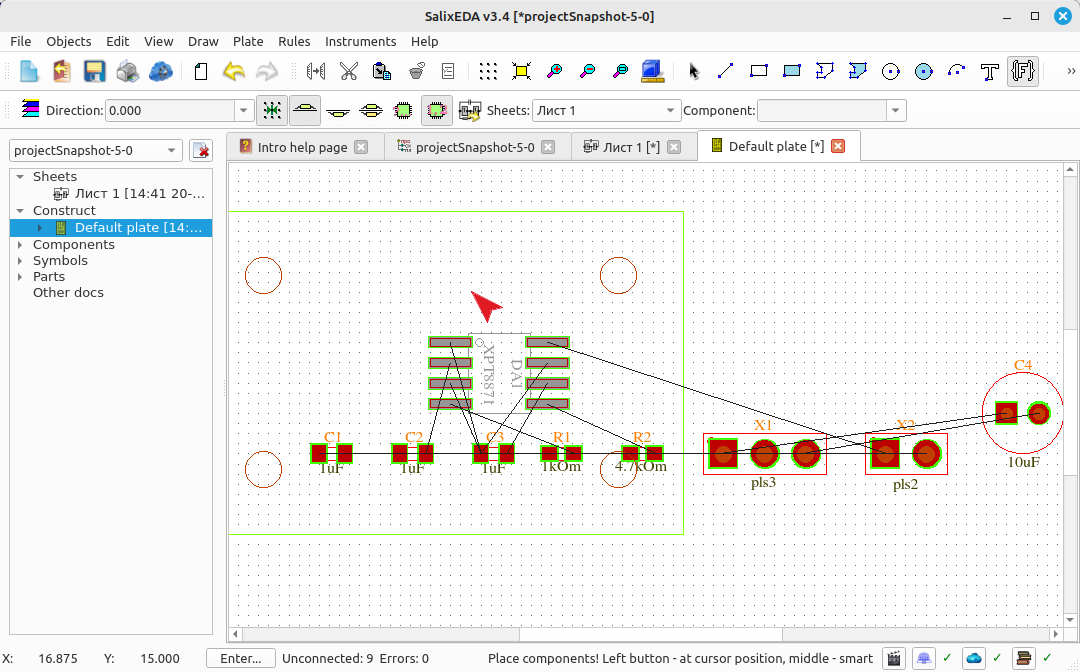
Placing components
To place the component at the current position, press the left mouse button.
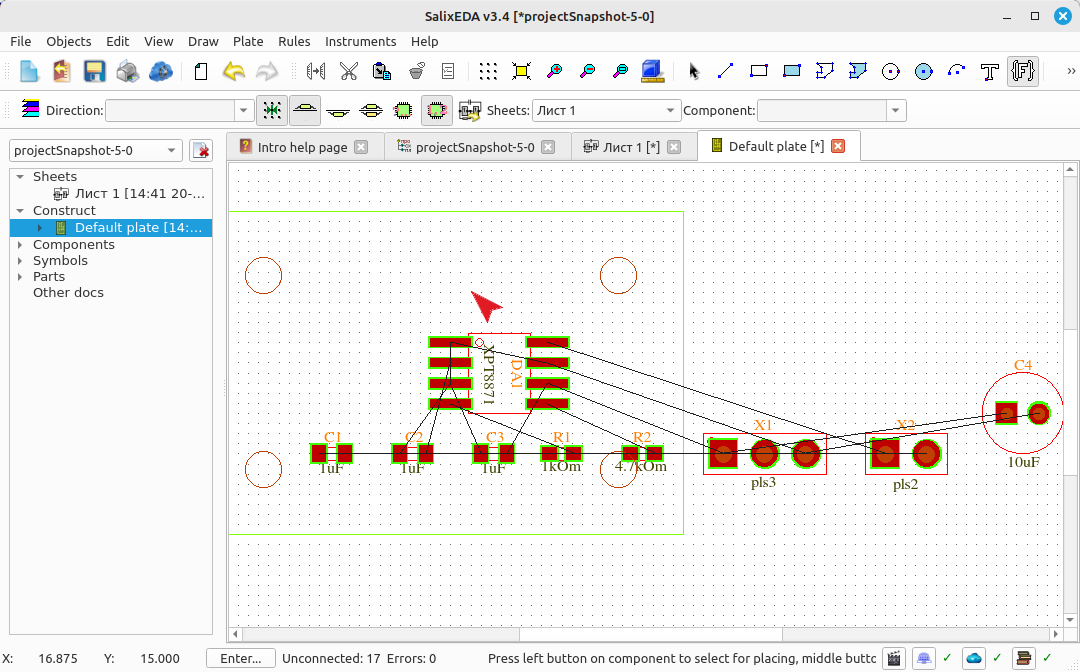
Move the mouse to the next component (X1)
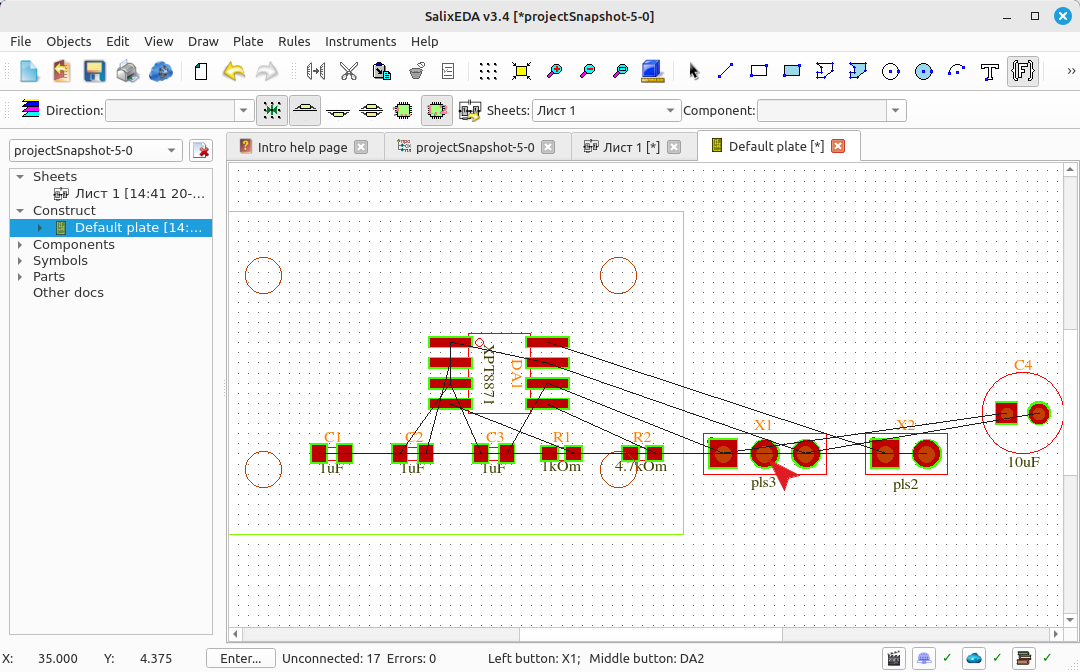
Press the left mouse button and move the component.
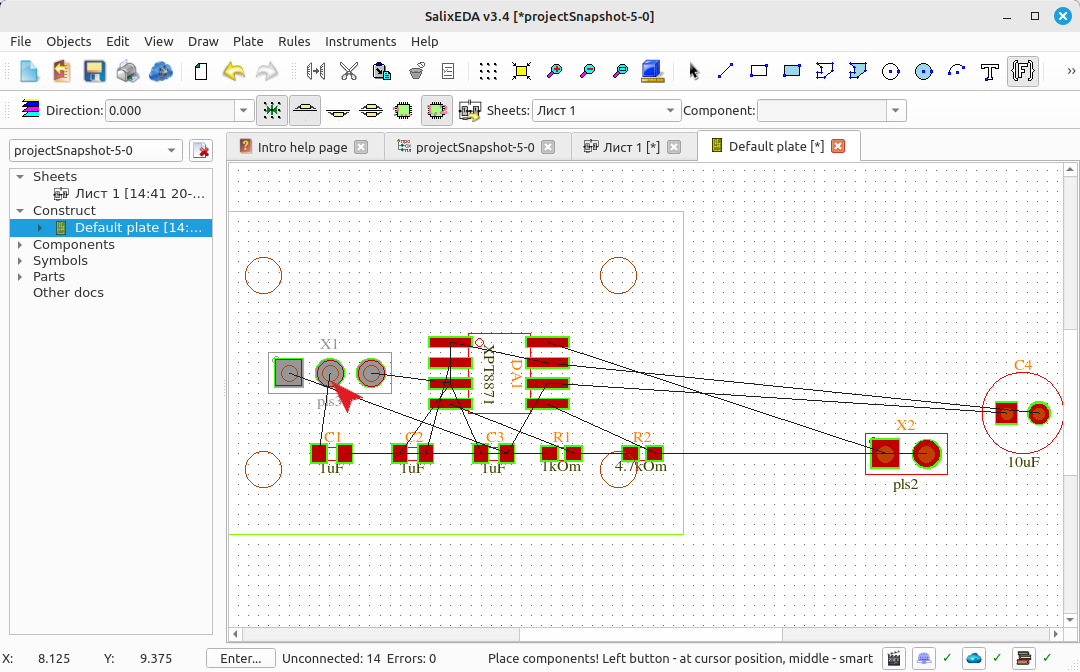
Use F2 to rotate the component.
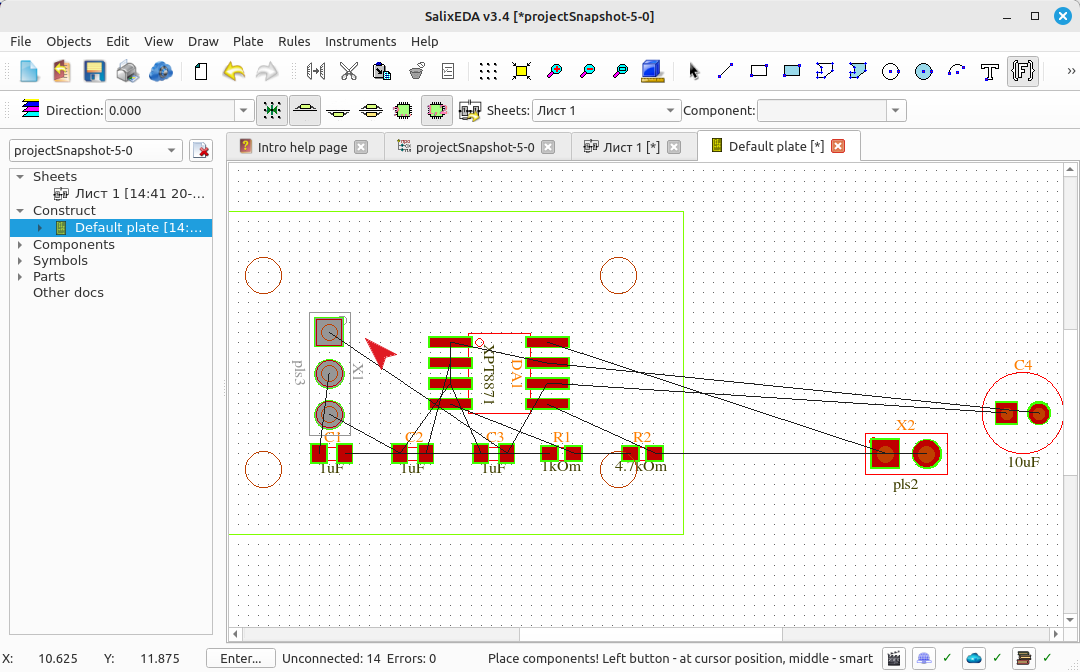
Press the left button to place the component.
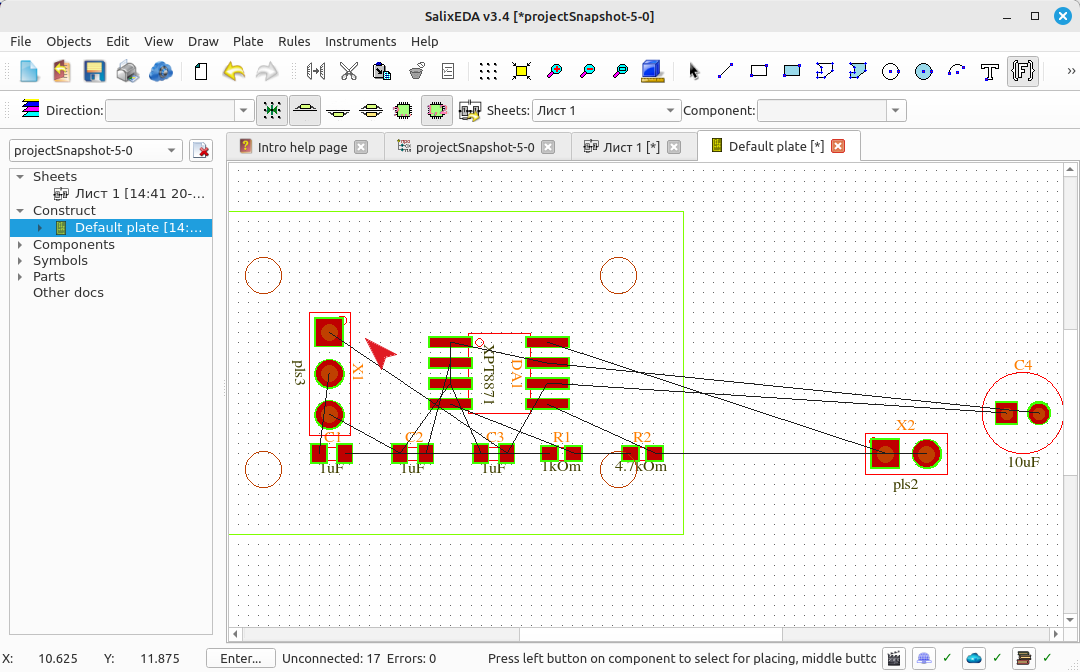
Move the mouse to the next component (X2)
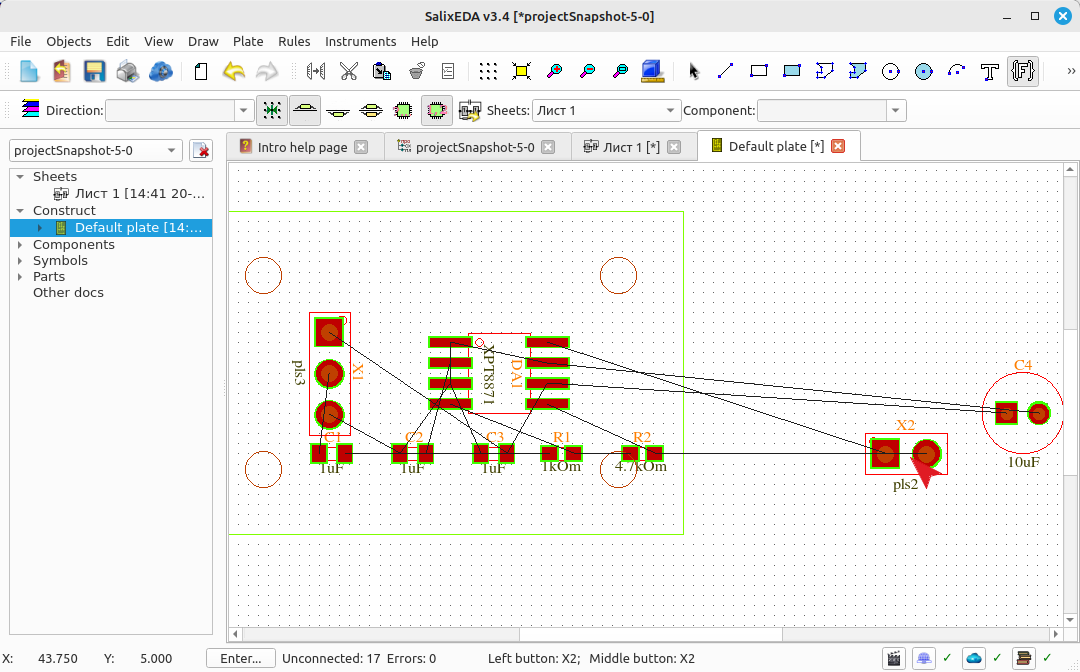
Press the left mouse button and move the component. Use F2 to rotate the component.
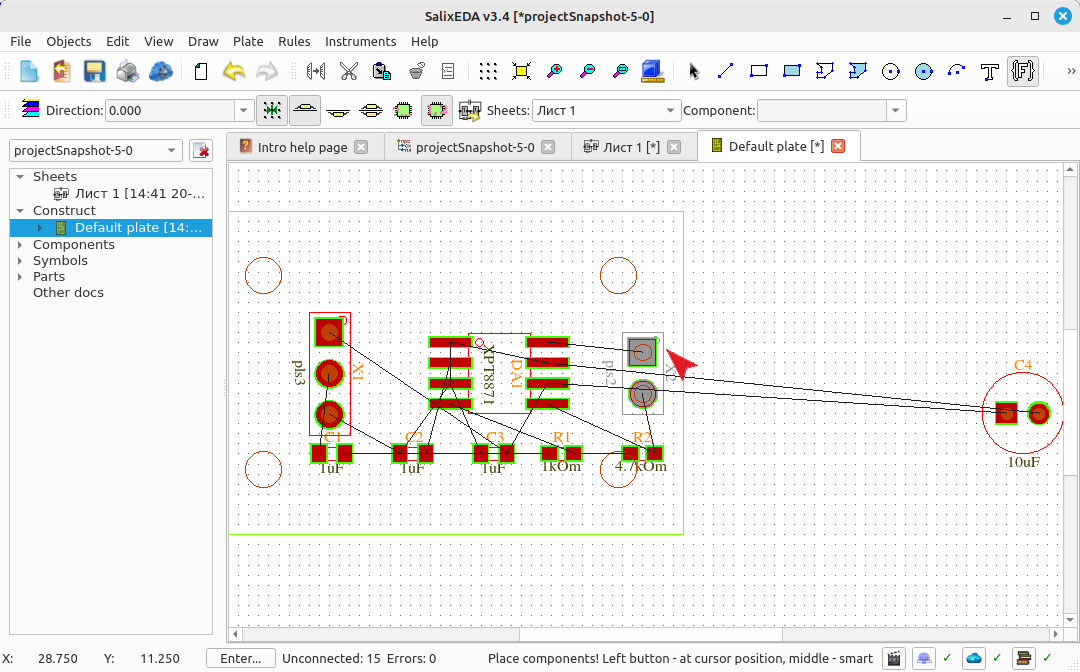
Press the left button to place the component.
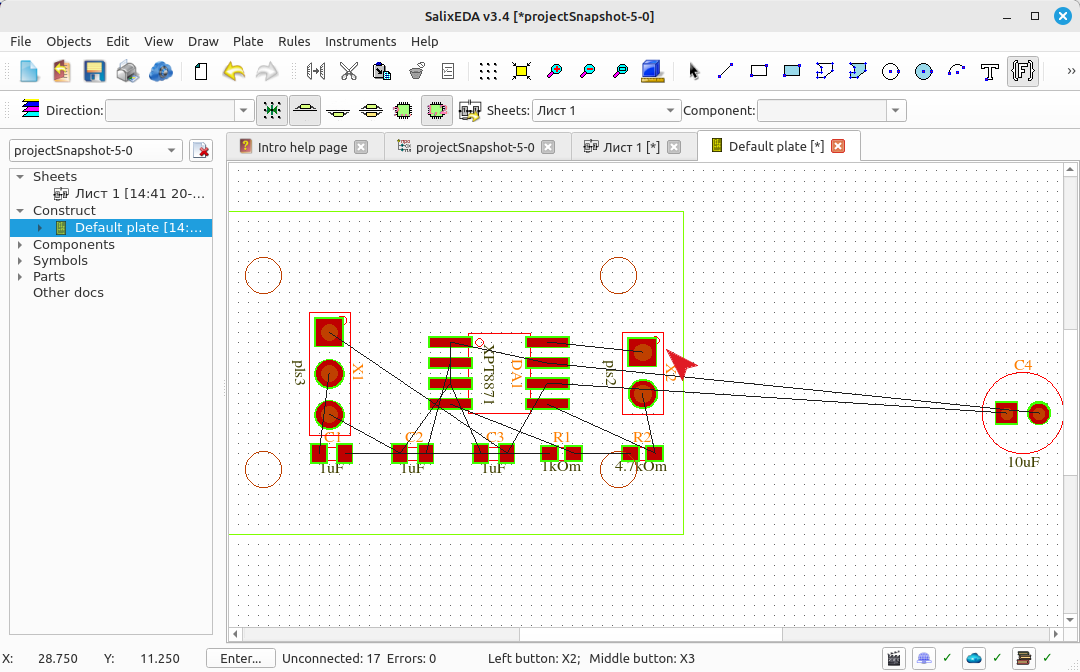
Move the mouse to the next component (C4)
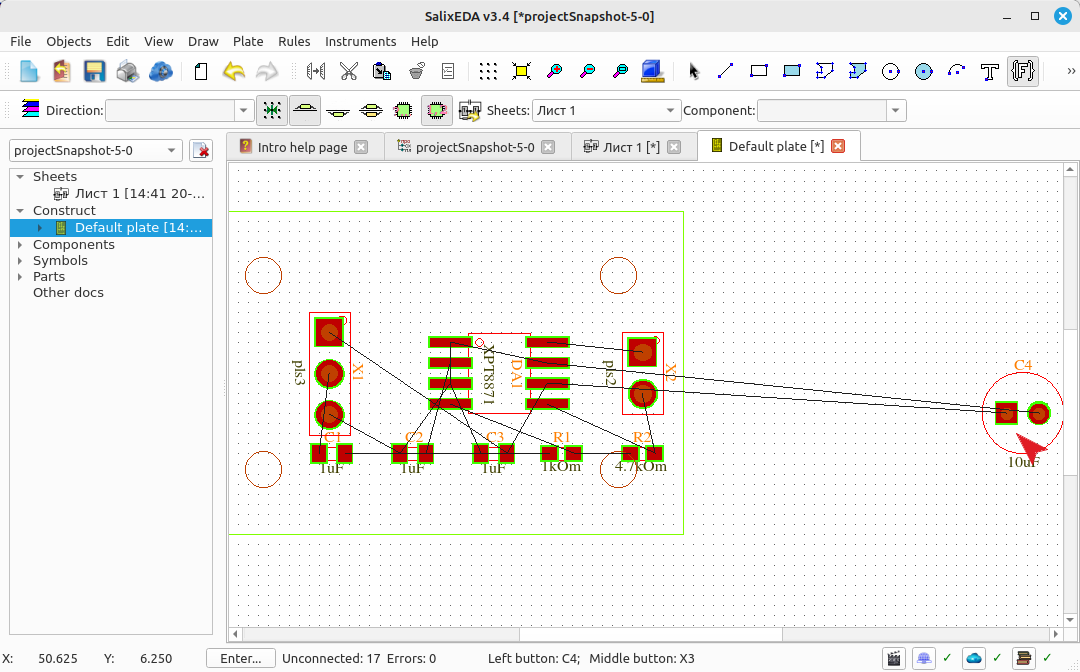
Press the left mouse button and move the component. Use F2 to rotate the component. Press the left button to place the component.
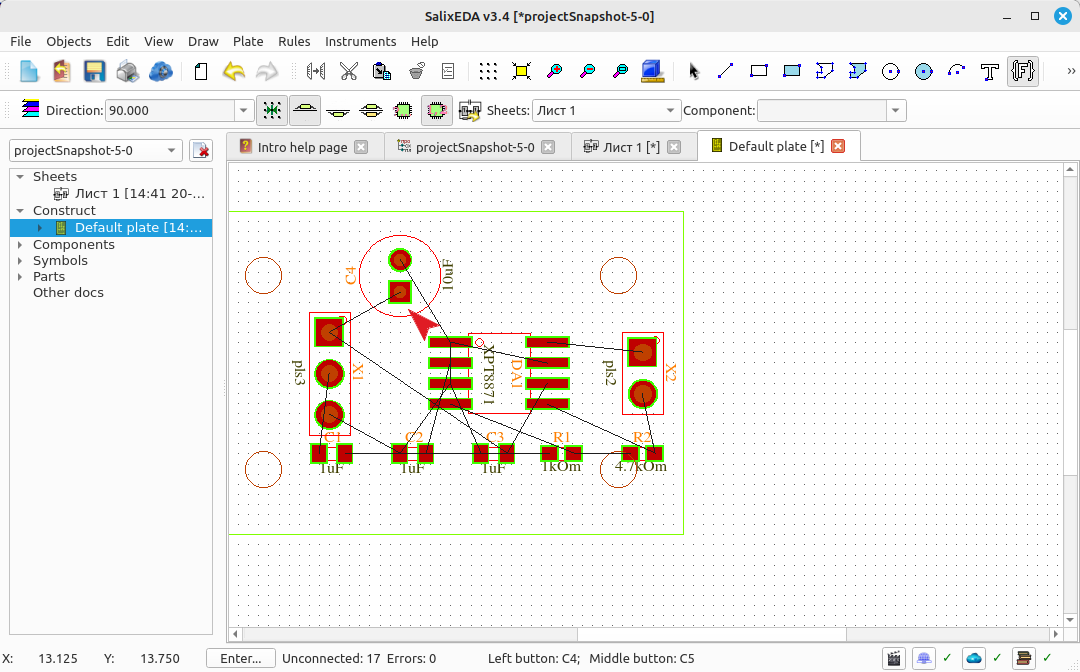
Move the mouse to the next component (C3)
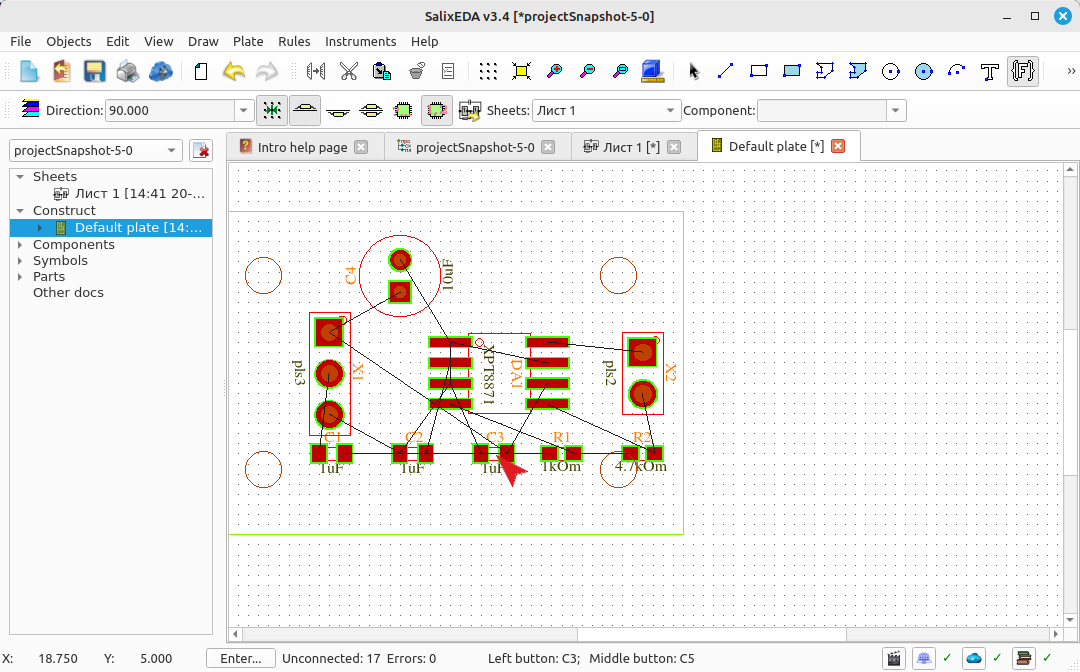
Press the left mouse button and move the component. Use F2 to rotate the component. Press the left button to place the component.
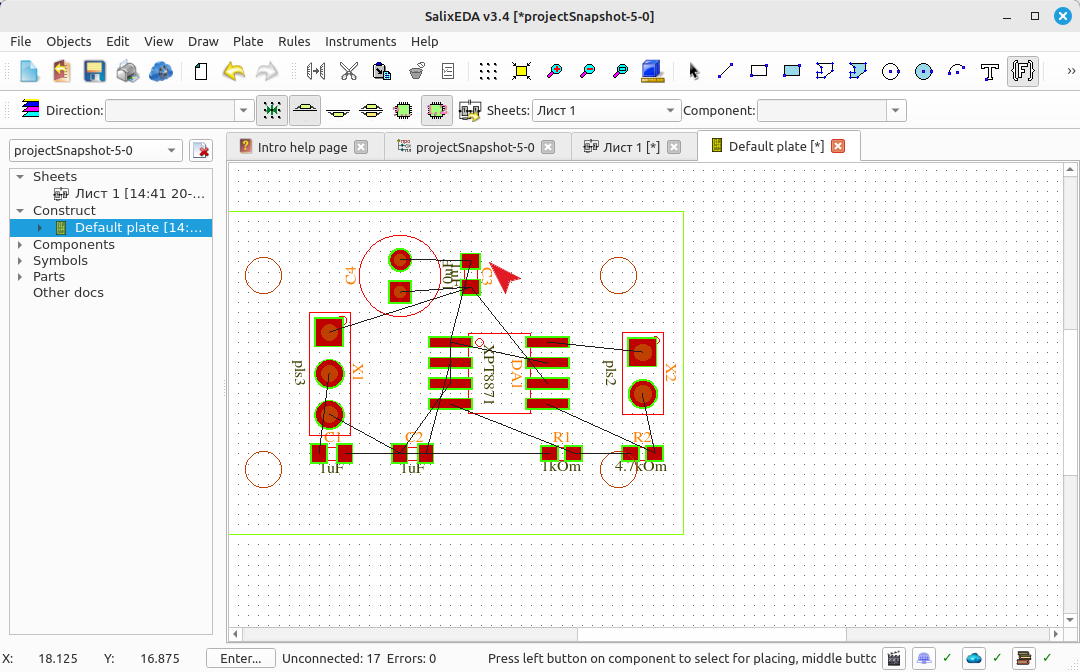
Move the mouse to the next component (C1)
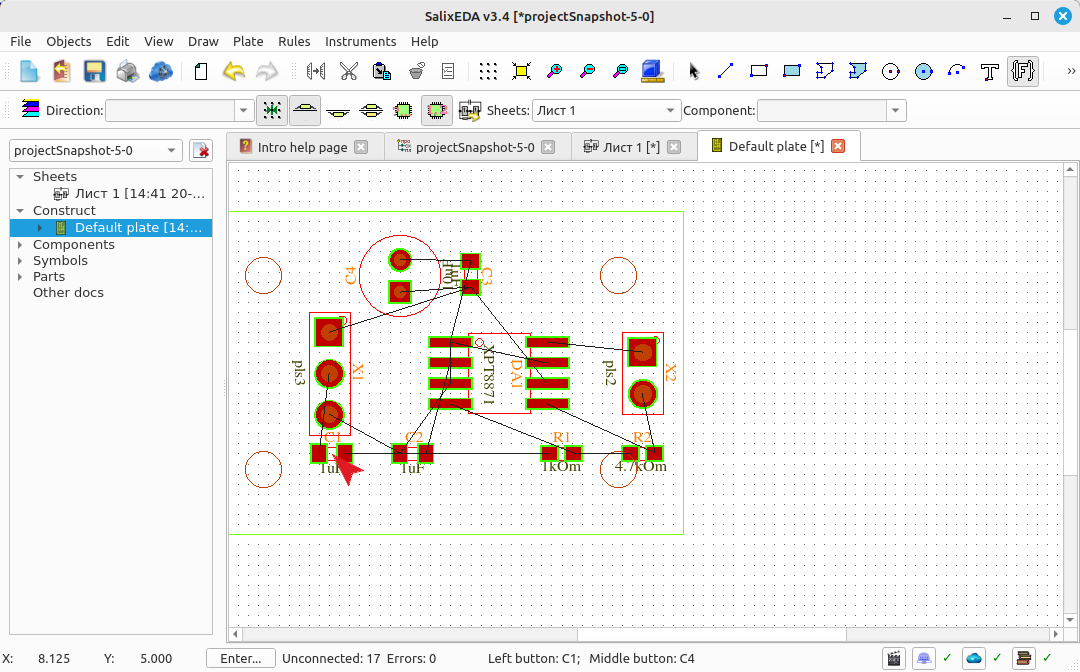
Press the left mouse button and move the component. Use F2 to rotate the component. Press the left button to place the component.
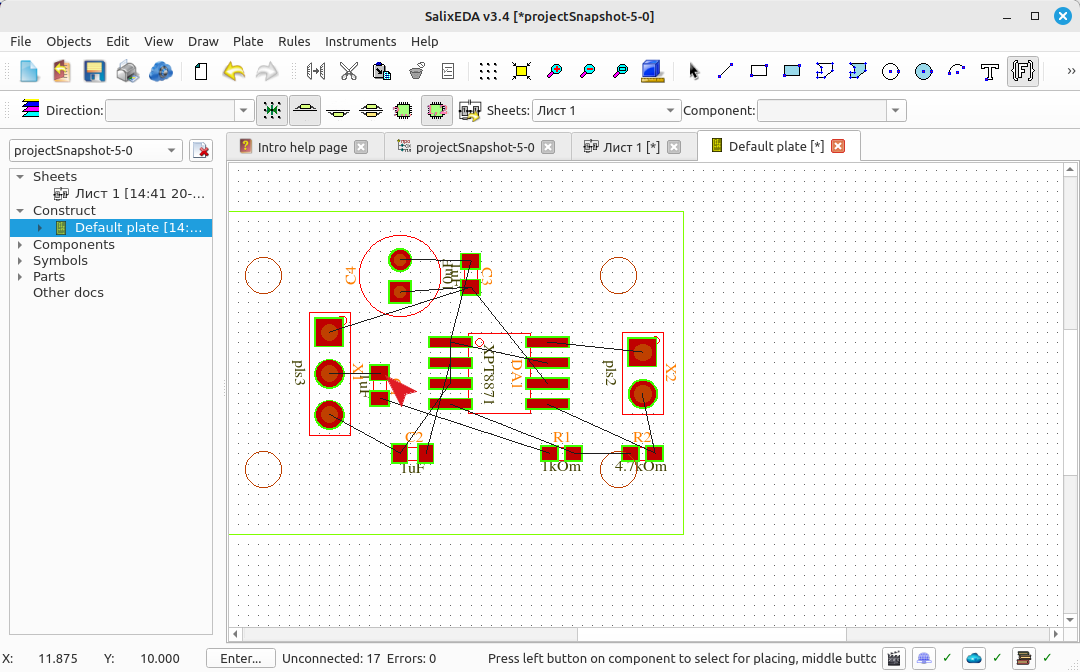
Move the mouse to the next component (R1)
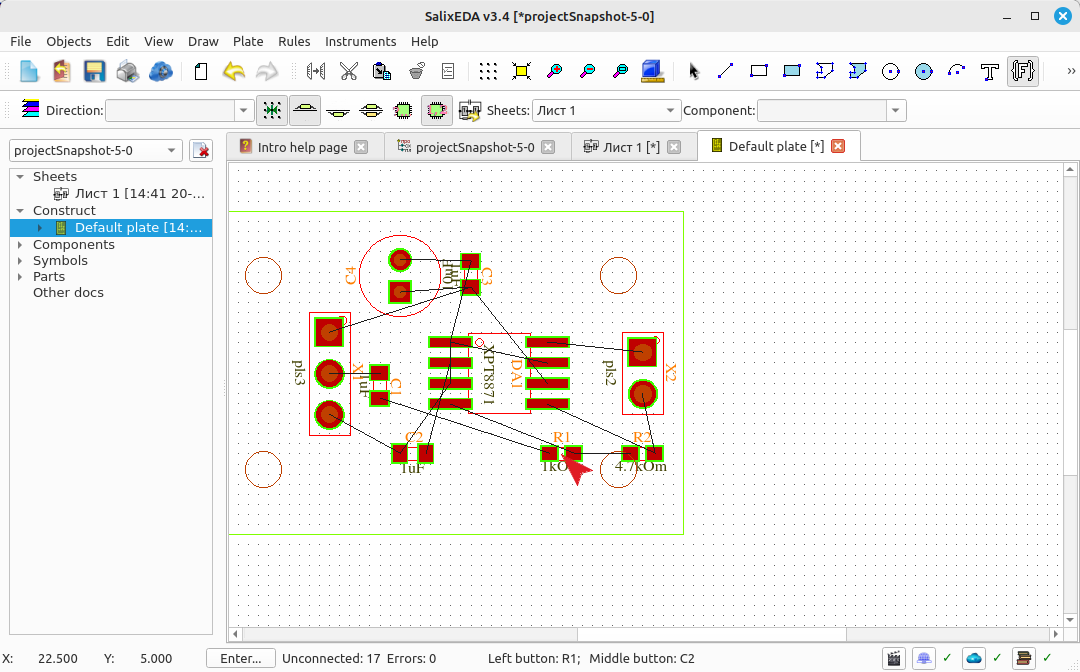
Press the left mouse button and move the component. Use F2 to rotate the component. Press the left button to place the component.
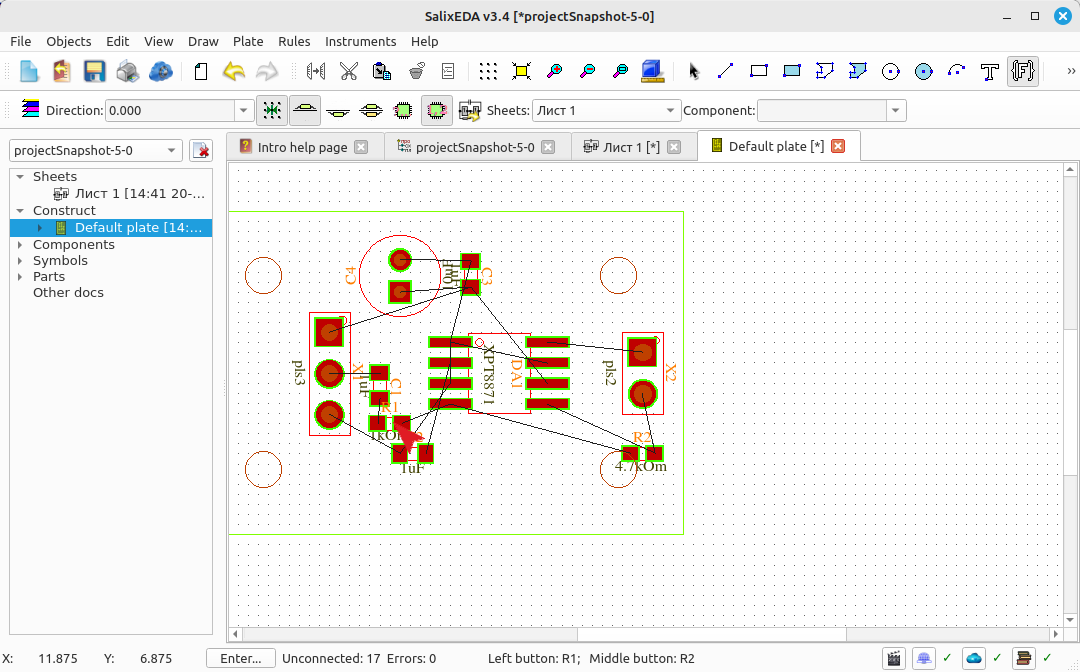
Move the mouse to the next component (R2)
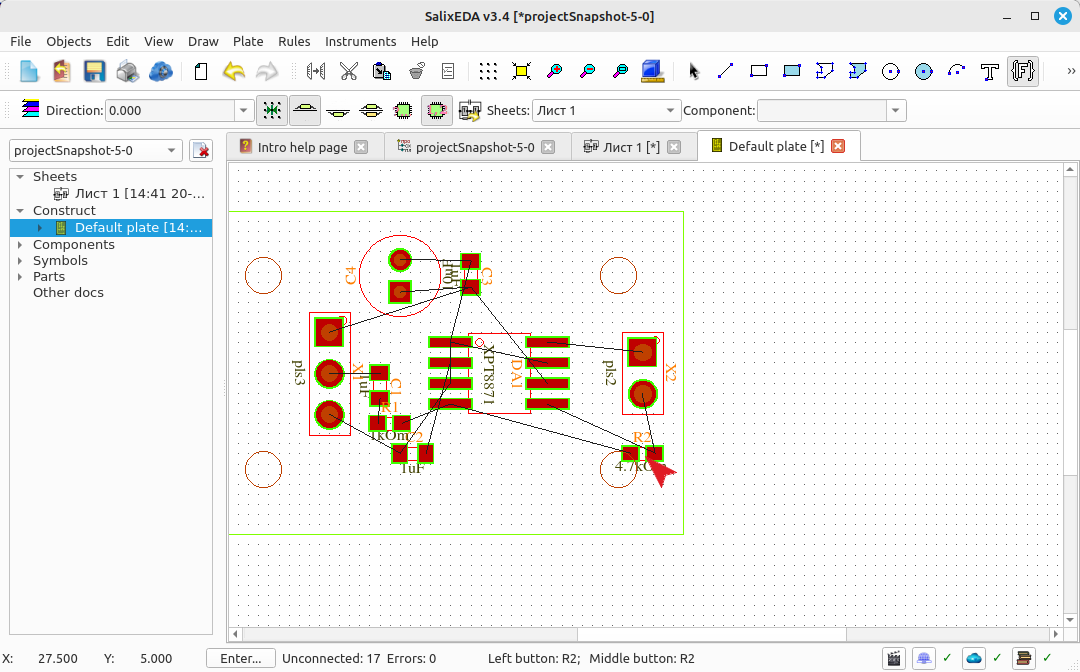
Press the left mouse button and move the component. Use F2 to rotate the component. Press the left button to place the component.
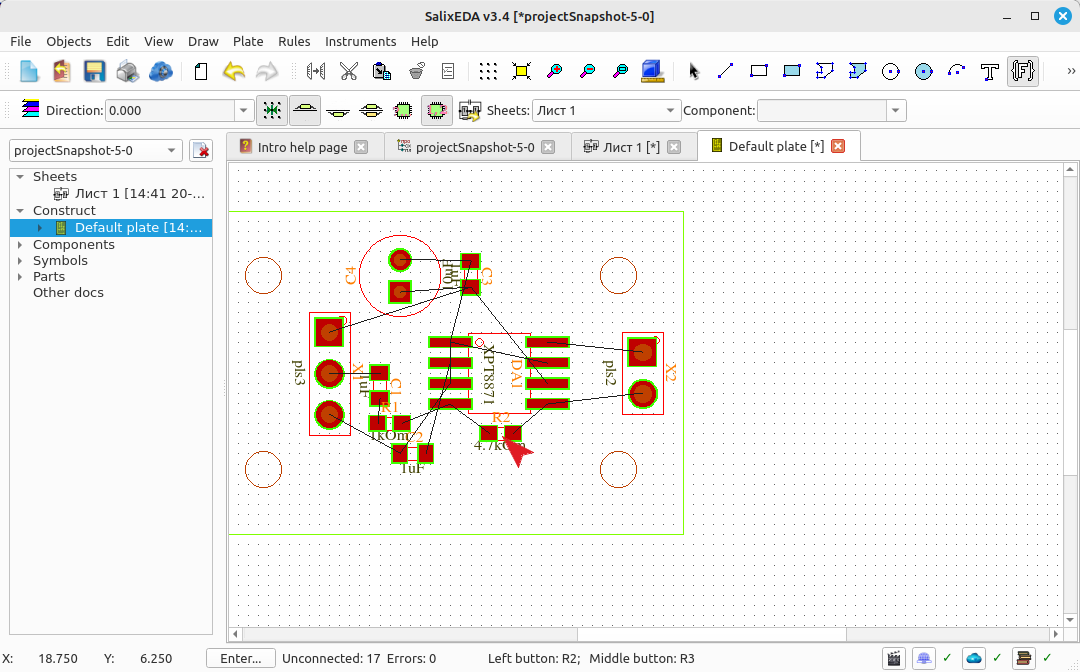
Move the mouse to the next component (C2)
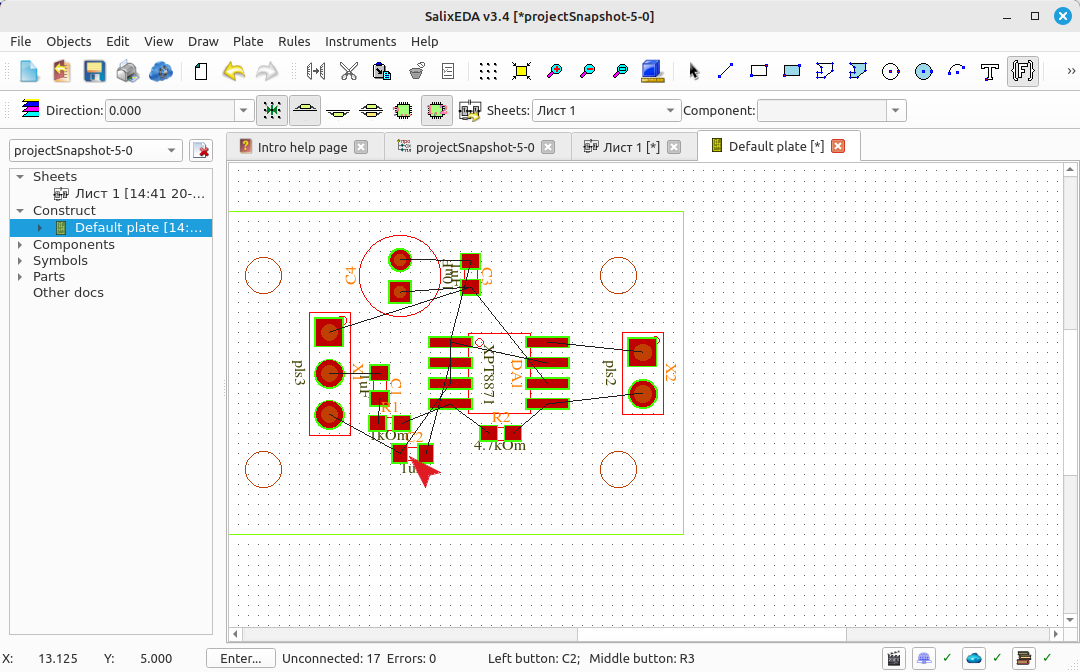
Press the left mouse button and move the component. Use F2 to rotate the component. Press the left button to place the component.
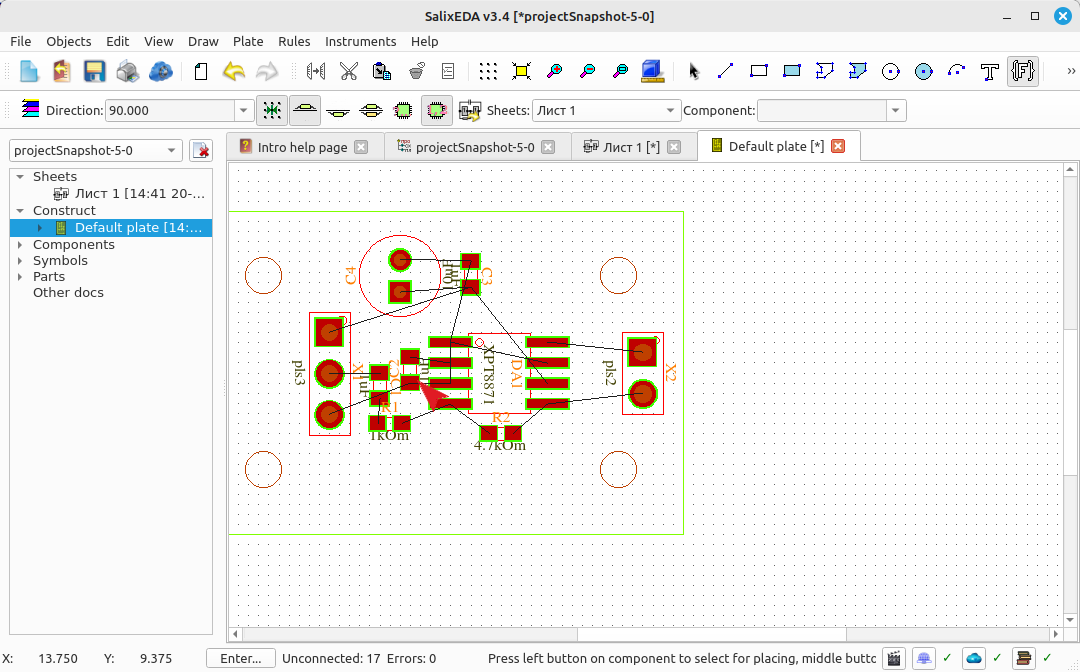
Exiting placement mode
Press the right button to exit component placement mode.