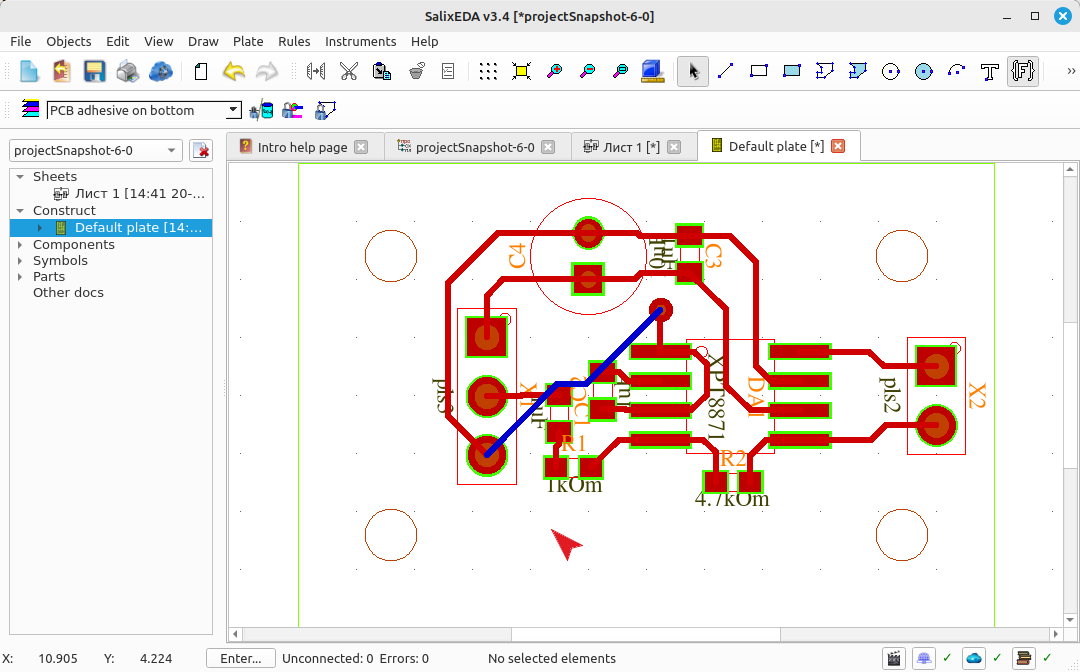
Routing connections
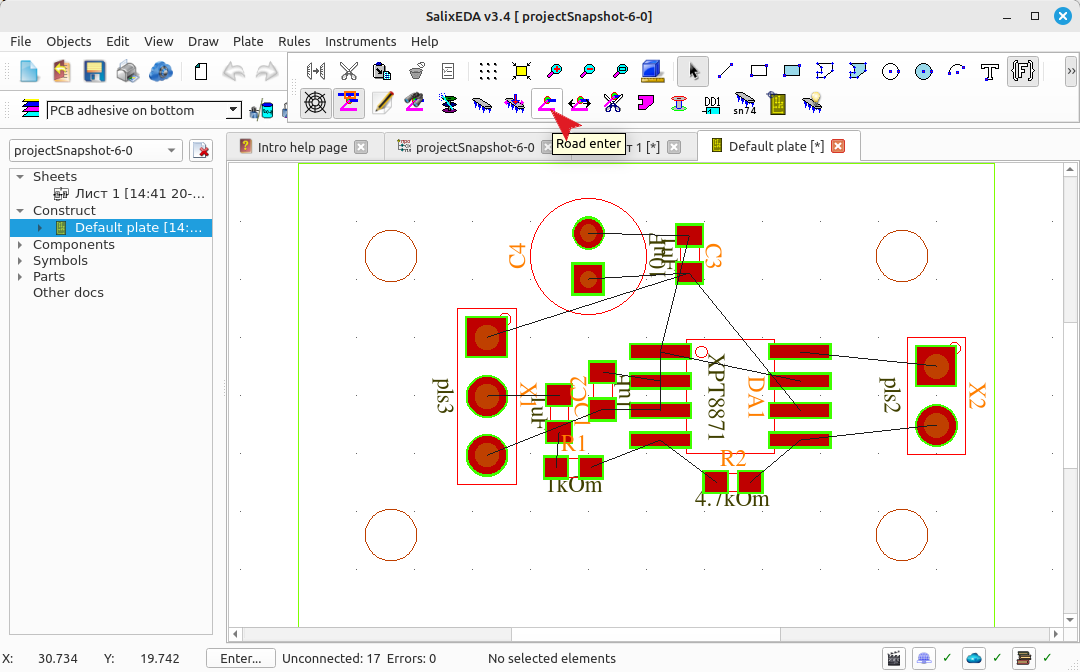
Enabling routing mode
To enable routing mode, click this button.
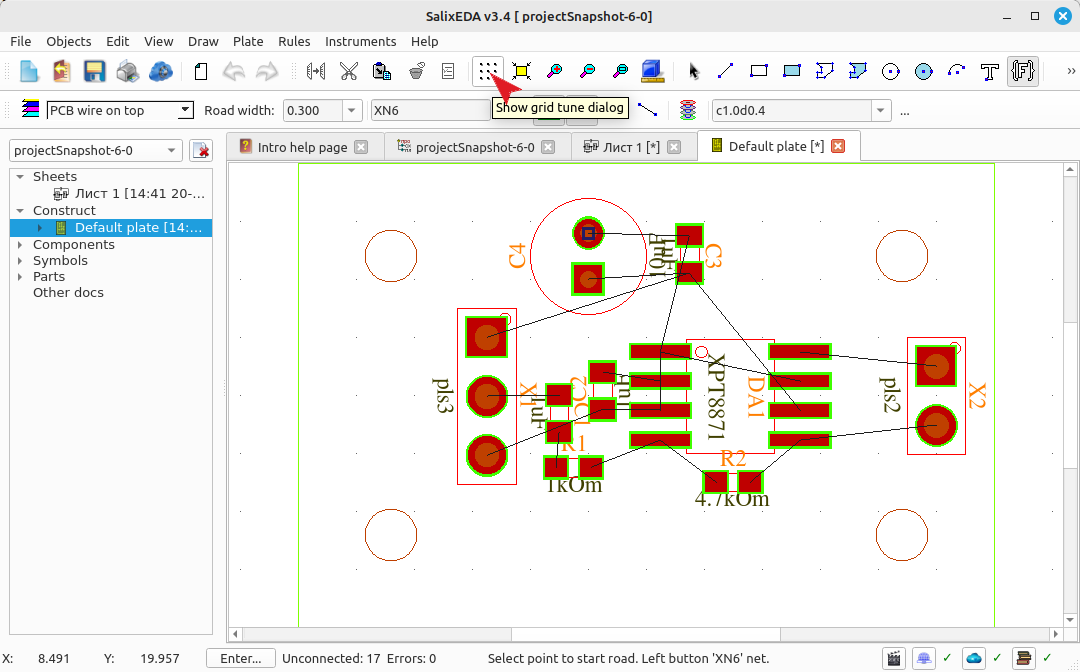
Setting the routing grid
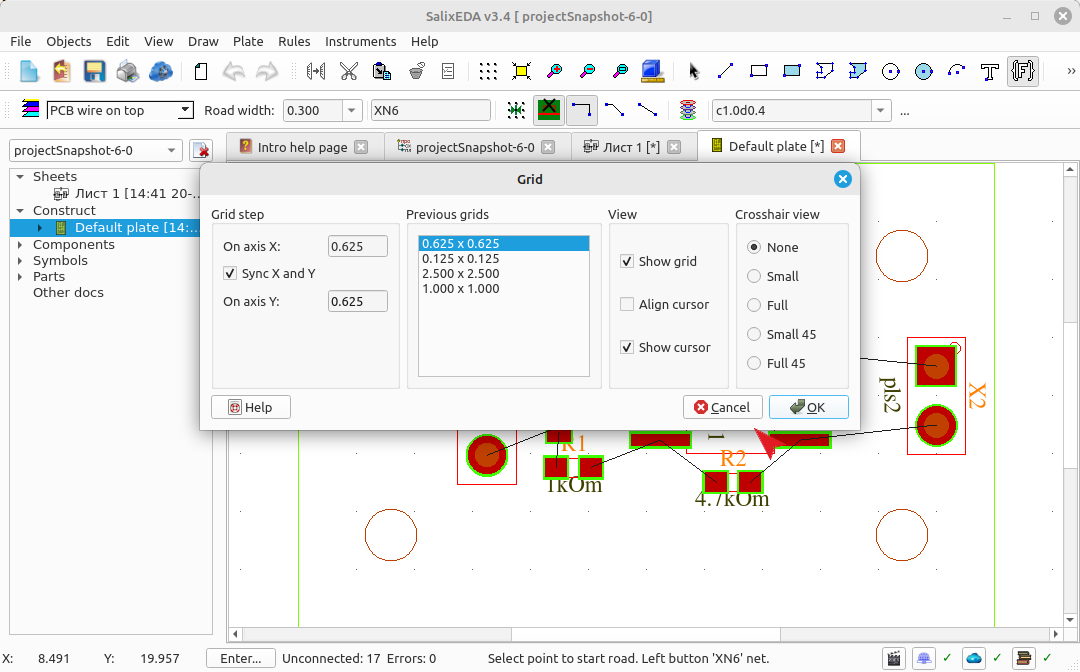
By default, route vertex nodes align to the grid. Let's set a finer grid. To do this, click this button.
In the Grid step field, enter 0.625 or select 0.625x0.625 from the list of previous grids.
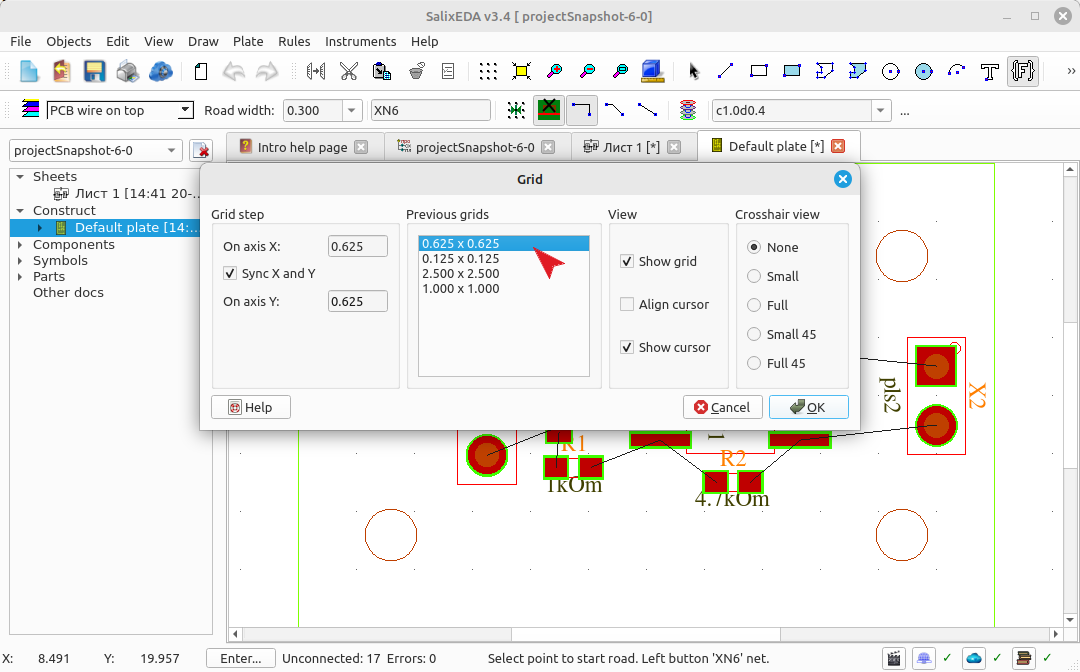
Click OK to finish.
Starting a trace
Move the mouse. At the same time, the system will suggest a starting point for the trace. It shows this point with a small square.
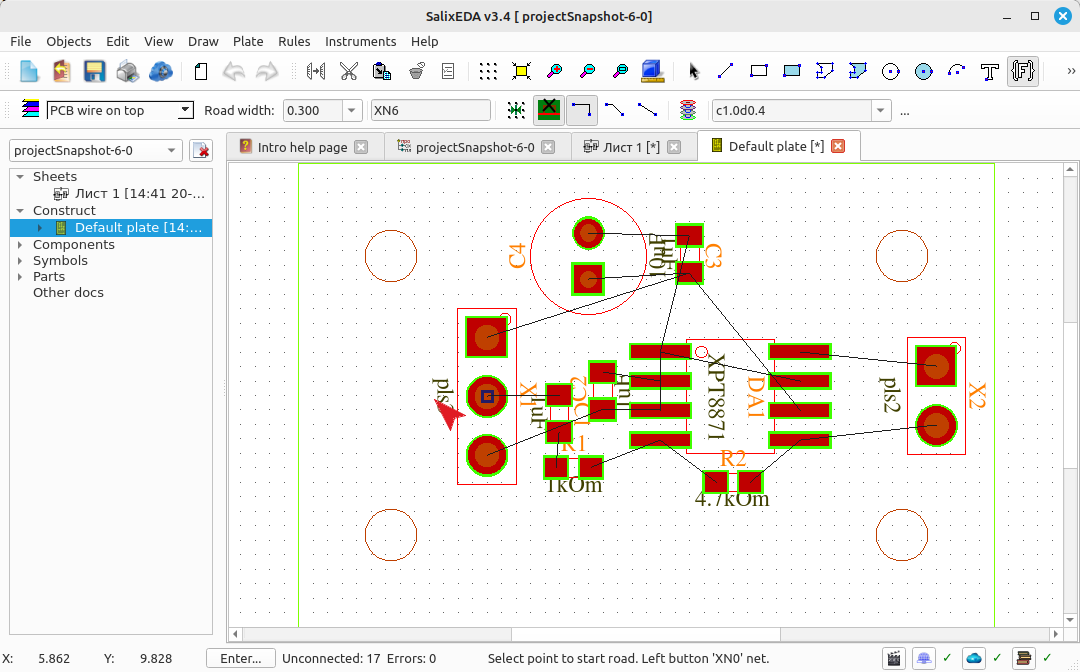
Move the mouse to the first pin of connector X1.
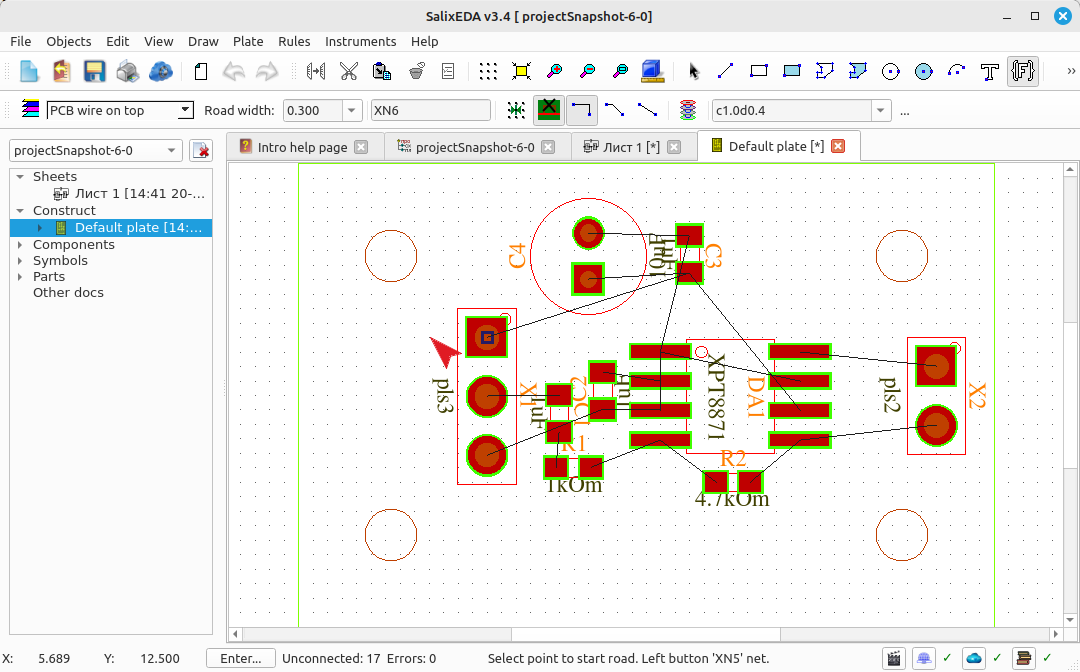
Press the left mouse button to start the trace from the suggested location.
Changing the trace vertex angle
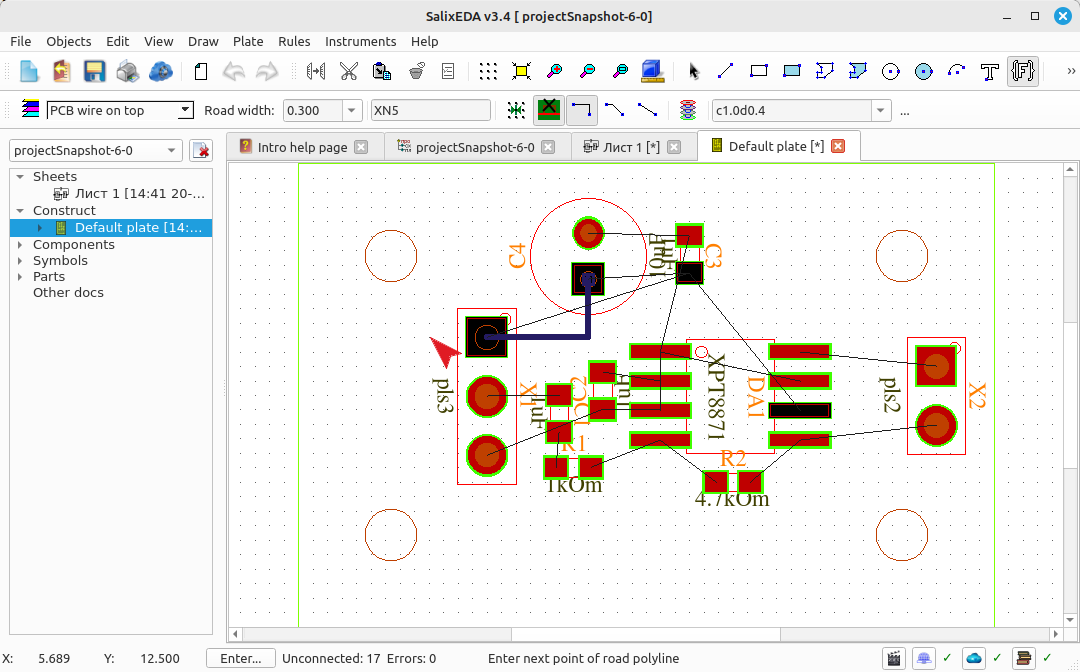
Smart mode suggests a way to complete the trace. The trace is built with 90-degree vertices.
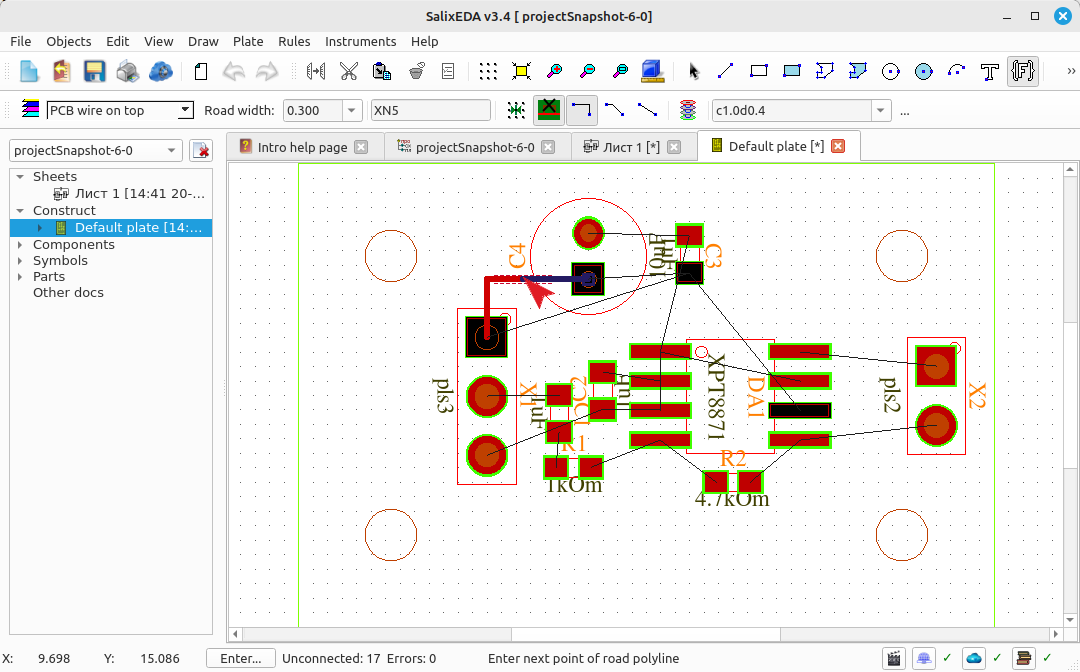
Click this button to change the vertex angle to 45 degrees.
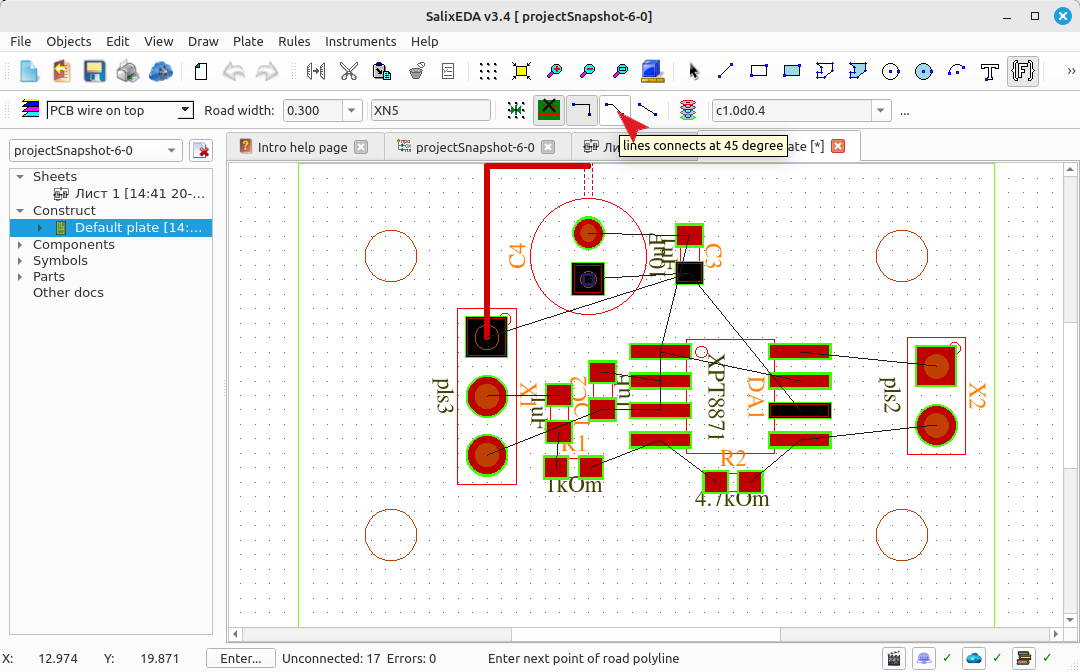
Using smart mode to complete the trace
Move the mouse so that the trace completion looks like the one in the figure.
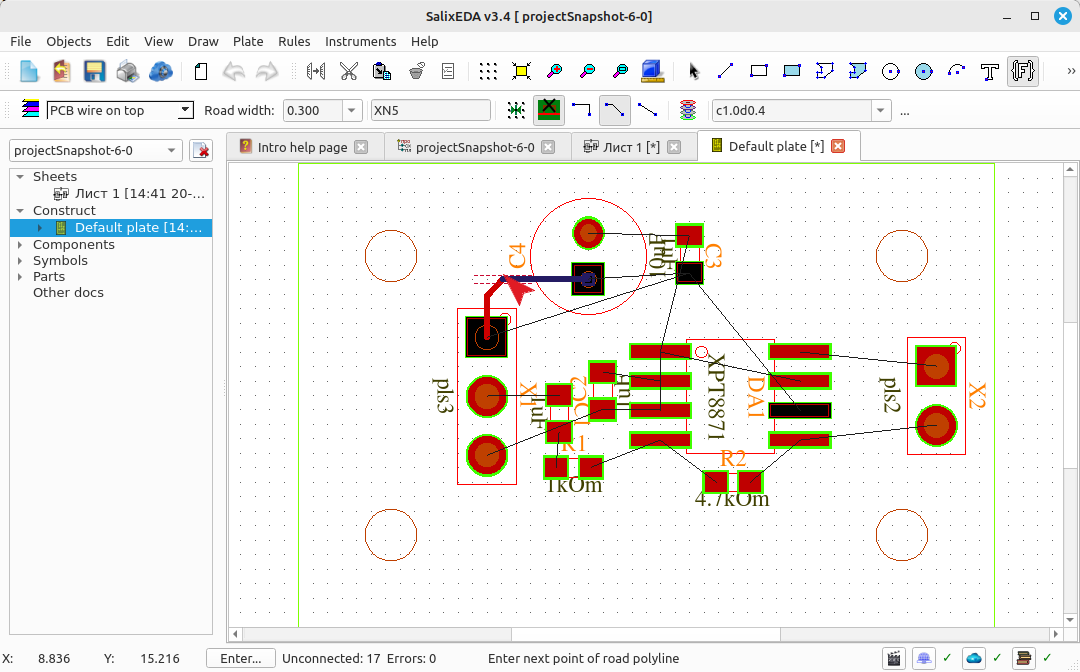
Press the middle mouse button to accept the "smart mode" suggestion.
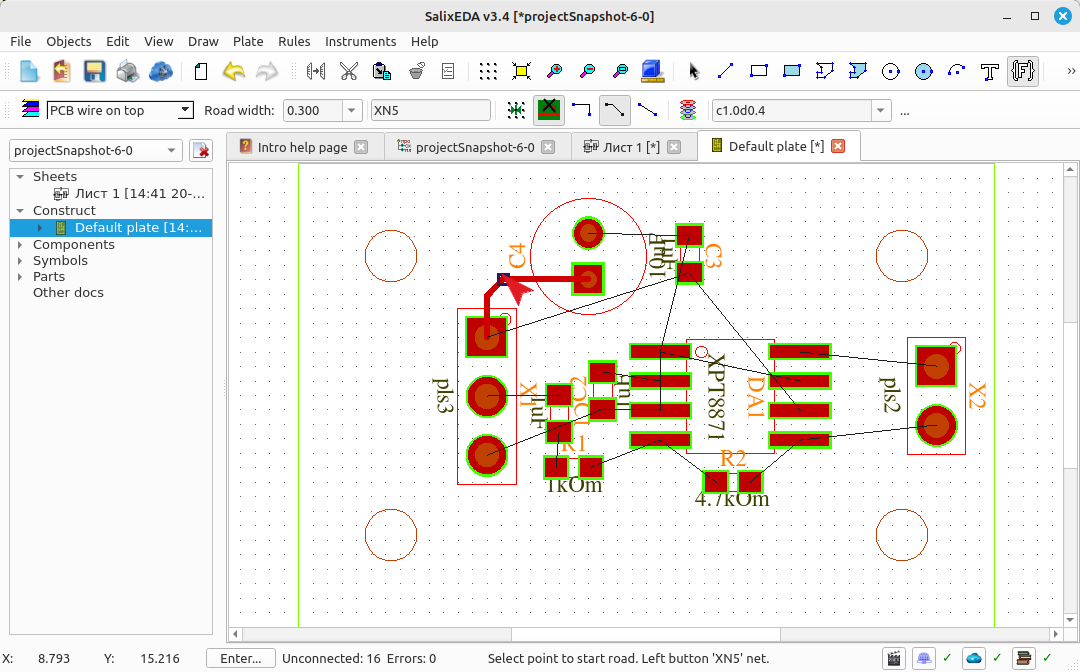
Entering traces using smart mode
Start the next trace by pressing the left mouse button. (C4-C3)
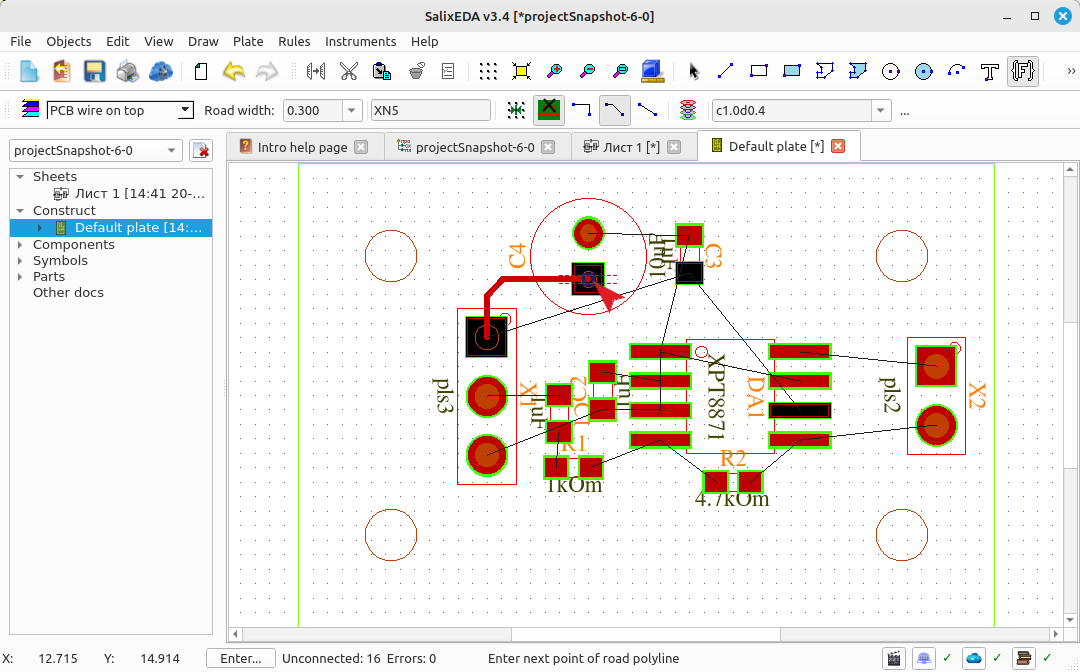
Move the mouse so that "smart mode" builds the correct trace completion.
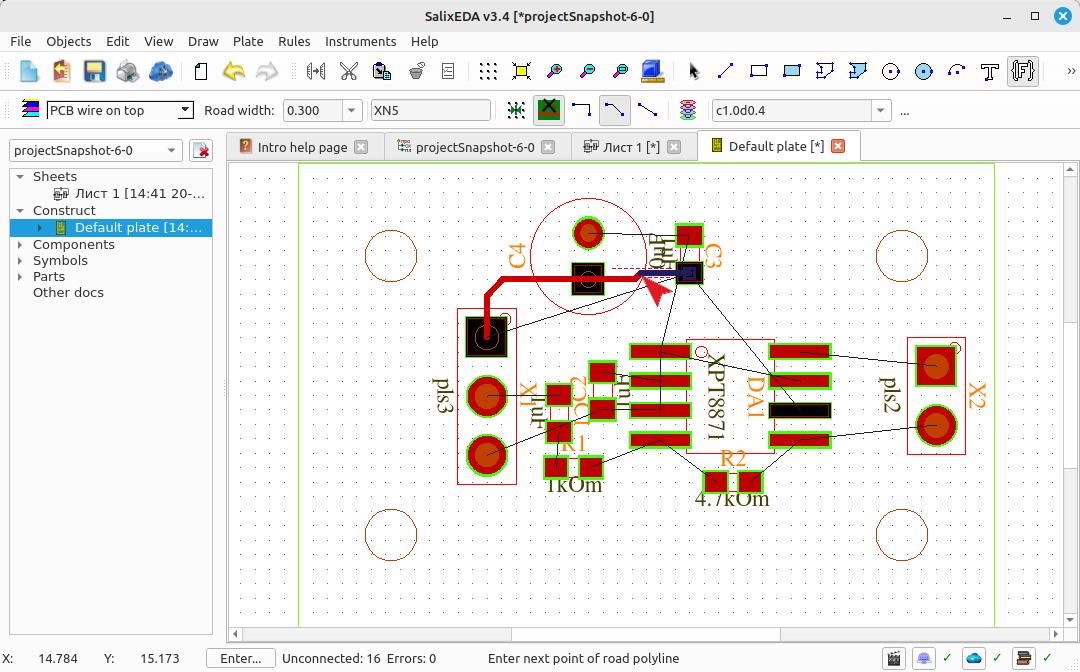
Press the middle mouse button to accept the "smart mode" suggestion. Move the mouse to find the start of a new trace. (C4-C3)
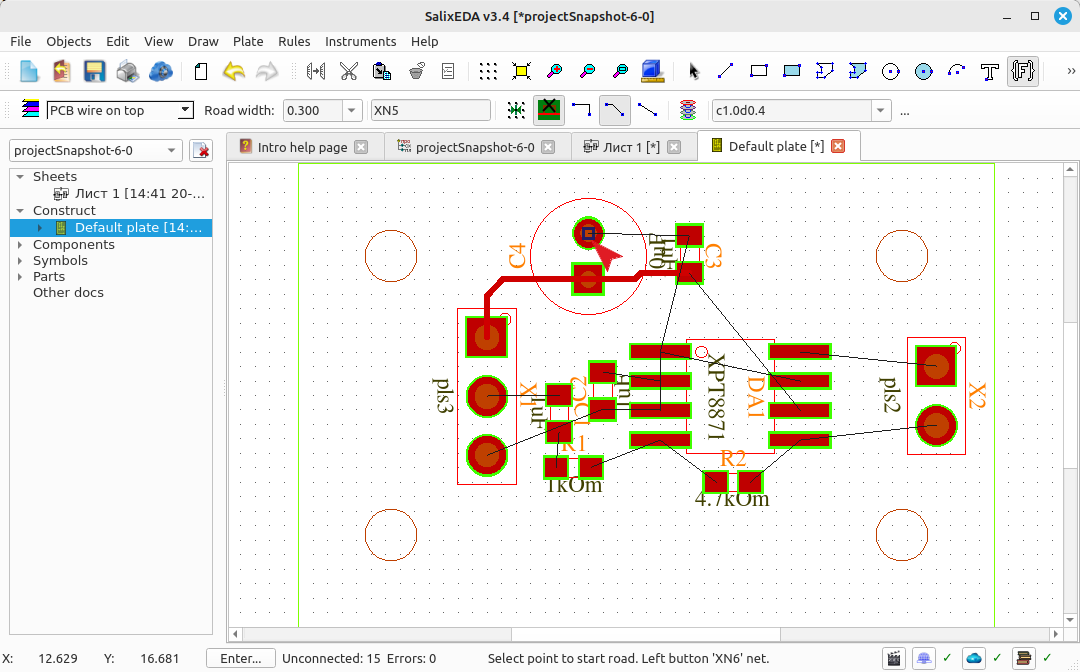
Press the left mouse button to start the trace. Move the mouse so that "smart mode" builds the correct trace completion.
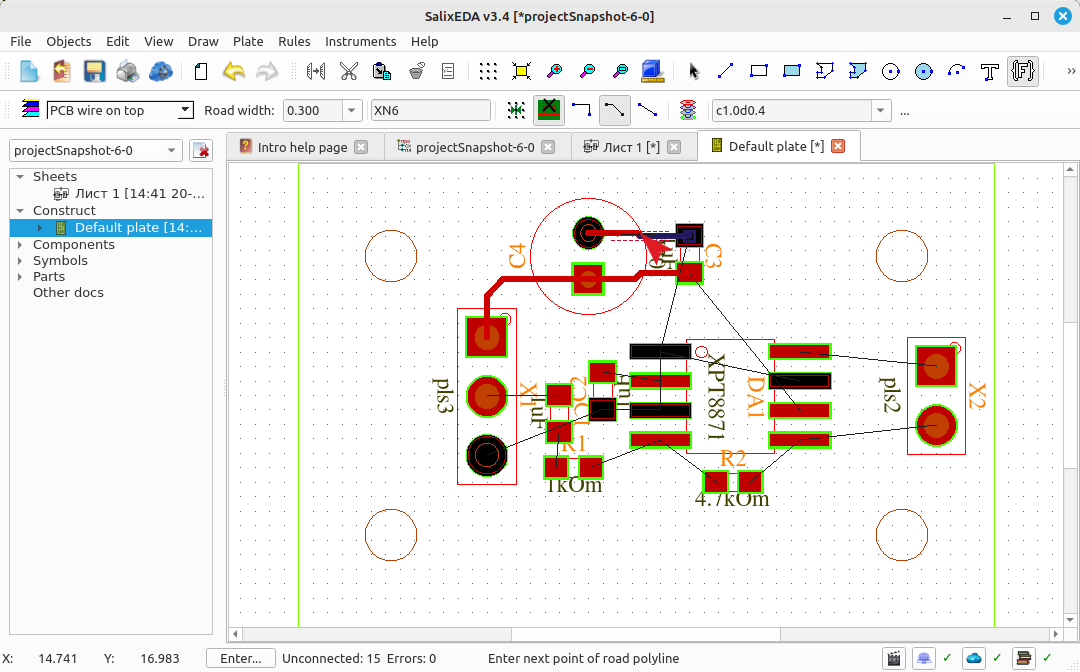
Press the middle mouse button to accept the "smart mode" suggestion. Move the mouse to find the start of a new trace. (DA1-C2)
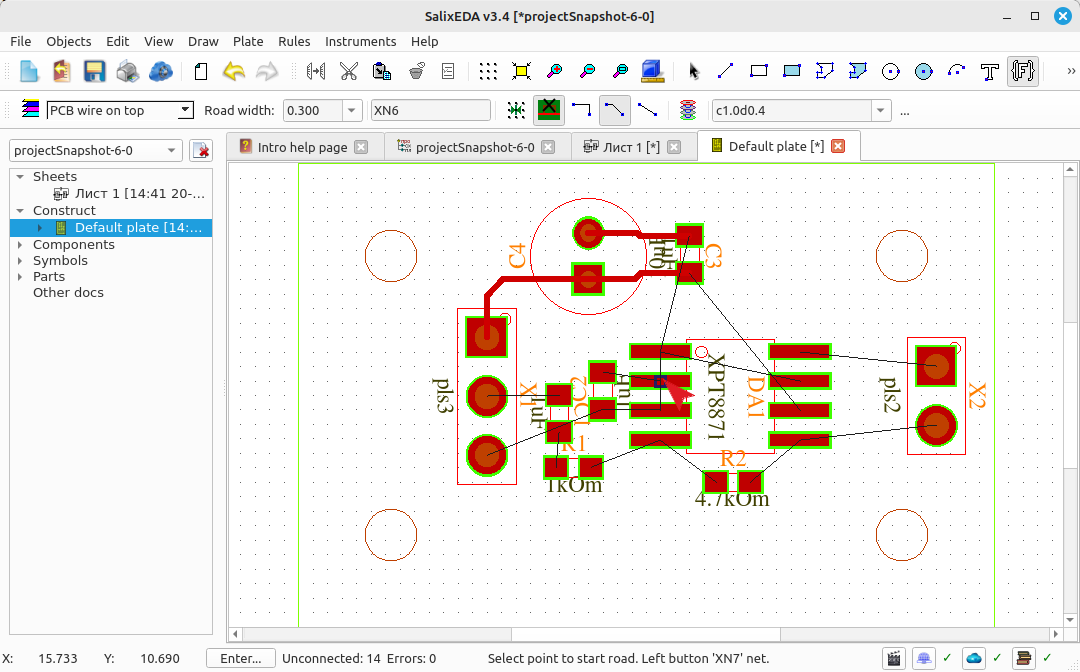
Press the left mouse button to start the trace. Move the mouse so that "smart mode" builds the correct trace completion.
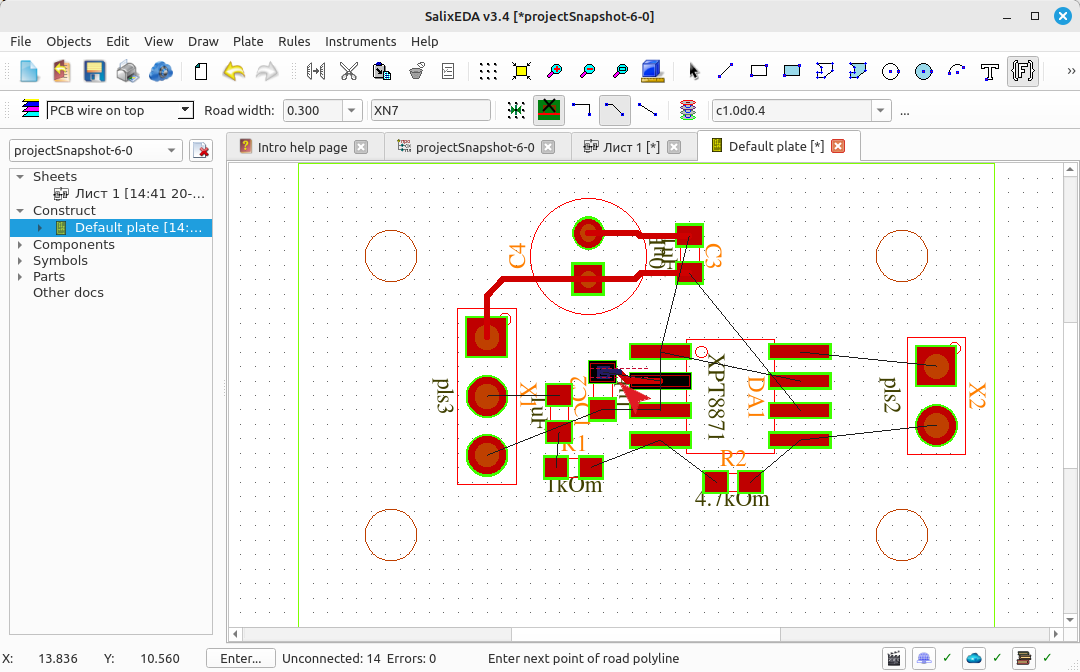
Press the middle mouse button to accept the "smart mode" suggestion. Move the mouse to find the start of a new trace. (DA1-C2)
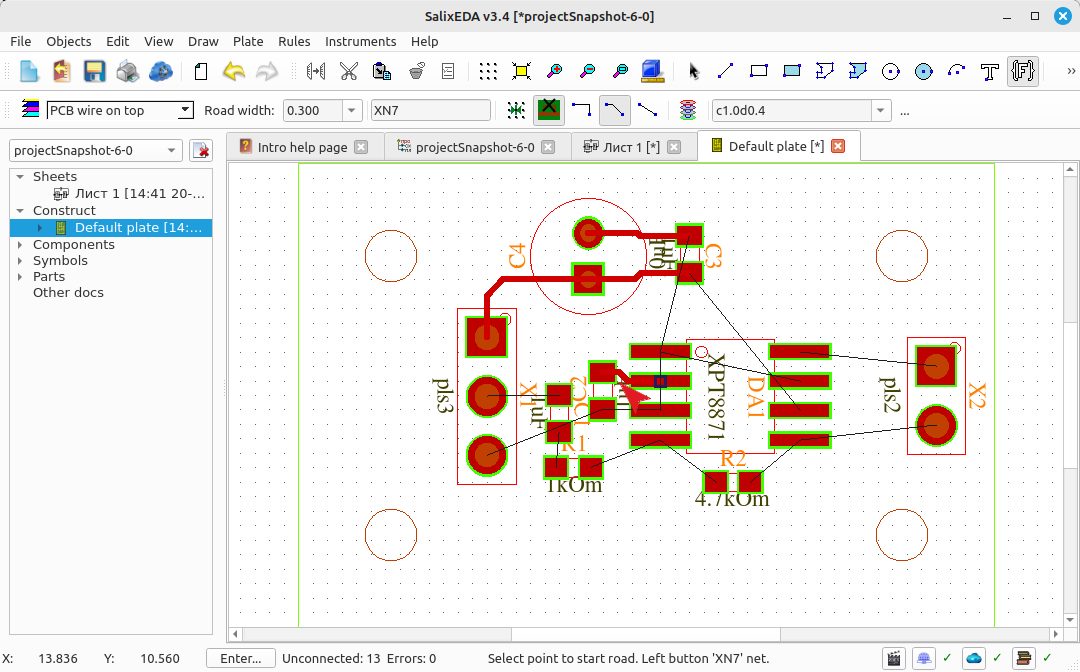
Press the left mouse button to start the trace. Move the mouse so that "smart mode" builds the correct trace completion.
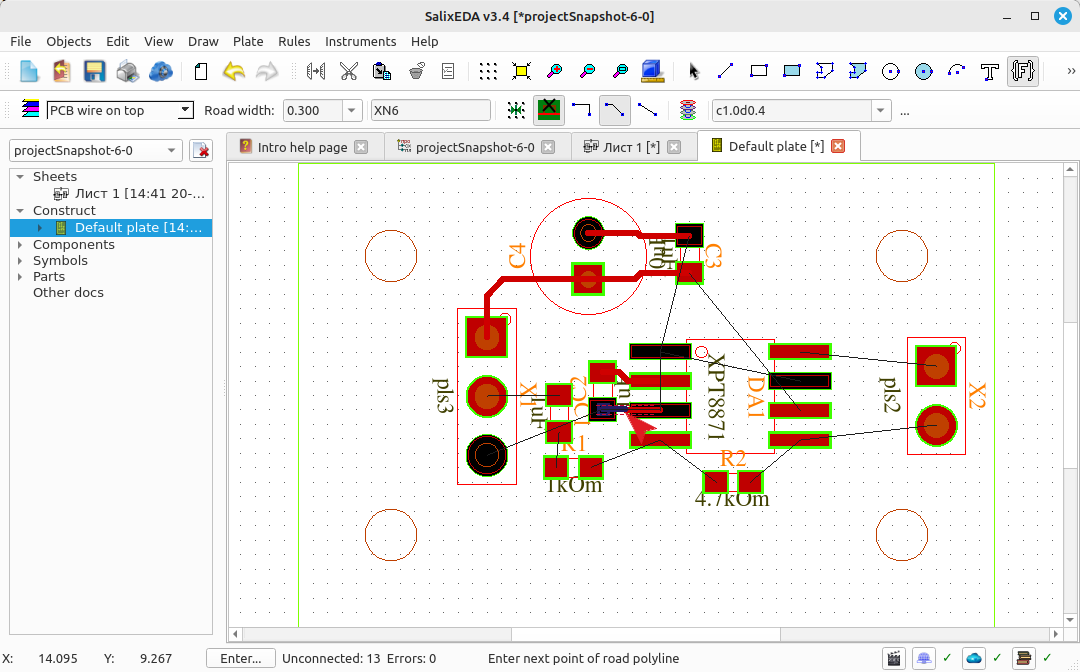
Press the middle mouse button to accept the "smart mode" suggestion. Move the mouse to find the start of a new trace. (DA1-DA1)
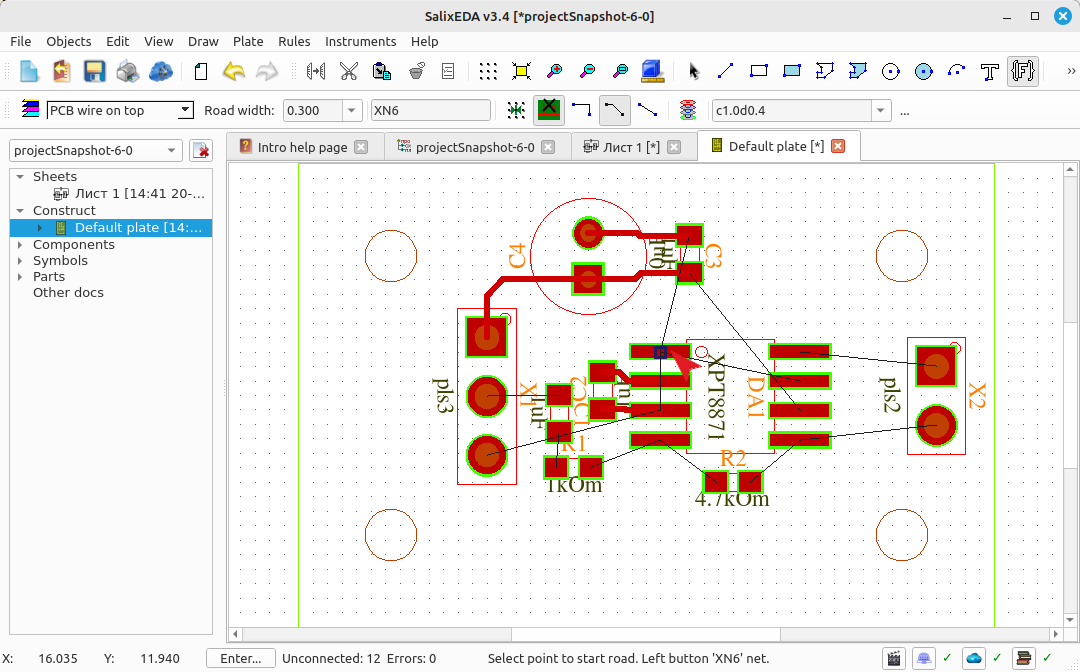
Press the left mouse button to start the trace. Move the mouse so that "smart mode" builds the correct trace completion.
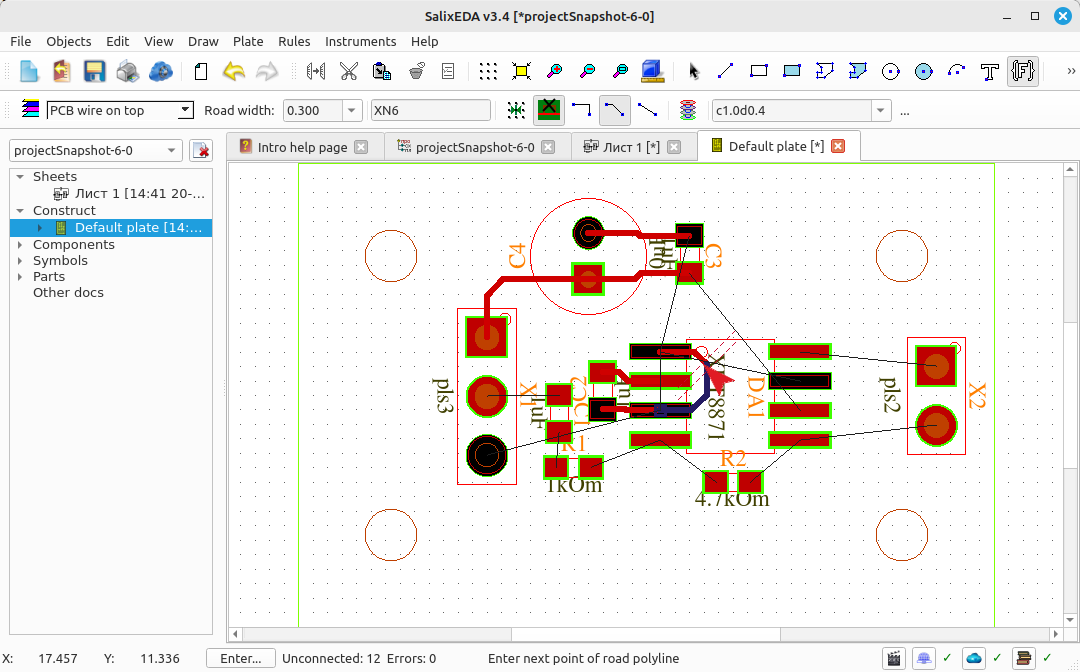
Press the middle mouse button to accept the "smart mode" suggestion. Move the mouse to find the start of a new trace. (X1-C1)
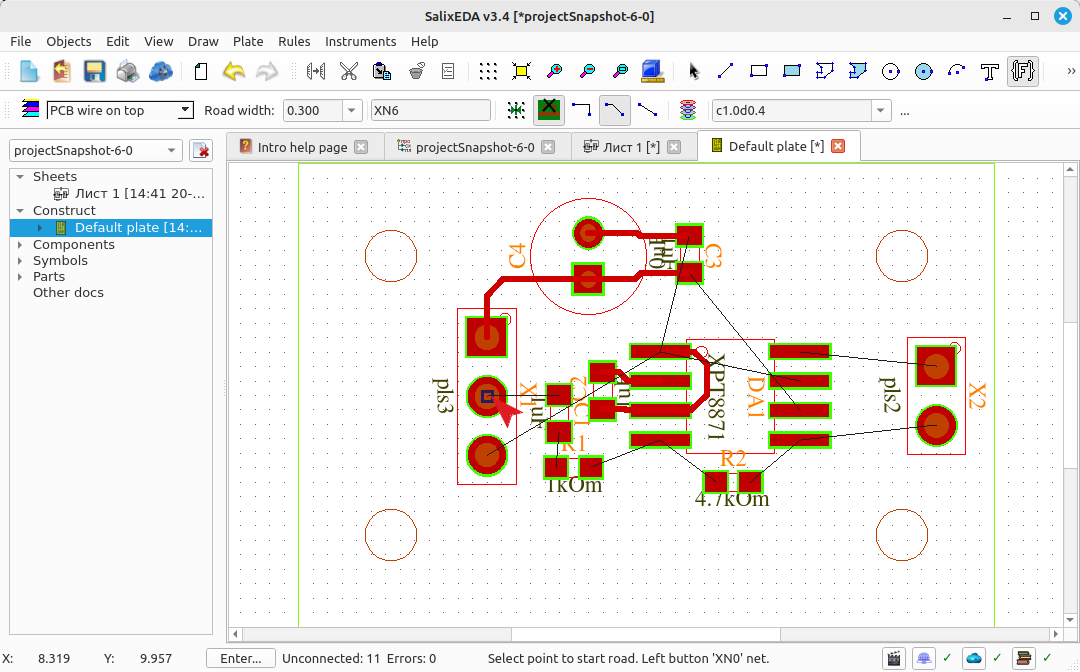
Press the left mouse button to start the trace. Move the mouse so that "smart mode" builds the correct trace completion.
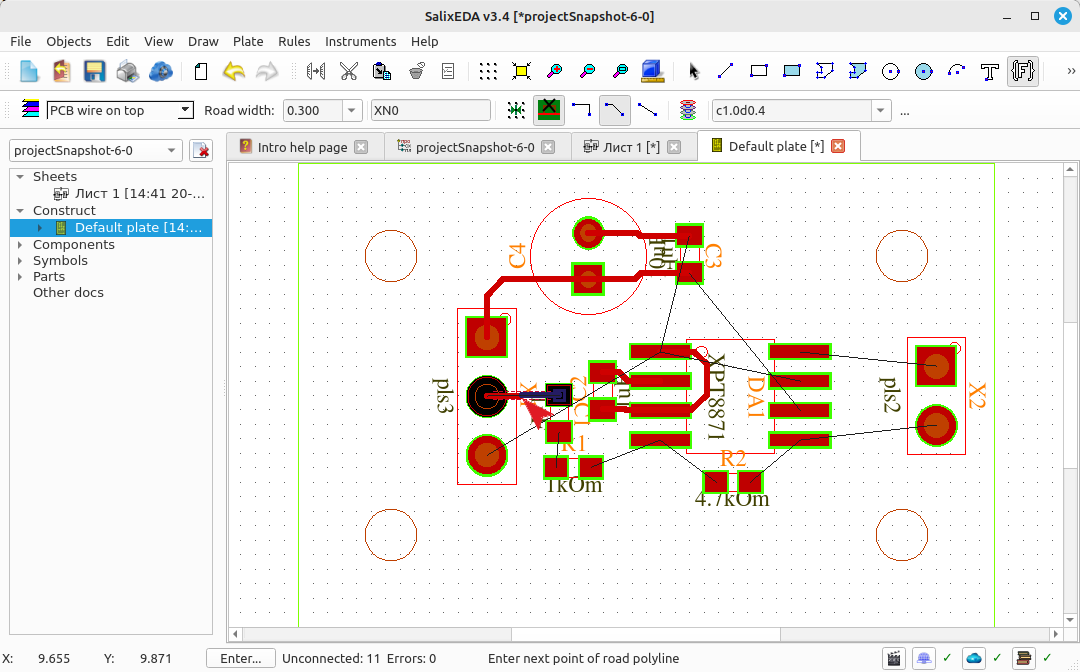
Press the middle mouse button to accept the "smart mode" suggestion. Move the mouse to find the start of a new trace. (C1-R1)
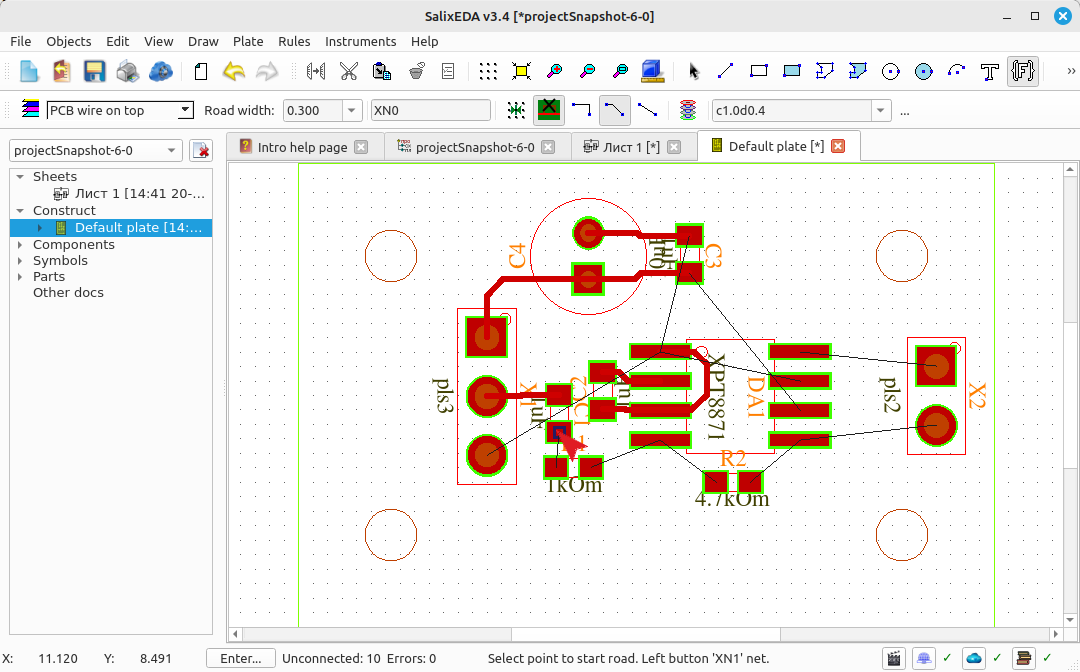
Press the left mouse button to start the trace. Move the mouse so that "smart mode" builds the correct trace completion.
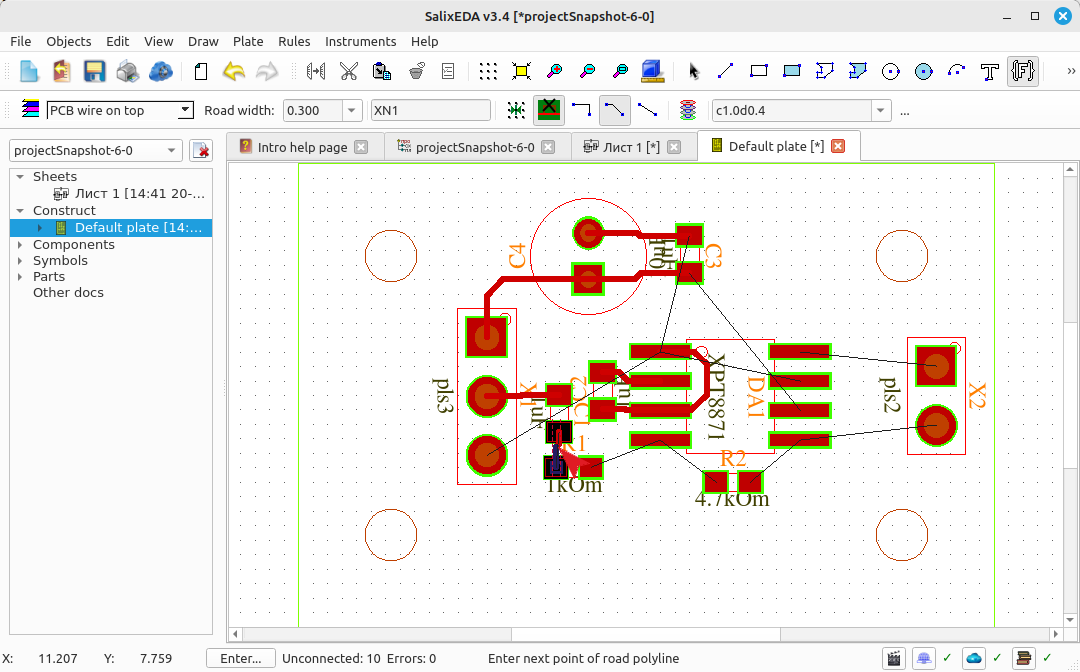
Press the middle mouse button to accept the "smart mode" suggestion. Move the mouse to find the start of a new trace. (DA1-R1)
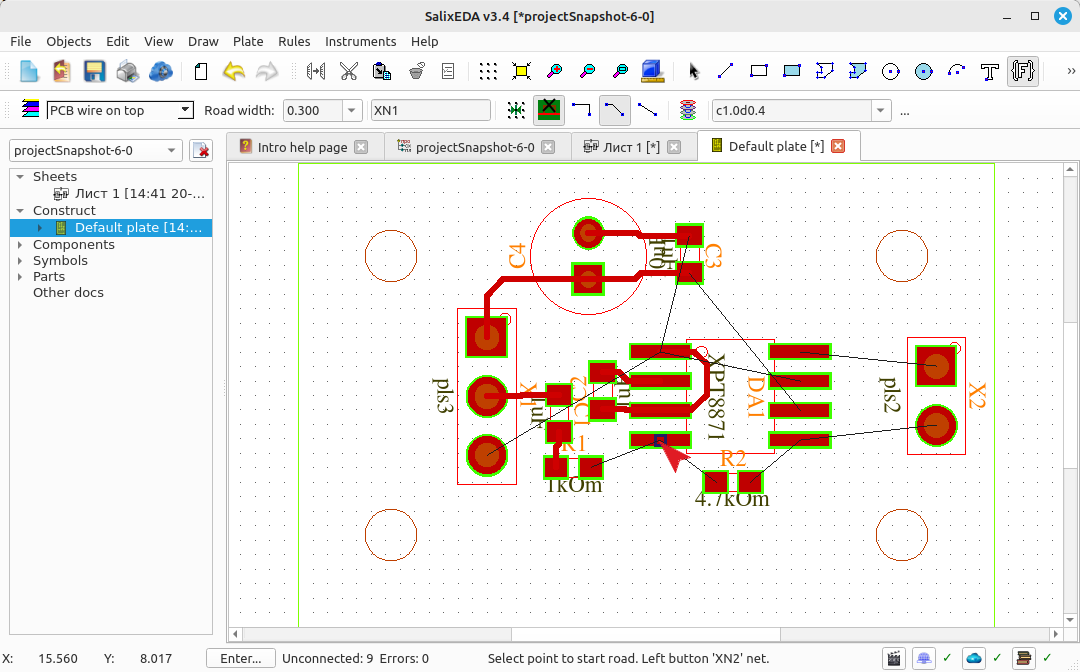
Press the left mouse button to start the trace. Move the mouse so that "smart mode" builds the correct trace completion.
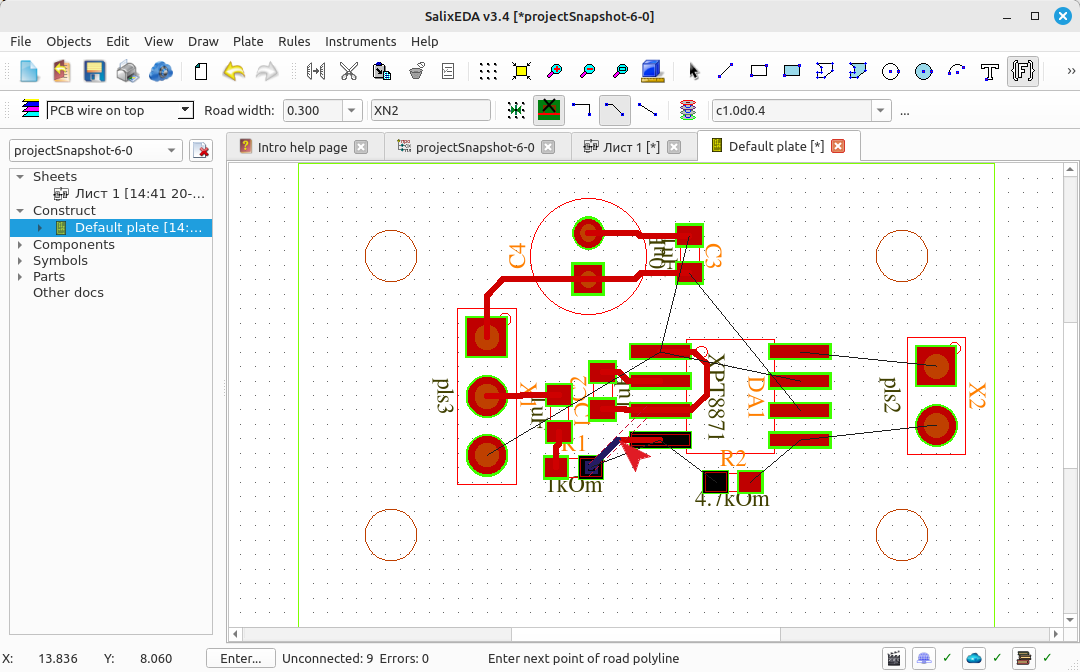
Press the middle mouse button to accept the "smart mode" suggestion. Move the mouse to find the start of a new trace. (DA1-R2)
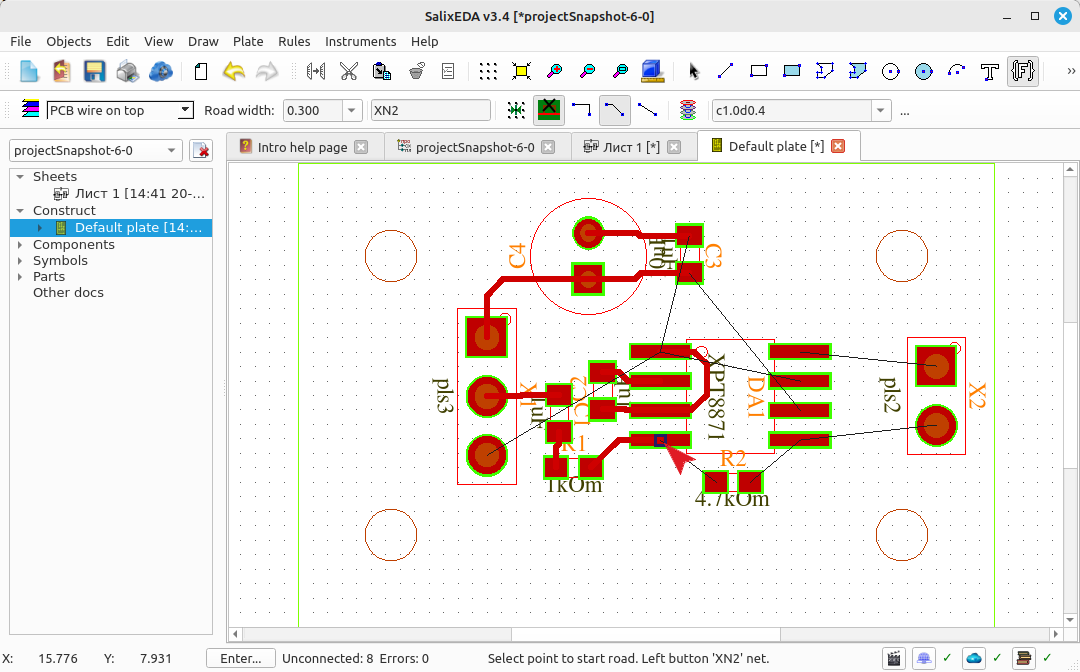
Press the left mouse button to start the trace. Move the mouse so that "smart mode" builds the correct trace completion.
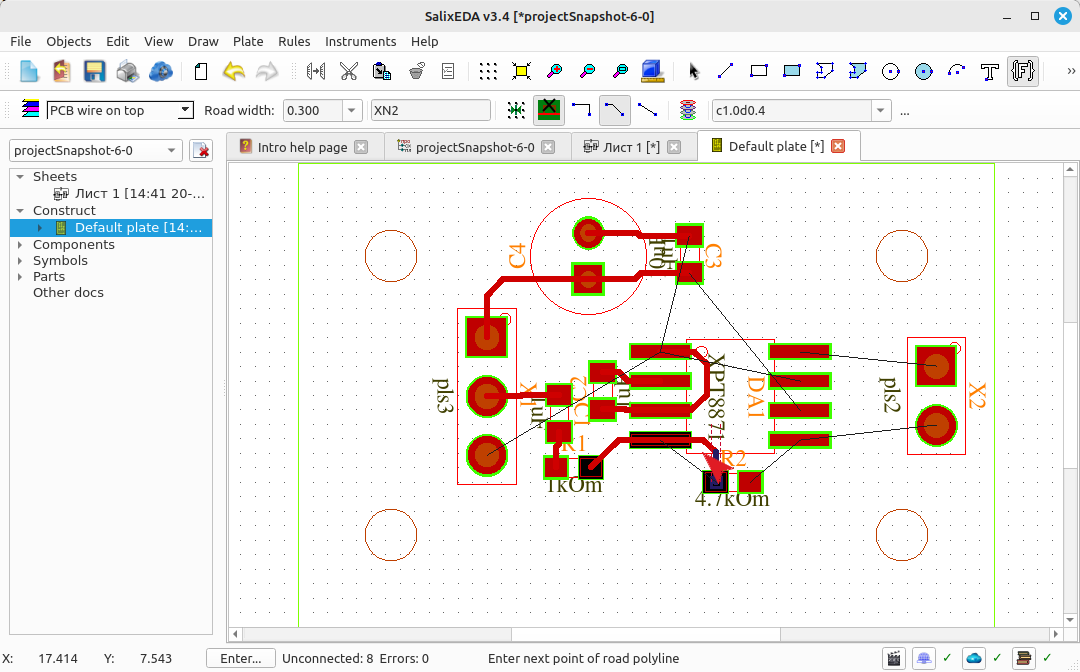
Press the middle mouse button to accept the "smart mode" suggestion. Move the mouse to find the start of a new trace. (DA1-R2)
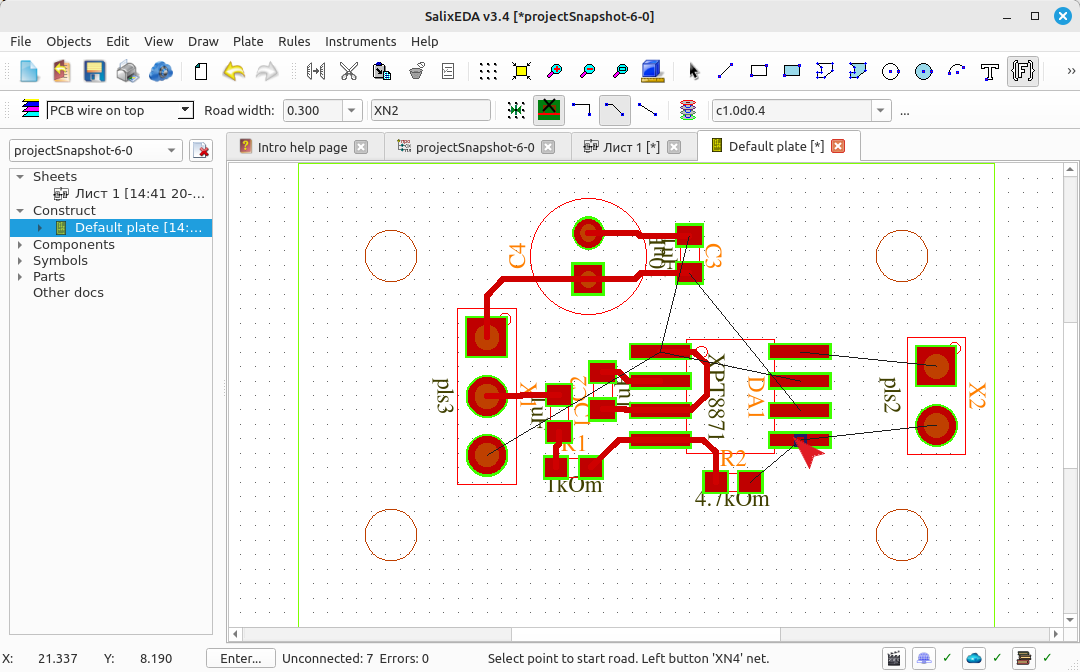
Press the left mouse button to start the trace. Move the mouse so that "smart mode" builds the correct trace completion.
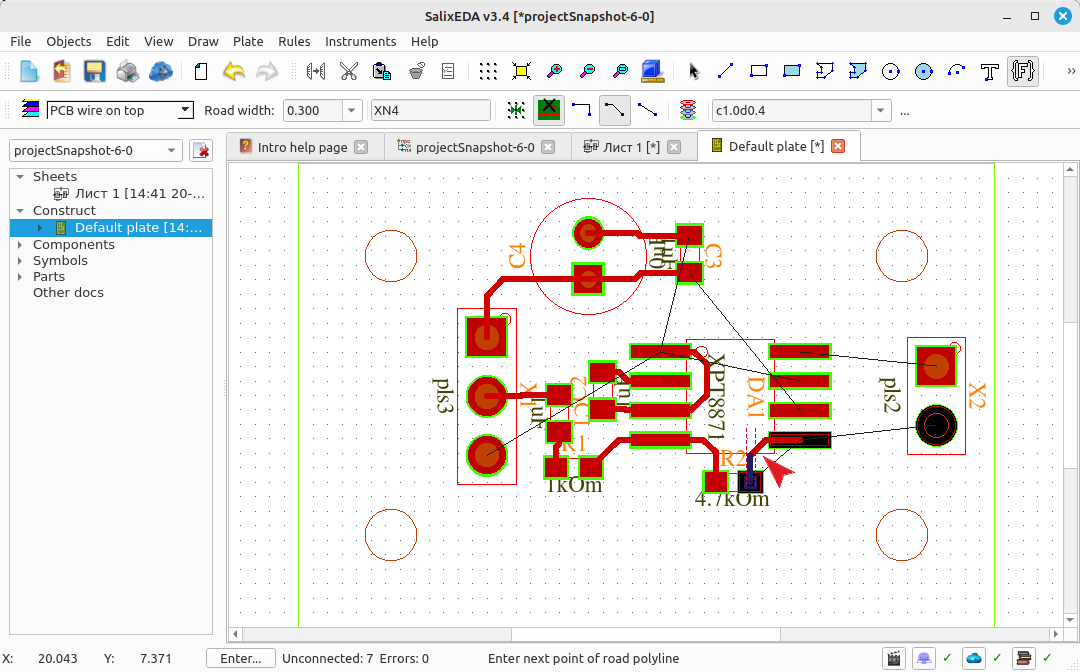
Press the middle mouse button to accept the "smart mode" suggestion. Move the mouse to find the start of a new trace. (DA1-X2)
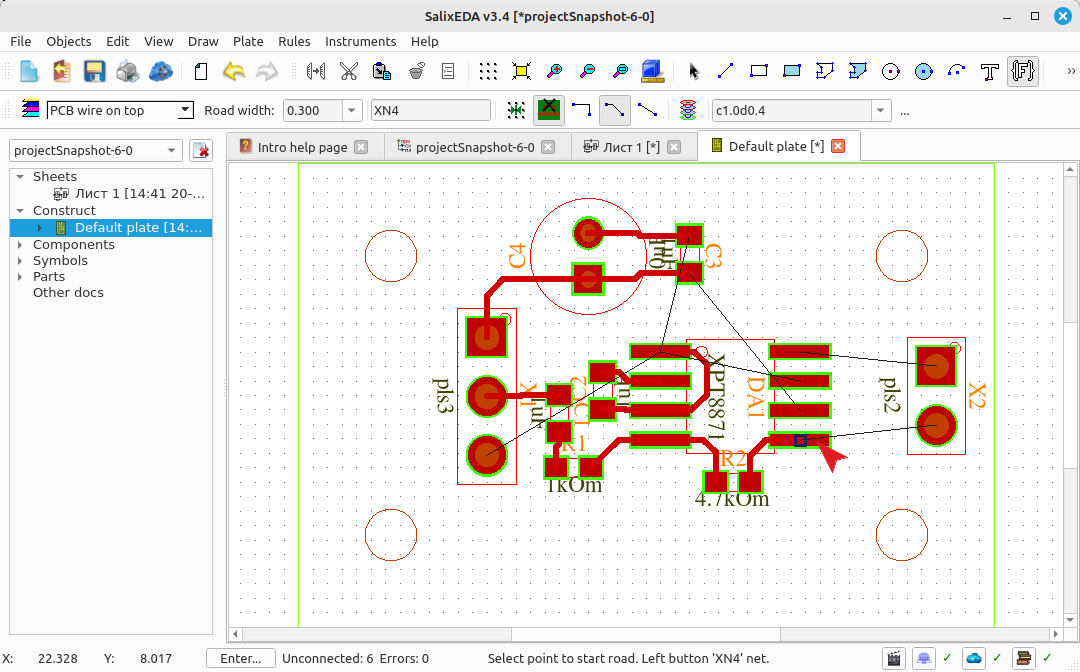
Press the left mouse button to start the trace. Move the mouse so that "smart mode" builds the correct trace completion.
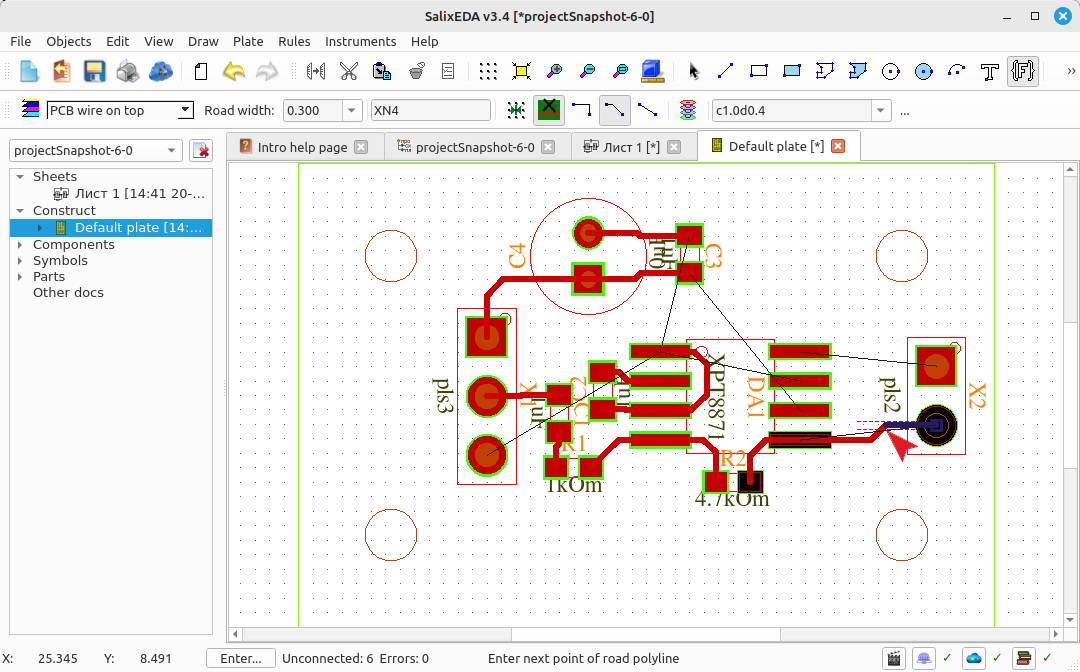
Press the middle mouse button to accept the "smart mode" suggestion. Move the mouse to find the start of a new trace. (DA1-X2)
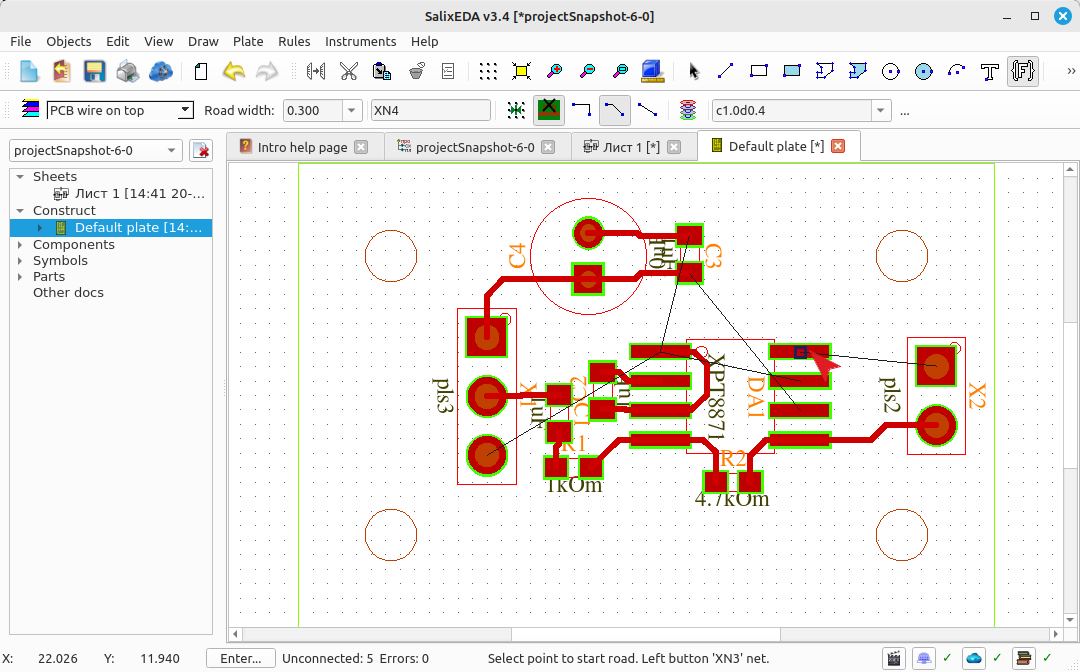
Press the left mouse button to start the trace. Move the mouse so that "smart mode" builds the correct trace completion.
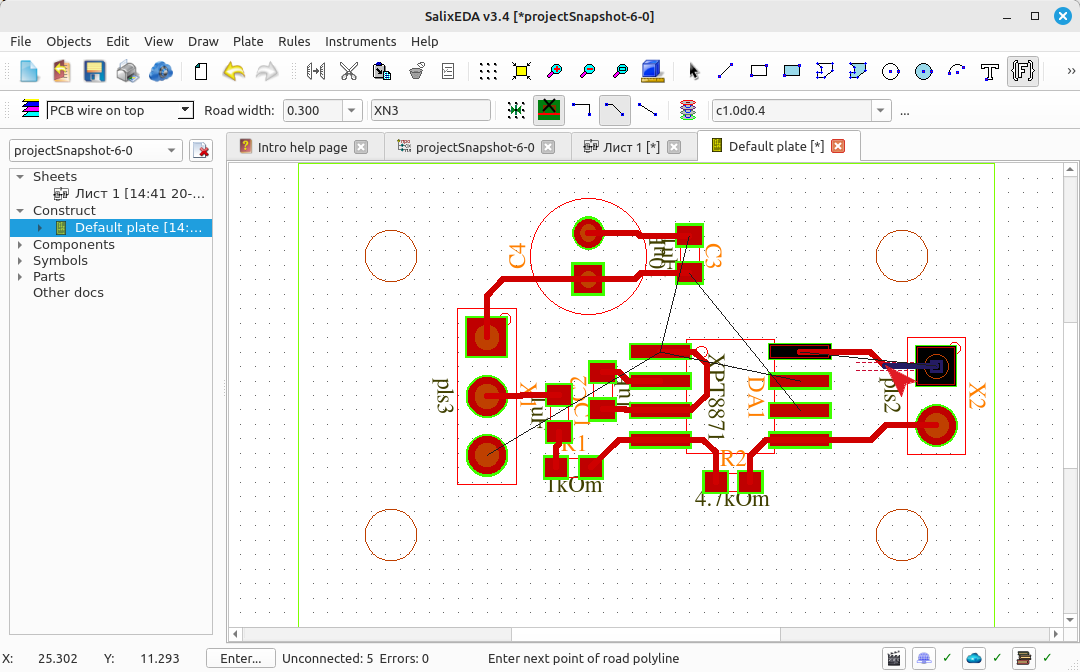
Press the middle mouse button to accept the "smart mode" suggestion. Move the mouse to find the start of a new trace. (C3-DA1)
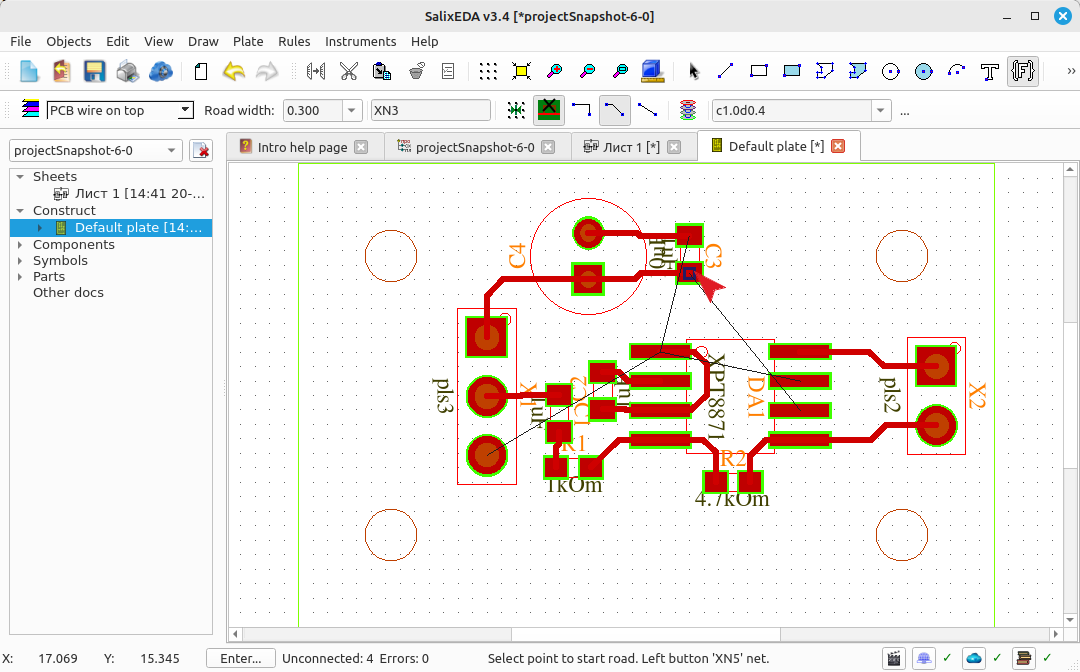
Press the left mouse button to start the trace. Move the mouse so that "smart mode" builds the correct trace completion.
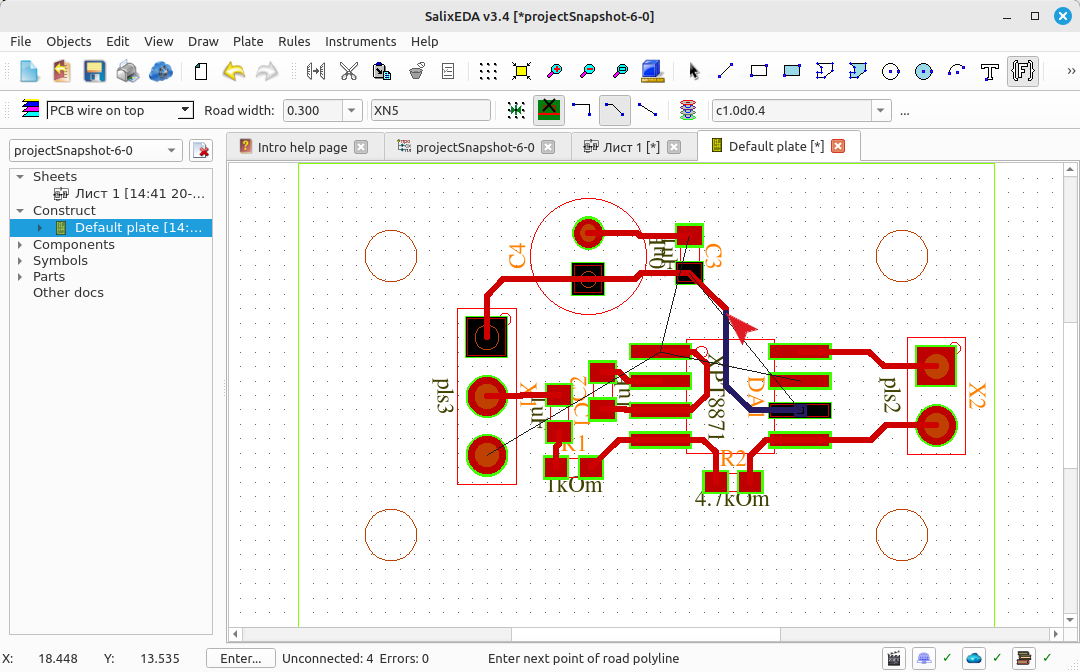
Press the middle mouse button to accept the "smart mode" suggestion. Move the mouse to find the start of a new trace. (C3-DA1)
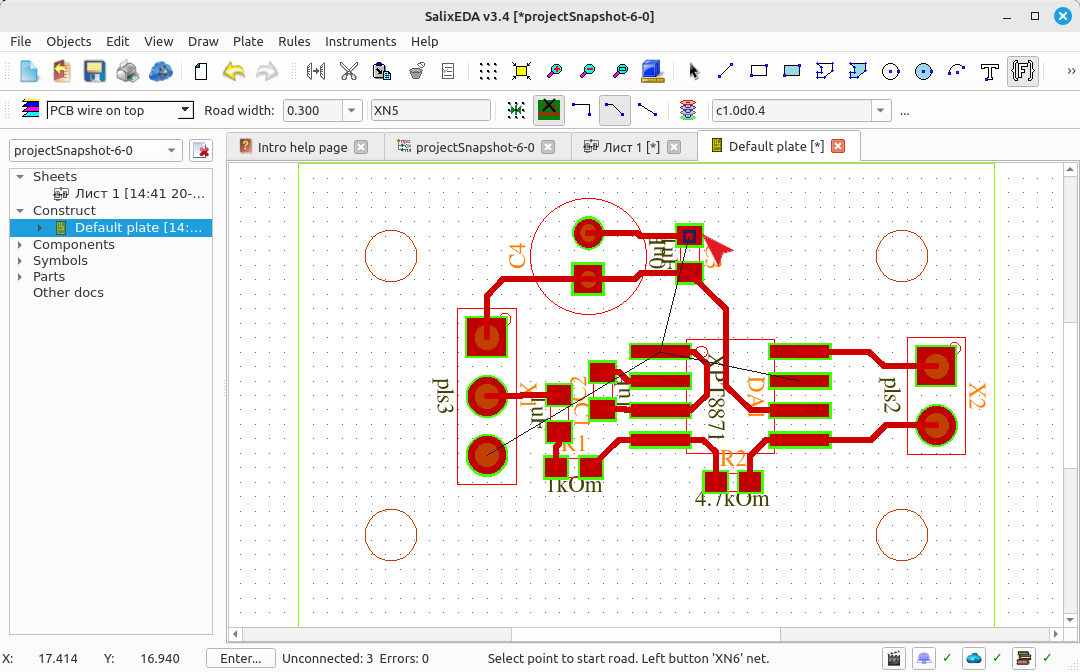
Press the left mouse button to start the trace. Move the mouse so that "smart mode" builds the correct trace completion.
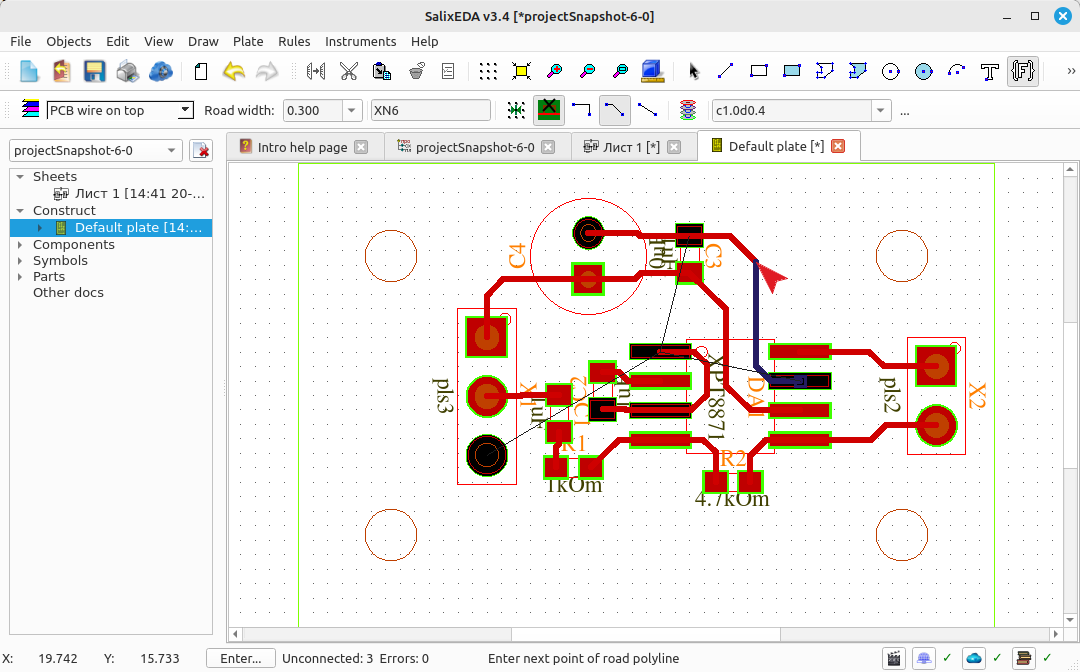
Press the middle mouse button to accept the "smart mode" suggestion. Move the mouse to find the start of a new trace. (C4-X1)
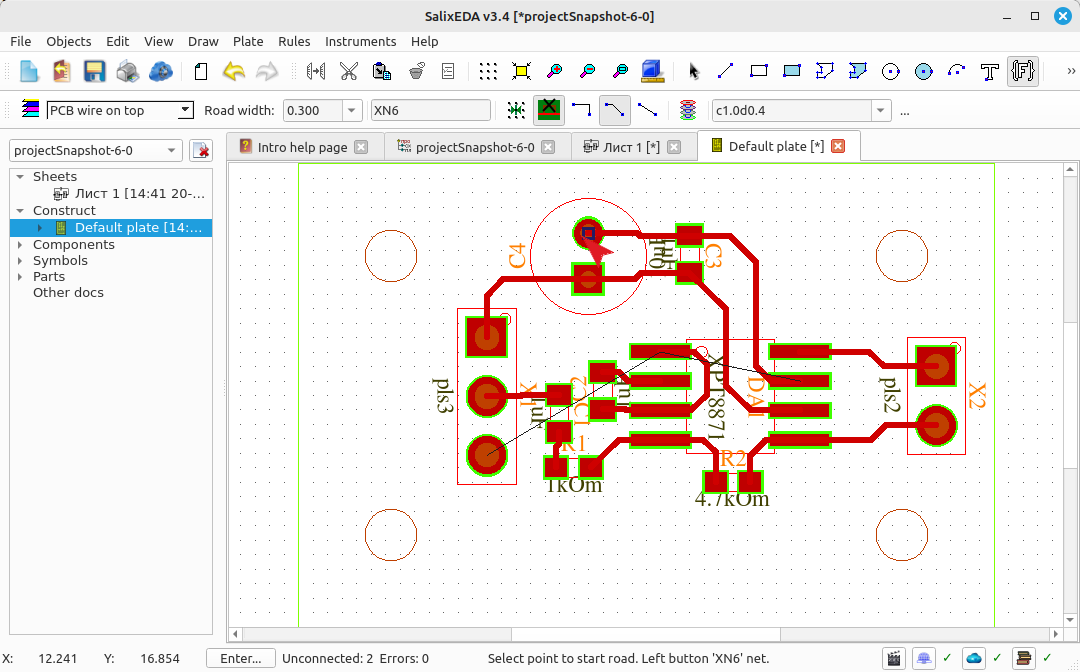
Press the left mouse button to start the trace. Move the mouse so that "smart mode" builds the correct trace completion.
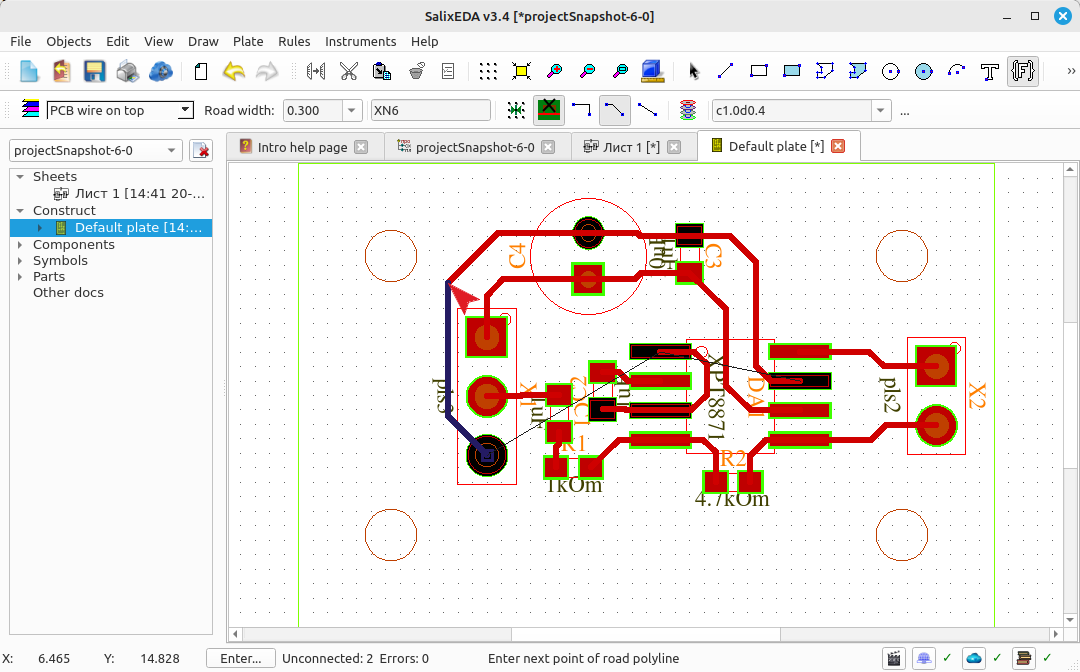
Press the middle mouse button to accept the "smart mode" suggestion. Move the mouse to find the start of a new trace. (C2-X1)
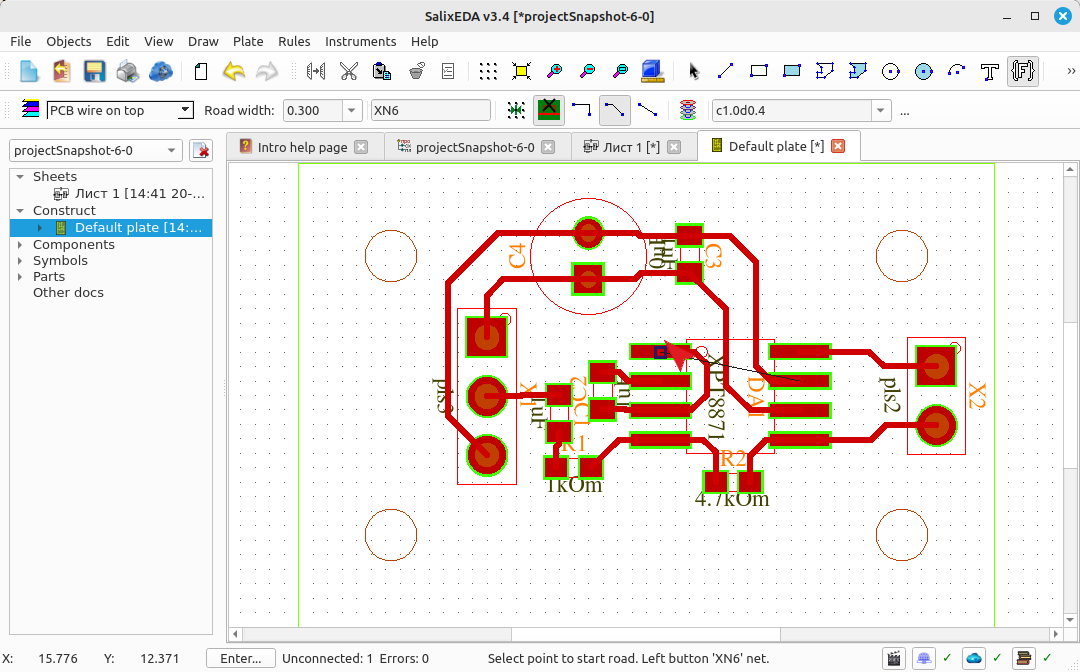
Changing the routing layer
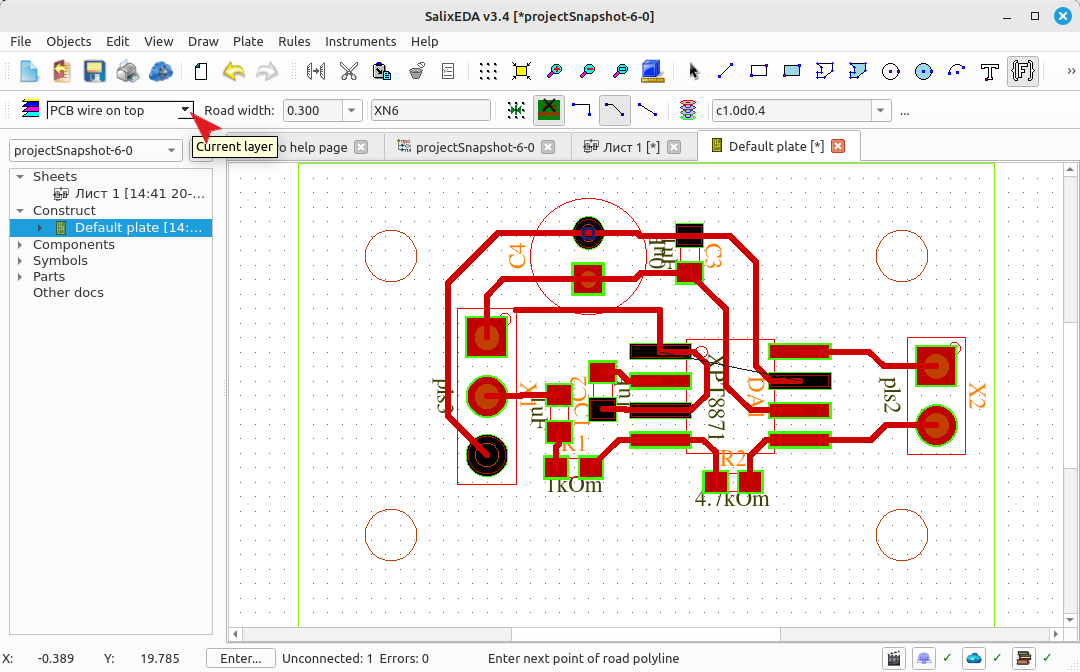
Press the left mouse button to start the trace. This trace does not stay on one layer, so you need to switch to the bottom layer.
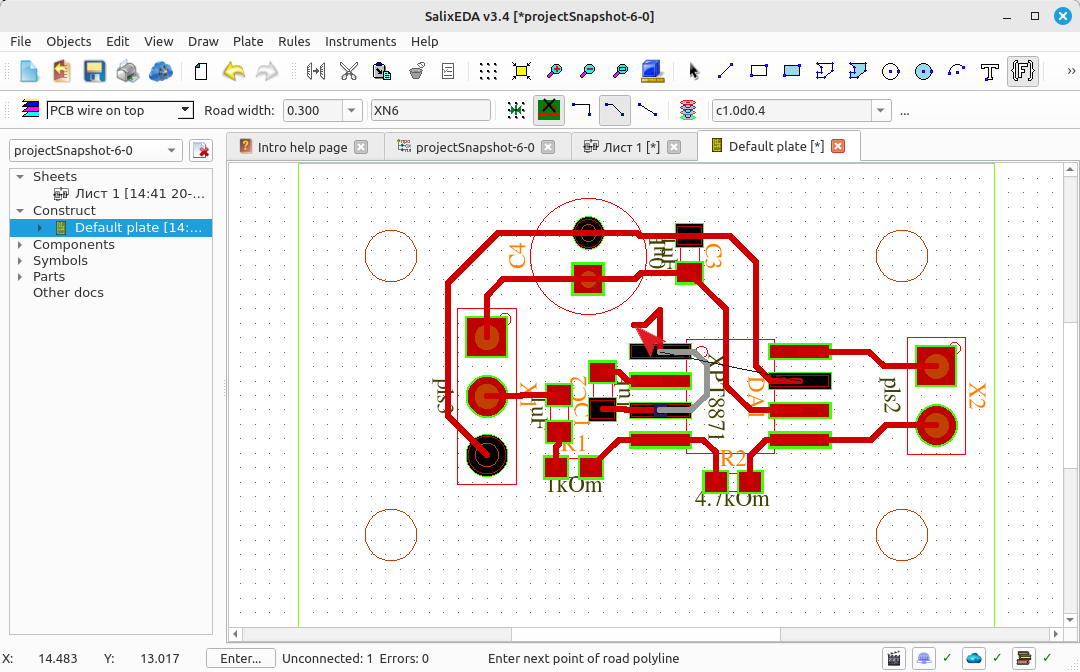
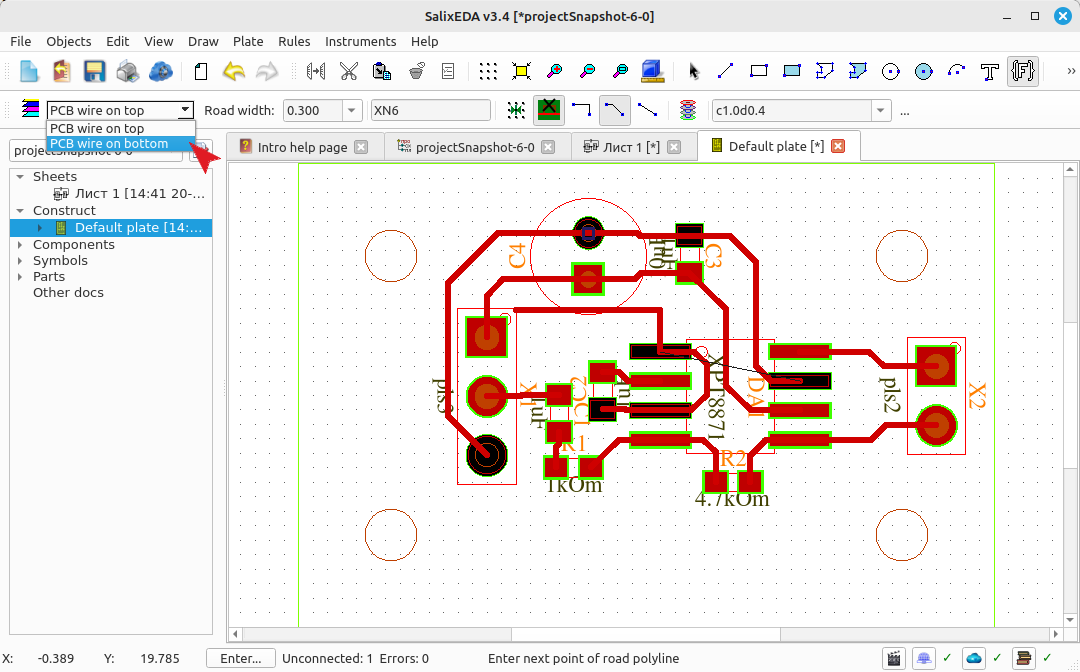
Click this button to open the list of available layers.
Select bottom
This adds a via.
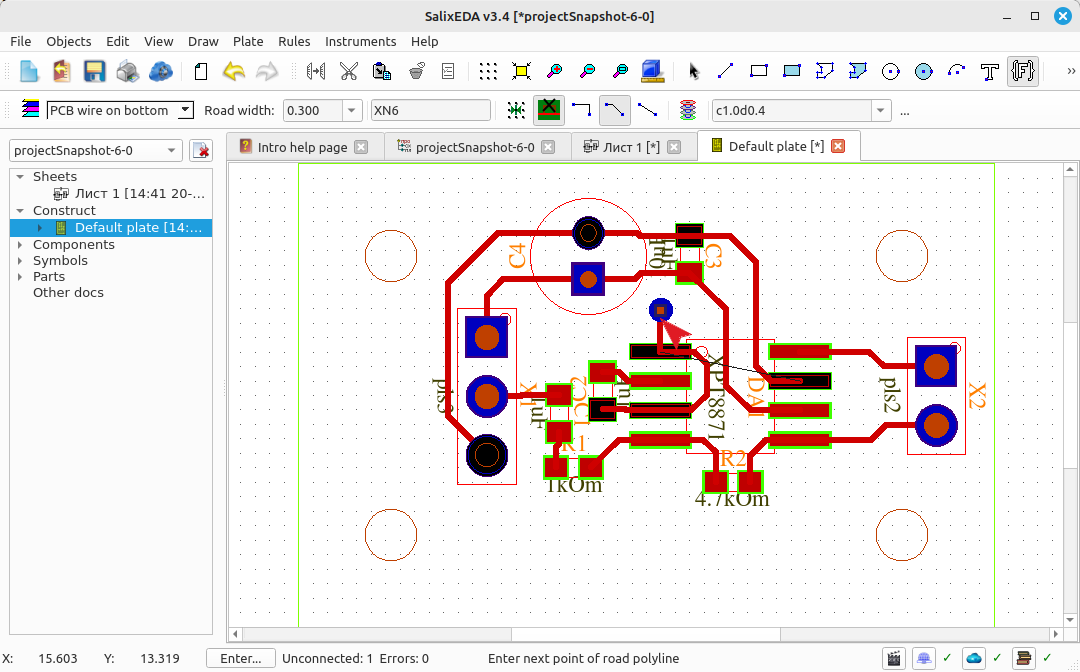
And smart mode now works on the bottom layer.
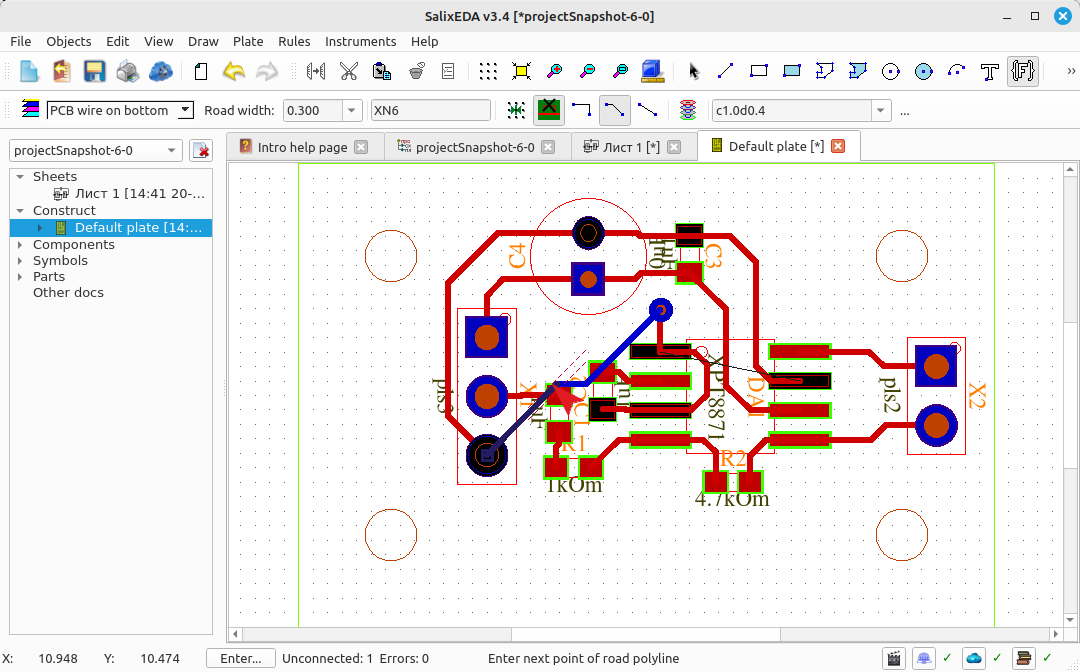
Press the middle mouse button to accept the "smart mode" suggestion. Press the right mouse button to finish routing.